
Auto Translate Video Player: Preview & Share Localized Content Natively
Stop downloading and re-uploading test clips. Discover how to preview and listen to all your voice-cloned translations in one interactive player.
TL;DR: Manual QA workflows force creators to waste hours downloading translated video tracks and reviewing them inside local media players. With the auto translate video player preview dashboard inside Braiv Player, you can immediately preview, listen, and switch between multiple localized voice-cloned tracks natively in your browser before committing to a final publish.
How do you preview translated audio tracks on a video player before exporting?
To preview your localized audio tracks instantly, log into Braiv Studio, select your target video, and click the **Preview** button in the upper-right corner. This opens an interactive **auto translate video player** in another browser tab, allowing you to click the flag icons or select any active translation from the dropdown list to listen to hyper-realistic, voice-cloned dubbing tracks on the fly.
The Editing Bottleneck: Why Local Downloads Break the Localization Flow
Translating and dubbing video is historically a cumbersome process. Once your voice clone or translation is ready, the traditional testing and quality assurance (QA) pipeline is full of friction:
- The Download Grind: You must download multiple large video files for each targeted language (e.g., English, Spanish, Portuguese) to listen to them.
- Local Player Limitations: Standard media players cannot easily map multiple synced audio dubs onto a single timeline for side-by-side comparison.
- Wasted Storage Space: Storing 5-10 localized variants of a single 30-minute podcast on your hard drive quickly consumes gigabytes of local drive space.
To streamline this process, modern creators utilize an interactive, cloud-based auto translate video player. Rather than forcing exports for review, the player houses all active localized audio tracks, translated captions, and metadata inside a single smart frame, allowing you to switch tracks instantly.
Step-by-Step: How to Preview and Audit Your Translated Video in Braiv Player
Checking the accuracy and tone of your translations before sharing them globally is simple. Here is the exact step-by-step workflow to preview your localized public page inside Braiv:
1. Select Your Video
Navigate to your Braiv Studio Video Library and click on the video you have just translated or dubbed.
2. Click the Preview Button
From the Language and Translations interface, locate the top navigation bar. Click the Preview button positioned in the upper-right corner of the workspace.
3. Open the Interactive Public Tab
The platform automatically generates a secured public link and opens it in another browser tab. This is a real-time representation of what your global viewers will see.
4. Play and Switch Languages Natively
Click on the Play button in the center of the screen to start playback. To toggle between your translated voice clones:
- Locate the player control bar.
- Look for the national flag icons, which represent the languages your video has been translated into.
- Click the three dots (options icon) next to the flags to reveal the full language selection dropdown.
- Select your target language from the list. The player instantly hot-swaps the audio stream and matching subtitles without pausing or buffering.
Note: The selection menu will dynamically display only the languages you have activated and processed inside your Braiv workspace.
Comparing Multi-Language Video Player Tech
When deploying a global content strategy, your video player’s technical capabilities determine your retention rate. Let’s compare the top players in the industry.
1. Braiv Player
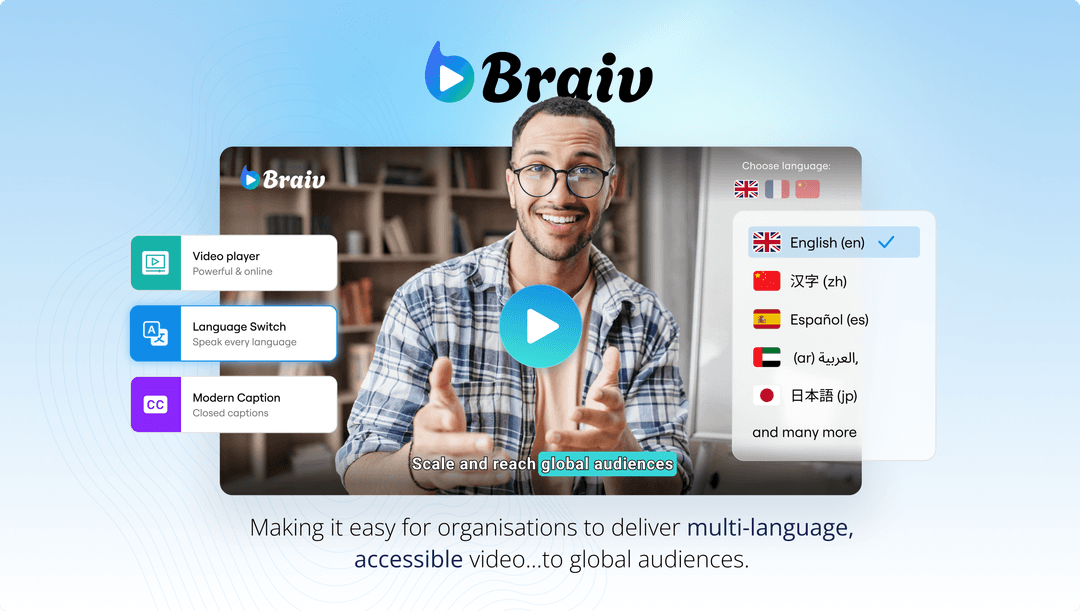
The Braiv Player is engineered explicitly for global distribution. It connects directly with the Braiv translation engine, giving you a real-time preview dashboard of all voice-cloned audio and text tracks.
- Key Advantage: Real-time hot-swapping of voice-cloned audio; auto-browser-language detection; zero manual switching required for international visitors.
- Visual Reference:
2. Vimeo
Vimeo is a professional video hosting platform favored by businesses. It has solid, clean player controls.
- Strengths: Beautiful design customizations, clean iframe embed layouts, and password protection features.
- Weaknesses: Vimeo cannot natively generate or dynamic-swap translated audio tracks. If you want a multi-language experience, you are forced to upload separate video assets or deal with complex third-party configurations.
3. Rask
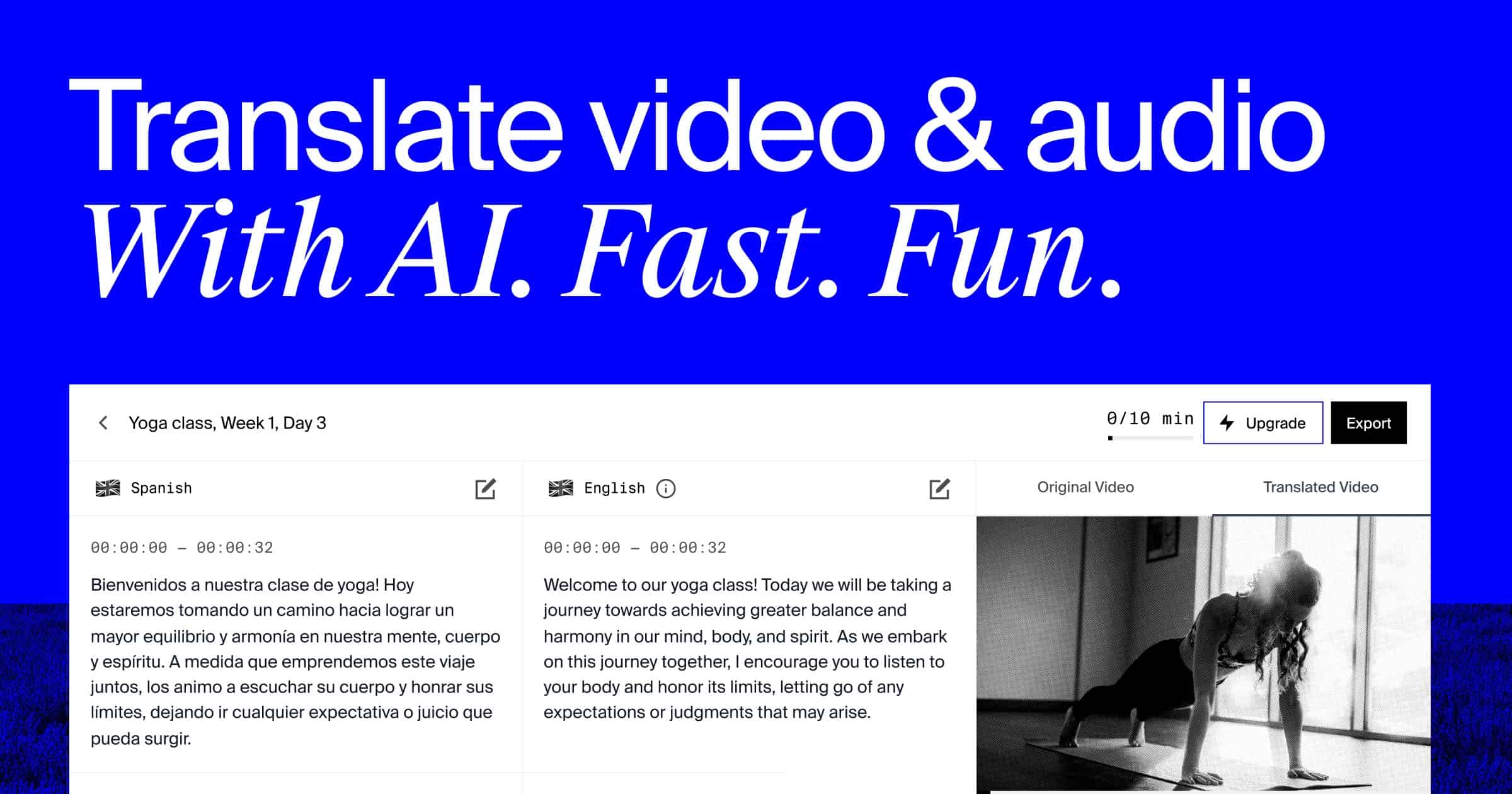
Rask AI is a localization tool that translates and dubs video content into various languages.
- Strengths: Quick translation outputs and realistic voice-cloning capabilities.
- Weaknesses: Rask functions primarily as an export tool. It lacks a fully interactive, responsive public embed player designed to live on your website and auto-detect your viewer’s browser language on autopilot.
Streamlining Your Global Release Workflows
To ensure your international audience experiences a flawless landing-to-play journey:
- Always Run a Preview Test: Before sharing public links or embedding codes, use the Preview button to confirm voice clone inflections and subtitle synchronization.
- Combine Subtitles with Audio Dubbing: Give viewers options. Some prefer listening to dubbed audio, while others prefer reading native captions with original voices.
- Embed Your Player above the Fold: Keep your interactive player front-and-center on your product landers to capture attention immediately.
Try Braiv Video Dubbing
Translate your content into 80+ languages with realistic AI voices.