
How to Auto Upload Twitch VODs to YouTube (2026 Guide)
Tired of manually downloading and re-uploading stream footage? Learn how to automatically publish your Twitch VODs and highlights directly to YouTube.
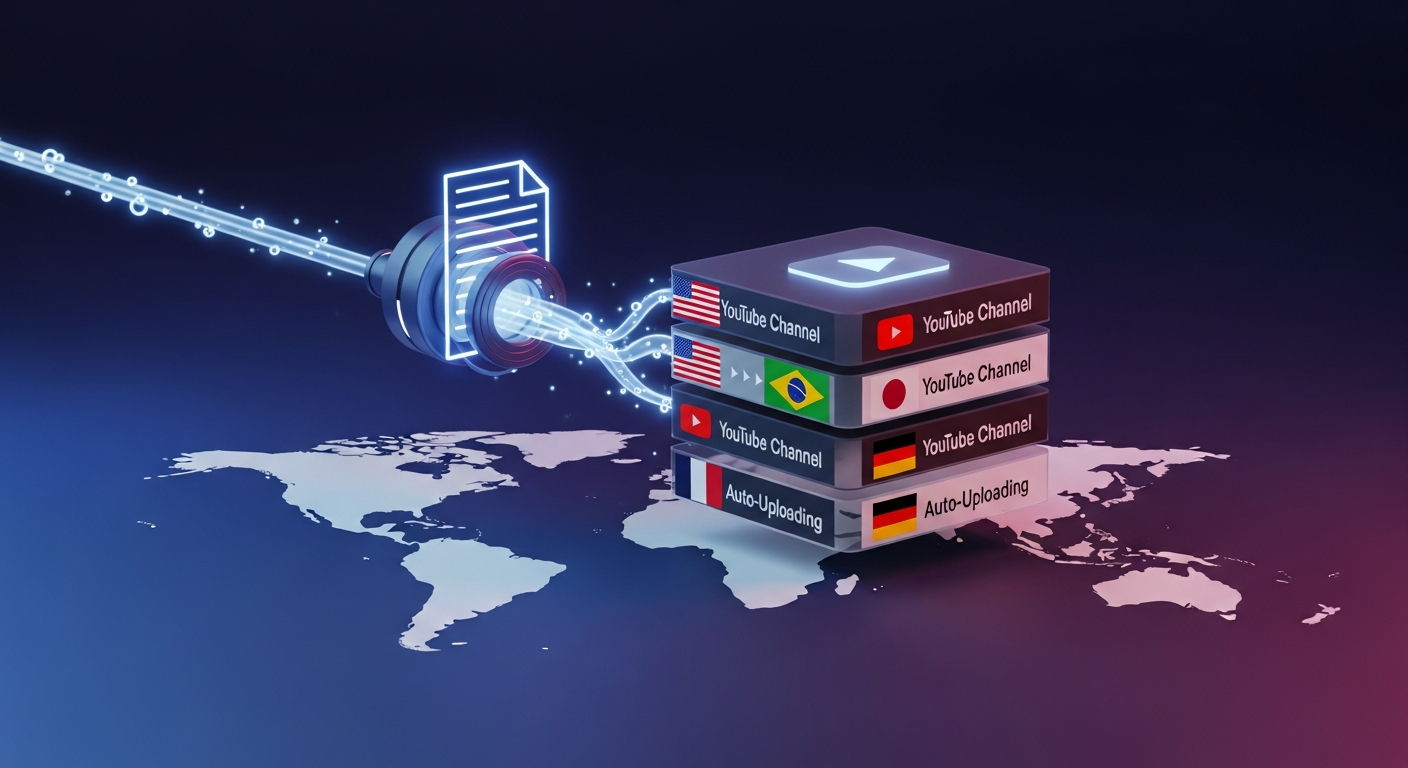
Streamline Your Stream Workflow
For gamers, creators, and brands broadcasting on Twitch, capturing attention after the live broadcast is the key to scaling your audience. Long-form stream video assets represent a goldmine of high-retention highlights and entertaining moments, but manually pulling these streams and publishing them to other video hubs can take hours of editing, exporting, downloading, and manual uploading.
Learning how to auto upload twitch vods to youtube can save you 15+ hours of manual labor every single week. In this guide, we cover the top strategies to build a fully automated stream-to-video repurposing pipeline that converts Twitch broadcasts into highly optimized YouTube content without breaking a sweat.
Why Repurpose Twitch Streams for YouTube?
Twitch is incredible for real-time engagement, but its discovery mechanism is limited. YouTube, on the other hand, operates as a massive search engine where your video content has a long-term shelf life. By establishing an automated way to automatically upload twitch streams to youtube, you make sure your content keeps working for you long after you click “End Stream.”
Streamers who publish their stream segments to YouTube see:
- 5x broader discoverability: Long-tail search queries drive consistent daily traffic.
- Improved viewer retention: Shorter, polished stream segments appeal to non-live viewers.
- Higher ad revenue (RPM): YouTube monetization is historically more stable and lucrative than Twitch’s ad payouts.
3 Ways to Auto Upload Twitch VODs to YouTube
Let’s look at the main options available for streamers to automate this tedious workflow.
1. Twitch Native Export

Twitch offers a direct, native “Export” feature within its Video Producer dashboard. While this gets the job done for direct, raw transfers, it has serious limitations:
- No automatic highlighting: It pushes the entire unedited 4-to-8-hour broadcast, which rarely performs well as a standard YouTube upload.
- No editing tools: You cannot crop, format, trim, or add branding layers on the fly.
- Manual trigger: You still have to manually navigate to Twitch after every stream and initiate the export process.
2. Streamlabs Crossclip
Streamlabs Crossclip is a specialized point tool built to crop horizontal stream clips into vertical formats for social sharing. It is highly useful for manually selected clips, but fails to automate the heavy lifting of:
- Deep AI search: It does not scan your hours of stream VODs automatically to find high-intensity highlights.
- Auto-scheduling: Pushing files to multiple channels and YouTube schedules requires manual steps.
3. Braiv Platform
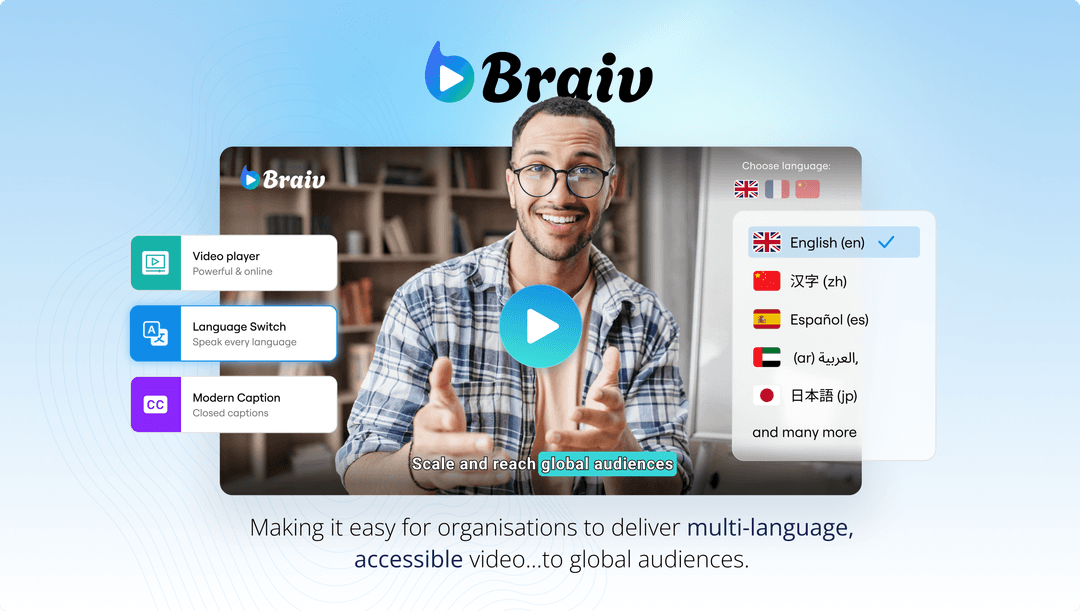
The ultimate all-in-one AI auto-clipping, localization, and multi-channel publishing platform for professional creators. Braiv is designed to connect directly to your channels and act as a silent, autonomous editor that scales your content global.
With Braiv, the workflow is 100% hands-free:
- Automated Ingestion: As soon as your Twitch stream ends, Braiv auto-ingests the VOD from your linked account.
- AI Highlight Detection: Our advanced neural networks scan the audio-visual waveforms to find high-retention highlights, funny gaming clips, and intense dialog segments.
- One-Click Multi-Channel Publishing: Choose your target platforms (YouTube, TikTok, Instagram) and schedule them directly. Braiv automatically handles optimization, title generation, and auto-publishing.
Step-by-Step: How to Auto Upload Twitch Streams to YouTube
If you want to configure a truly automated and high-retention repurposing engine, follow these simple steps using the Braiv workflow:
Step 1: Connect Your Channel Integrations
Log into the Braiv Workspace, navigate to Settings, and connect your Twitch and YouTube channel integrations. This authorizes Braiv to securely ingest your stream VODs and schedule uploads.
Step 2: Set Your AI Shorts & Clip Preferences
Configure your brand rules. Decide whether you want Braiv to auto-extract vertical Shorts (with automated styled captions) or full-length horizontal highlight compilations. Choose whether you want automatic voice cloning or localized subtitles to reach global audiences in Spanish, Portuguese, or French.
Step 3: Enable Auto-Publishing and Go Live!
Turn on the Auto-Publish toggle. The next time you finish a Twitch live stream, Braiv will automatically fetch the stream, extract the highest-impact segments, apply your chosen template, and queue them directly to your YouTube Content Library as scheduled drafts or live posts.
Extract Viral Shorts Instantly
Turn your long-form video into high-engagement Shorts with AI.