
Expert's Guide: How to Record Your Screen on a Chromebook
Recording a screen on a Chromebook utilizes the native ChromeOS screen capture tool or third-party extensions to capture digital workflows, tutorials, and presentations.
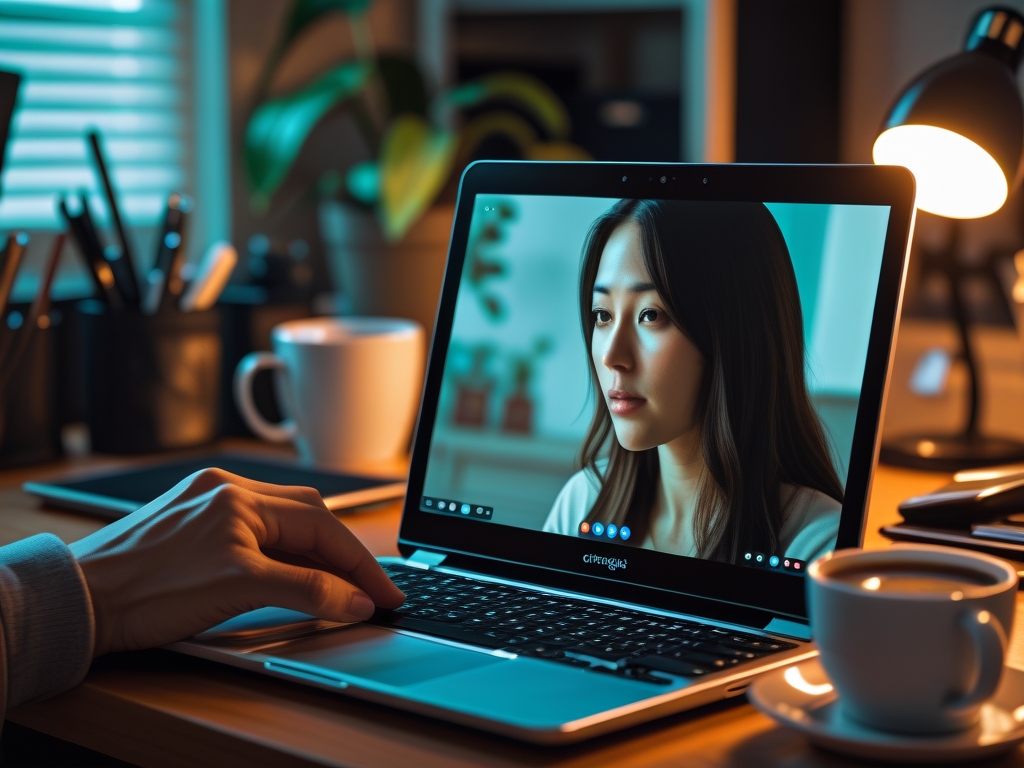
TL;DR: Mastering screen recording is a fundamental skill for remote educators, software demonstrators, and digital creators. Once your tutorial is recorded, you can easily dub it into multiple languages using Braiv Dubbing.
With the rise of remote work, online learning, and digital content creation, the ability to record your computer screen has become more important than ever. This practical skill allows you to share demonstrations, create tutorials, or record presentations, all of which are crucial in today’s digital era. Chromebooks, with their simplicity and accessibility, serve as the perfect platform for these activities. So, how do you record your screen on a Chromebook? Here are the top 5 methods you need to know in 2026! 😊
1. Chrome OS - Built-in Screen Recorder

Chromebooks come with a built-in screen recorder in the latest versions of Chrome OS, making this the most straightforward way to record your screen.
- Why It’s Important: It’s free, easy to use, and doesn’t require any additional software. You just press Ctrl + Shift + Overview button to start recording.
- Pros: Instant access, no need for internet connection, high-quality recording.
- Cons: Minimal editing options, only available on Chrome OS version 89 and above.
- Who Should Use It? Anyone with a newer Chromebook looking for a quick and simple solution.
2. Loom - Video Messaging for Work

Loom is a popular screen recording tool that works seamlessly with Chromebooks.
- Why It’s Important: Loom offers advanced features like video editing, and allows you to record both your screen and webcam simultaneously.
- Pros: Easy to use, offers video editing features, allows you to record with or without audio.
- Cons: Limited free version, requires an internet connection.
- Who Should Use It? Content creators, educators, or professionals who need advanced recording features.
3. Screencastify - Screen Recording for Chrome

A Chromebook-friendly tool, Screencastify is a Chrome extension that provides a variety of recording options.
- Why It’s Important: Screencastify offers features like mouse spotlighting, drawing on the screen, and video editing.
- Pros: User-friendly, offers editing capabilities, can save recordings directly to Google Drive.
- Cons: Free version has a 5-minute recording limit, requires internet connection.
- Who Should Use It? Teachers, tutorial makers, or professionals who need to highlight specific content on their screen.
4. Nimbus - Screenshot & Screen Video Recorder

Nimbus is a versatile tool that allows you to take screenshots and record videos on your Chromebook.
- Why It’s Important: Nimbus allows you to record your entire screen, a selected area, or a specific browser tab. You can also annotate your screenshots and recordings.
- Pros: Offers a variety of recording and screenshot options, includes annotation tools.
- Cons: The interface can be a bit complex for beginners, requires an internet connection.
- Who Should Use It? Users who need versatile recording options and screenshot capabilities.
5. Awesome Screenshot - Screen Recorder

Another Chrome extension, Awesome Screenshot & Screen Recorder, allows you to capture your screen in various ways.
- Why It’s Important: It offers full-page screen capture, selected area capture, and the ability to record video with your webcam.
- Pros: Versatility in screen capturing, includes a built-in image editor.
- Cons: Free version has a 5-minute recording limit, requires an internet connection.
- Who Should Use It? Users who need a mix of screenshot and recording tools, especially for web page captures.
In conclusion, there is a variety of ways to record your screen on a Chromebook, each with its unique features. Your choice depends on your specific needs. If you’re creating content for your audience, consider using a service like Braiv to deliver your videos with customizable video players, engaging closed captions, and AI video dubbing. This can be a perfect complement to your Chromebook screen recordings. Which of these methods do you think is the best? Let us know! 😊
Generate AI Thumbnails
Create click-worthy YouTube thumbnails directly from your video.