
How to Make Training Videos with AI (From a Screen Recording)
The search is “how to make training videos with AI.” The useful answer is not a generated script over stock footage. Record the real product once, with voiceover, then let AI clean, translate, and write the matching guide.
The expensive training video is the one you have to perform twice
Most “how to make training videos” advice assumes a production day: write a script, open Canva or PowerPoint, record in Microsoft Teams, tidy the ums in CapCut or Premiere, then maybe bolt on a dub. That is how you make one English clip for employees. It is not how you keep a library current.
SaaS customer-success and e-learning teams already have the expert. What they do not have is a second take in Spanish, a rewritten help article that still matches the video, and a screencast whose menus are not still in English.
Search demand matches that job. People type how to make training videos with AI, how to make instructional videos, how to make training videos of your computer screen, and how to do a screen recording with voiceover. They are not asking for a generated presenter over stock footage.
Braiv Capture is built for the first job: one messy walkthrough in, a publishable training video and article out.
Record the screen with voiceover — that is the whole input
Yes, you can do a voiceover while screen recording. That is the intended take.
Click through the task the way you would show a colleague. Pause. Restart a sentence. Leave the ums in. Capture keeps the recording and the interaction timeline behind it, then treats the spoken track as raw material rather than the published audio.
If you would rather stay quiet, record the screen and attach a script. The useful constraint is the same: the instruction has to come from someone who actually used the product. AI that writes a tutorial from a marketing site will invent buttons.
This is also why a Loom alternative or a bare recorder is not the same product. Loom (and Teams) save the take you performed. Capture is what you run after that take if the clip has to become training, not a meeting souvenir.
Remove filler words without booking a second take
“Remove filler words from video” is its own search cluster — CapCut, Premiere, “free,” “online.” Most of those tools cut silence. They leave “so basically what you want to do here is…” intact.
Voiceover cleanup transcribes the session, strips ums, ahs and false starts, rewrites the wording into instructional language, then redubs it with a Braiv Speech narration clone. The published voice is still yours. It just sounds like the take you would have given if you had time to script it.
That is the difference between making training videos faster and making them again. Subject-matter experts can record between meetings. The cleanup is a regeneration from a corrected script, not a ripple-delete on the timeline.
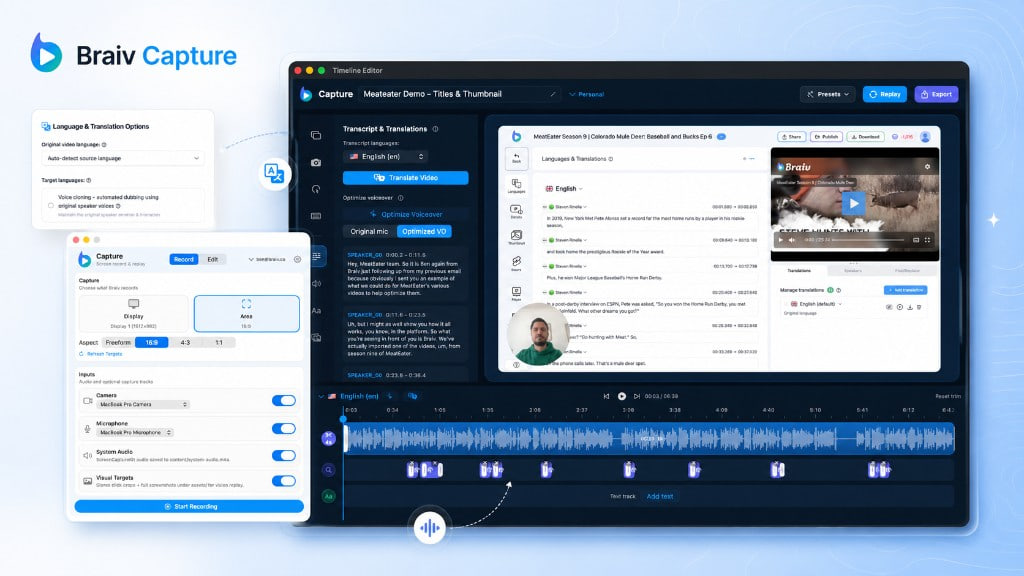
Translate the screen recording, not just the audio
Dubbing English training audio into another language is the easy half, and it is what most “translate a screen recording” tools stop at. Viewers still read English callouts, English captions, and English menus.
Localized support video translation moves captions, titles, callouts and overlays in the same pass as the voice. The dub itself runs on Braiv Dubbing. You choose the source voice: the original recording, or the cleaned Speech voiceover. A library that has to sound consistent usually wants the cleaned track. A founder demo where delivery is the point often wants the original.
Then comes the part search does not have a clean phrase for, but buyers feel: replay the walkthrough against your product in the target language. A German employee watches the German UI, at the same pace, with the same script.
Two limits, stated plainly. Braiv records the real interface — it does not synthesise a fake one. Your product has to already be localized. And this is a software training workflow, not a YouTube “educational video without showing your face” factory.
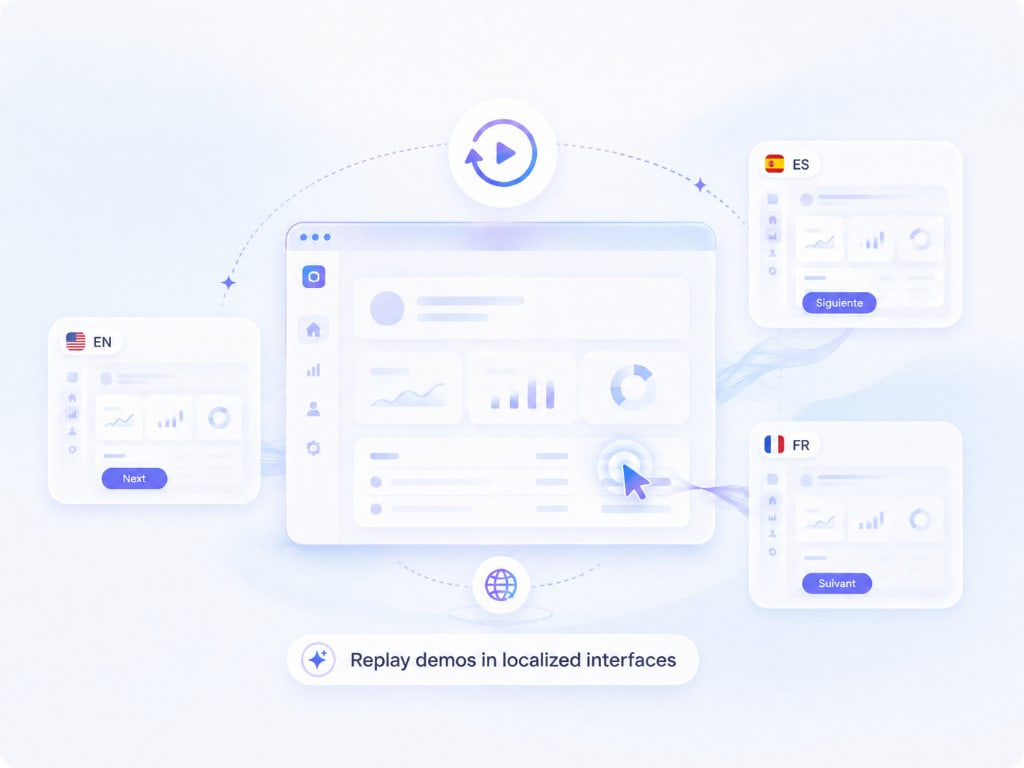
Turn the video into a step-by-step guide — not a PDF
“Convert video into document” and “video to MP4/PDF” are huge queries. Most of that intent is file conversion. Capture does not do that job.
What it does is write a step-by-step guide from the same cleaned script as the voiceover: headings, numbered actions, support-doc language. When the wording changes, the video and the article change together. When you add a language, both are added. That is how to create help documentation that does not drift from the recording.
If you needed an MP4 in another container, use a converter. If you needed documentation that still describes the button on screen, use the script.
What not to use (and what still wins those jobs)
- Canva / PowerPoint / Clipchamp — still the right canvas for a slide-led course or a one-off deck. They are not a screen-recording-to-library pipeline. See the honest split on Camtasia if you are coming from a timeline editor.
- Microsoft Teams — fine for “how to make a training video in Teams” when the audience is the same call. It is a meeting recorder, not a localized training system.
- CapCut / Premiere filler cuts — useful if you only need a shorter English take. They will not rewrite the instruction or translate the overlays.
- Guidde / Scribe — closer to auto-documentation from clicks. Useful for a quick SOP; weaker when you need a voiced training video and a replayed localized UI. Compare Guidde and Scribe if that is the job.
Do not use Capture to generate a faceless YouTube lesson about a topic you did not demonstrate, or to “convert a video into a document file.” Those are different intents.
Make the first training video from the recording you already have
Employee training, software tutorials, instructional walkthroughs and multilingual onboarding are the same pipeline. Record the computer screen with a voiceover. Clean it. Translate the words you hear and the words you see. Publish the video and the guide together.
Start from a screen recording in Braiv Capture. Pair the finished library with Braiv Player if one embed has to serve every language in the help centre.
Frequently asked questions
How do you make training videos with AI?
Perform the task on your computer screen while you narrate it, then let AI do the production rather than the teaching. Braiv Capture transcribes the walkthrough, rewrites the narration, revoices it with a Braiv Speech clone, and produces localized videos plus a matching step-by-step guide from the same script.
Can you do a voiceover while screen recording?
Yes, and that is the intended input. Talk through the task as you click. Capture treats that voiceover as source material, not the final audio — it rewrites the wording and redubs it. You can also record silently and generate narration from a script.
How do you remove filler words from a video without re-recording?
Do not only cut silence. Capture strips ums, ahs and false starts, rewrites the narration into instructional language, then regenerates the audio with your Braiv Speech voice clone. Timeline tools that only trim dead air leave awkward phrasing behind.
How do you translate a screen recording, including the text on screen?
Localize the audio, captions, callouts and overlays in one pass, then replay the same session against your product in the target language so the menus match the voiceover. Dubbing English audio over an English UI is only half the job.
Does this convert a video into a PDF or document file?
No. Capture writes a step-by-step help article from the cleaned script. It does not turn an MP4 into a PDF or a file-conversion export. If you need the file in another container, that is a different tool.