Orientation
Step titles
"Step 2: Connect your channel". Tells viewers where they are when they skip ahead.
Auto overlays read your voiceover and your clicks, then place a callout at each key moment of the tutorial, with the clicked button circled. You can also place text overlays and callouts yourself.
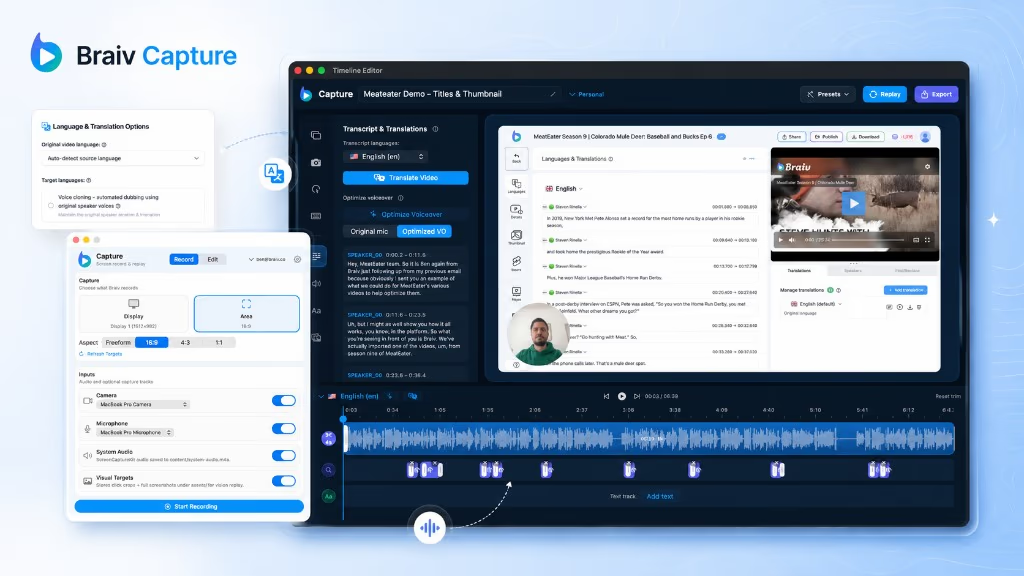
Braiv Capture is a native Mac app for tutorial videos. Talk through the task the way you normally would, and Capture rewrites the voiceover into clean sentences, re-voices it in your own voice with studio-mic sound, translates the audio and on-screen text, and lipsyncs your webcam. Then export to Braiv to package and publish.
Explore Braiv CaptureCapability 5 of 6
Every Capture project already has an Overlays lane on the timeline. Add titles, step labels and callouts where you want them.

Each overlay is a clip. Drag it to the right moment and trim how long it stays on screen.
Select an overlay in the preview to place it exactly where it should sit over your screen.
Font, colour and background saved once, so every tutorial from your team looks the same.
Pair a label with a circle around the button you are talking about.
Auto overlays in Braiv Capture add timed text callouts at the key moments of a screen recording in one click, written from the voiceover and placed on the clicks. Manual text overlays, callouts and style presets are available today.
Callouts are placed across the whole tutorial at once, not one by one.
The text comes from what you said, so callouts and narration agree.
Each callout lands on the moment you clicked, with the clicked element circled.
Generated callouts are normal overlays, so translation picks them up like any other.
Capture already knows two things about your tutorial: what you said, and where you clicked. Auto overlays combine them.

Uses the transcript, preferring your optimized voiceover, to find the instructions in the tutorial.
Each instruction is matched to the click it describes in the recording.
Short label text, timed to the click, with a circle around the element you clicked.
Callouts are normal overlays you can move, rewrite or delete. Run it again to refresh the generated set.
Whether you place them yourself or let auto overlays do it, these are the ones viewers rely on.
"Step 2: Connect your channel". Tells viewers where they are when they skip ahead.
A label and a circle on the exact button, so nobody has to hunt for it.
"Admins only" or "This cannot be undone". The details a voiceover says once and viewers miss.
Viewers skim tutorials. They skip ahead, pause, rewatch a step and follow along in another window. Narration alone does not survive that. Step titles tell them where they are, and callouts show them exactly what to click. In a translated tutorial the overlays need to change language with the voice, or the result looks unfinished.
Every Braiv Capture project has an Overlays lane on the timeline:
When you translate the video, these overlays are translated too. See full video translation.
Placing ten callouts by hand is the part of tutorial editing most people skip. Auto overlays do it in one click. Capture reads the transcript, preferring your optimized voiceover, matches each instruction to the click it describes, and adds a callout at that moment with the clicked element circled. Everything it adds stays editable, and running it again refreshes the generated set.
Auto overlays are part of Braiv Capture. They are available now in the macOS app.
Other attributes of the same product — useful if this page was not quite the one you meant.
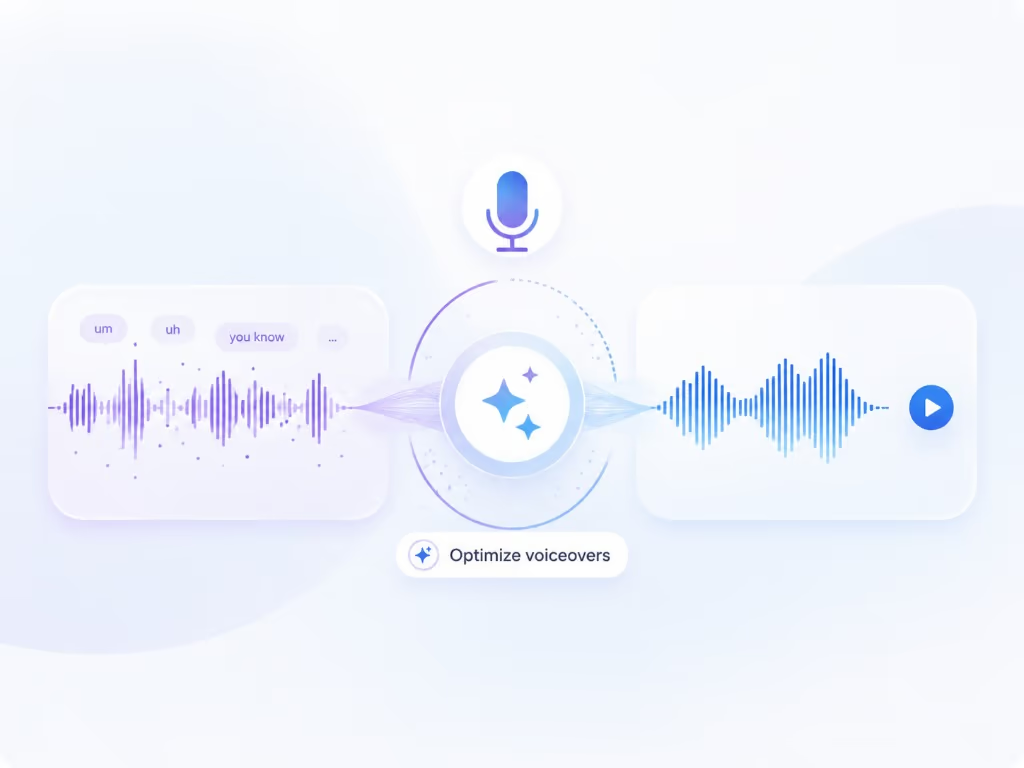
Optimize voiceover rewrites your first take into clean, full sentences with no ums or false starts, then re-voices it in your own voice with studio-mic sound, still in time with every click on screen.
Learn more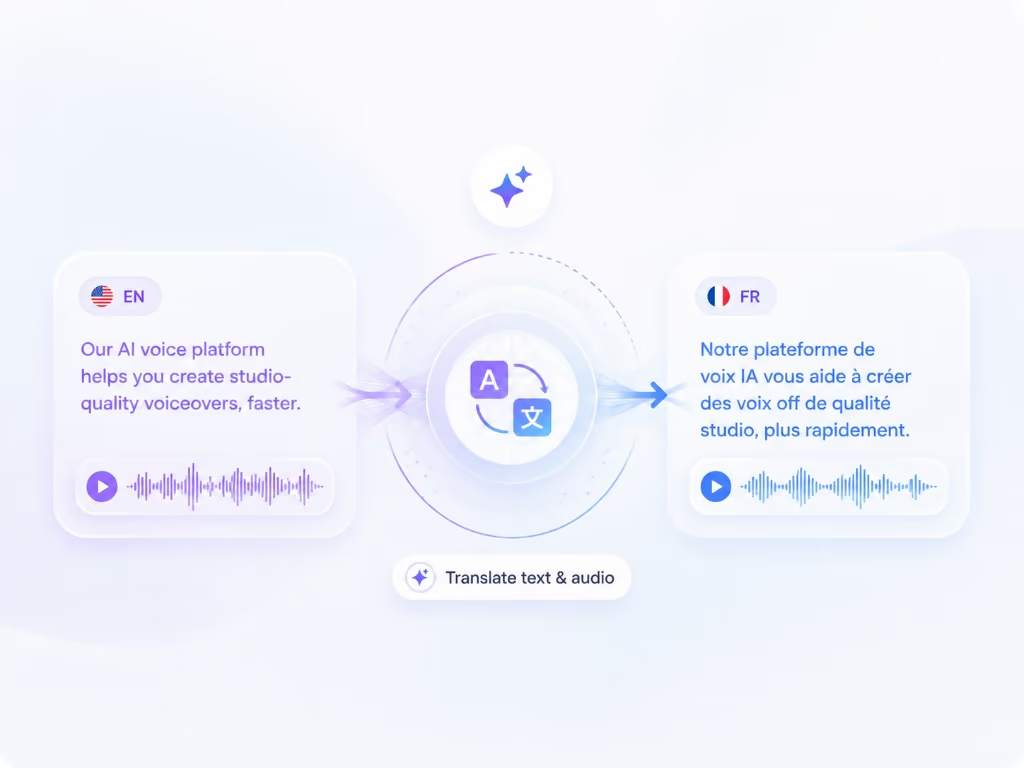
Translate video dubs your voiceover into the languages you choose with your cloned voice, and translates every text overlay you added in Capture at the same time, right inside the app.
Learn moreWhen your face is in the tutorial, a new voiceover can make it look dubbed. Braiv Lipsync matches the presenter's mouth to the optimized voiceover or to each translated language, as an option in Braiv Capture.
Learn moreBraiv Capture covers the Capture stage. Braiv runs the rest of the sequence on the same recording — so what you make here ends up packaged, localized and published without leaving the platform.
See the full workflowNative macOS app. Record a tutorial once, optimize the voiceover, translate it, and export to Braiv.
Braiv Capture is launching soon. Join the waitlist and we'll invite you as soon as your workspace can create localized support content.
You're on the list
We'll email you when early access opens. Reply to that email if you want to tell us more about your support library.