










Bilingual Subtitles Generator
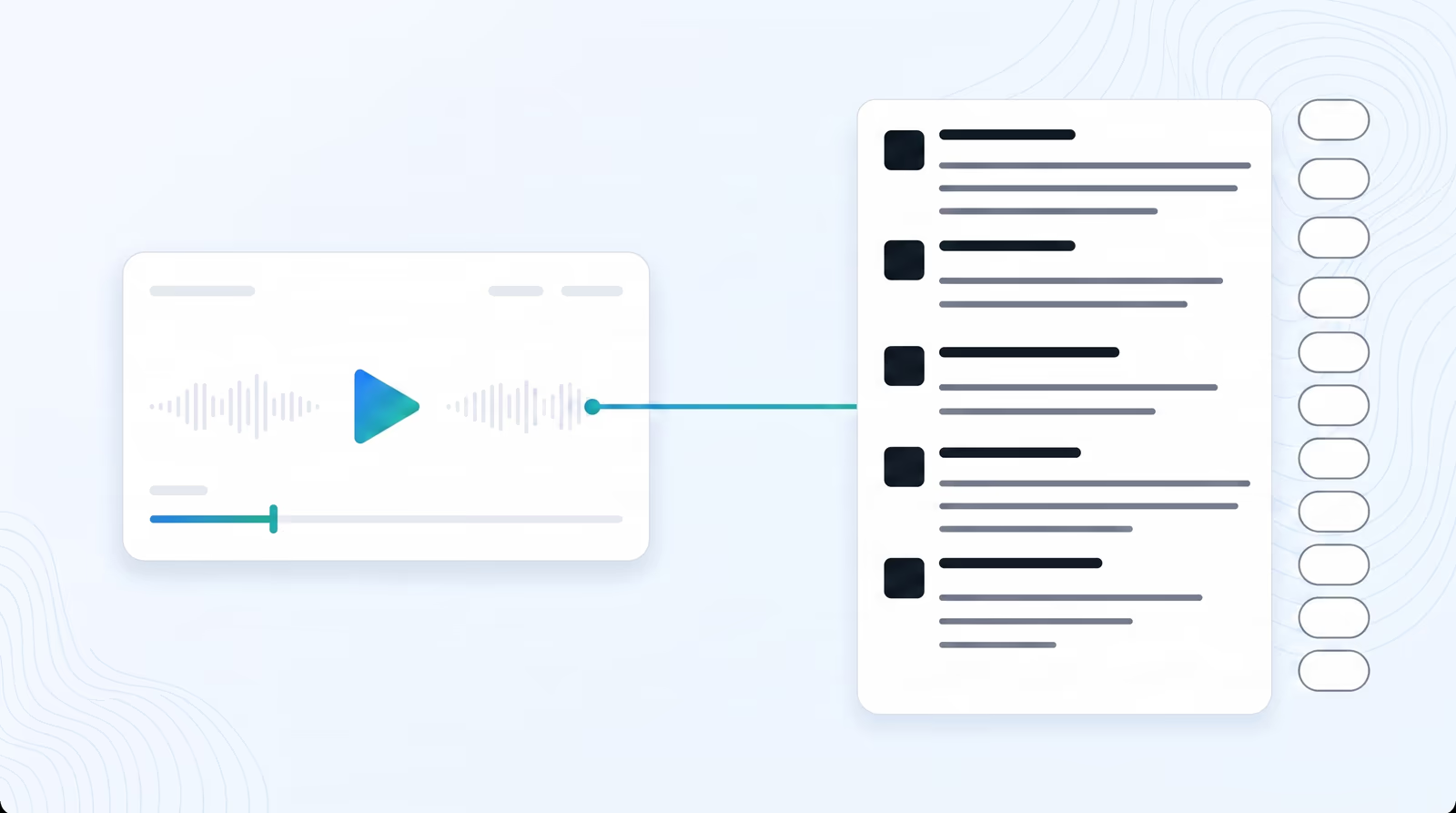
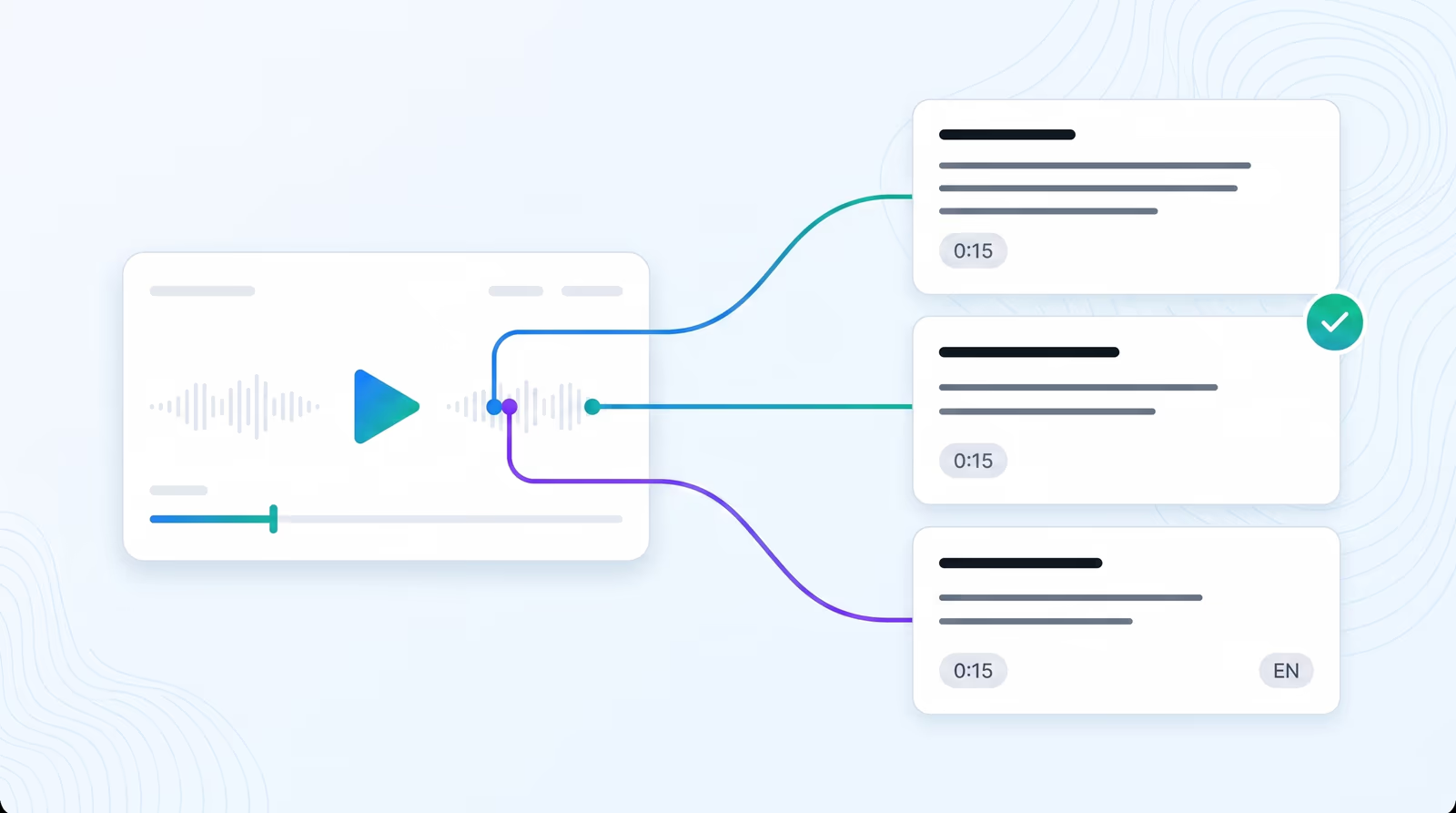
Switch between Full View & Split View to seamlessly edit captions and translations side-by-side. Generate perfectly synchronized bilingual subtitles in seconds.

Trusted by 100,000+ creators, podcasters & businesses globally
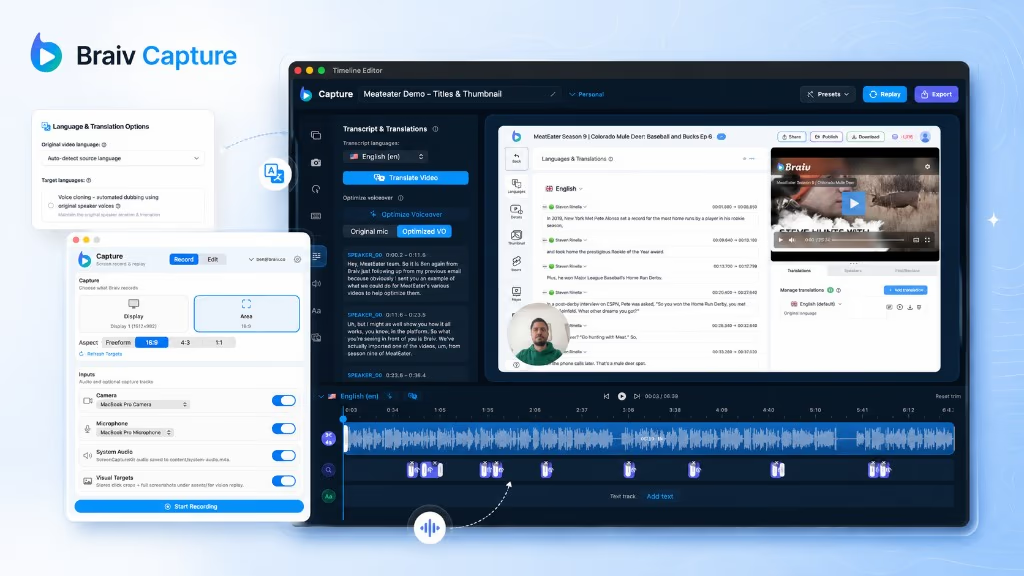
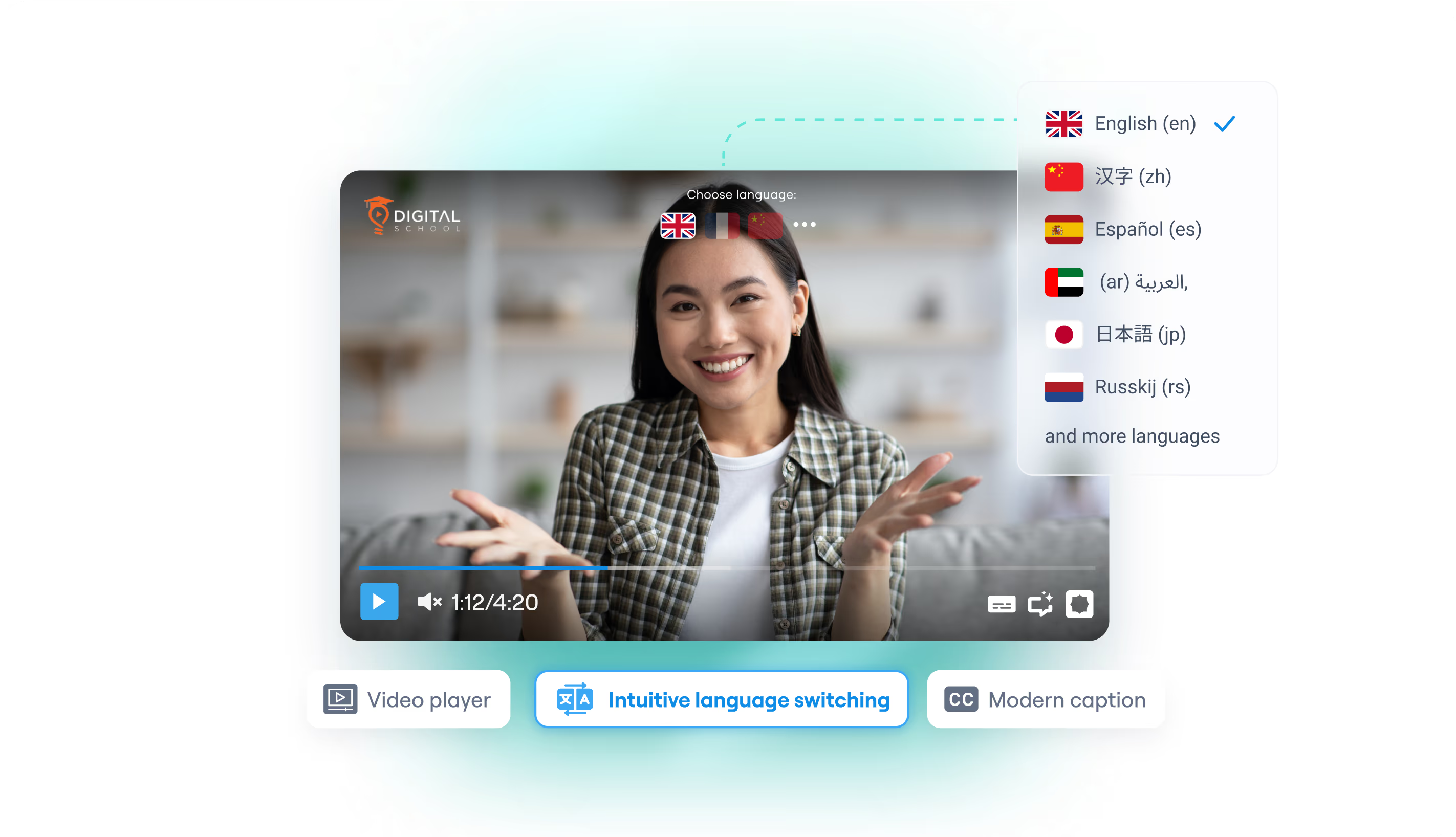
Generating and refining bilingual subtitles is simple and intuitive inside the Braiv Studio. Whether you are creating multi-language caption tracks for global audiences or double-checking translations for perfect cultural nuance, our side-by-side editing interface eliminates the friction of traditional translation files.
Key features include:
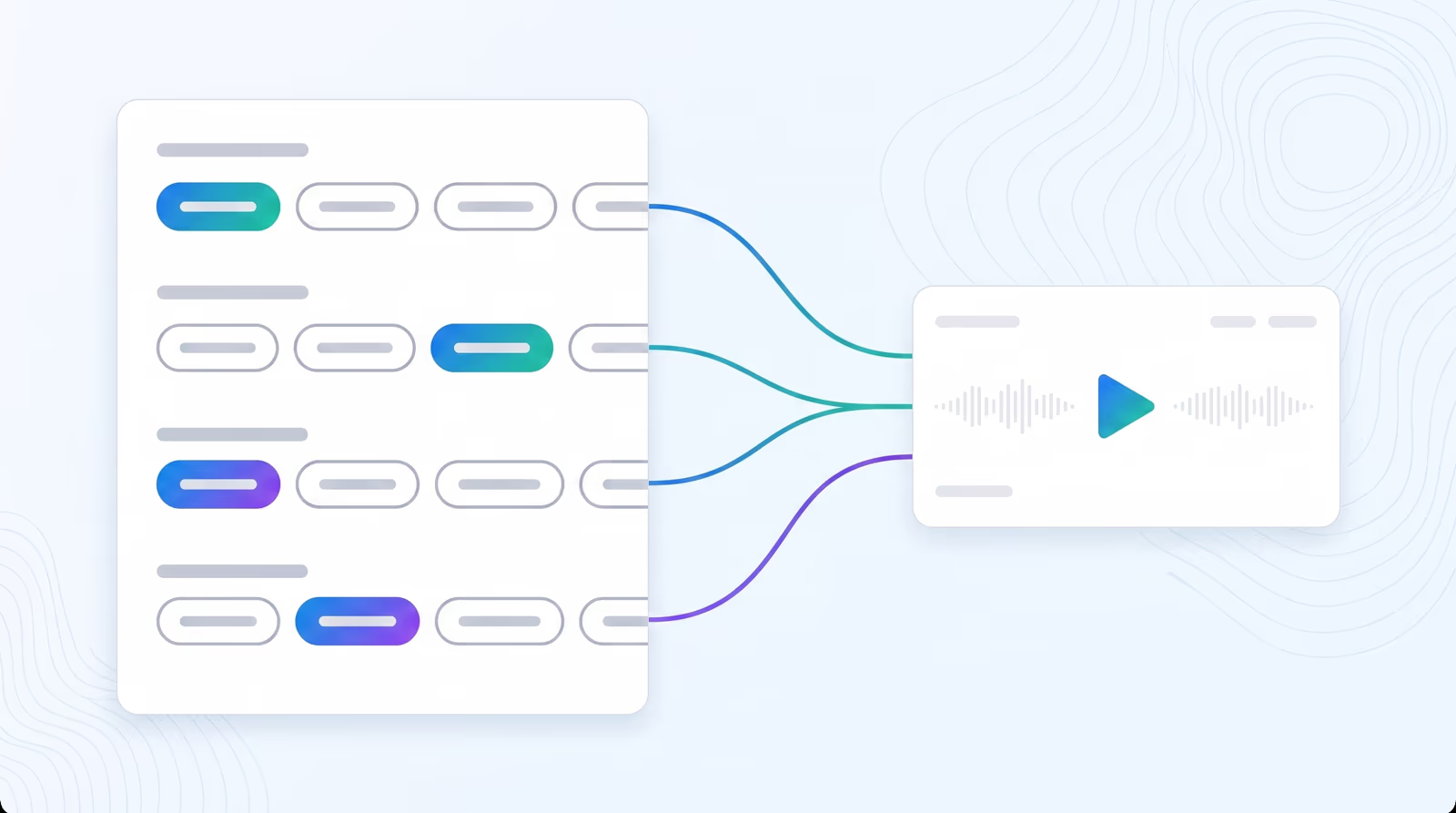
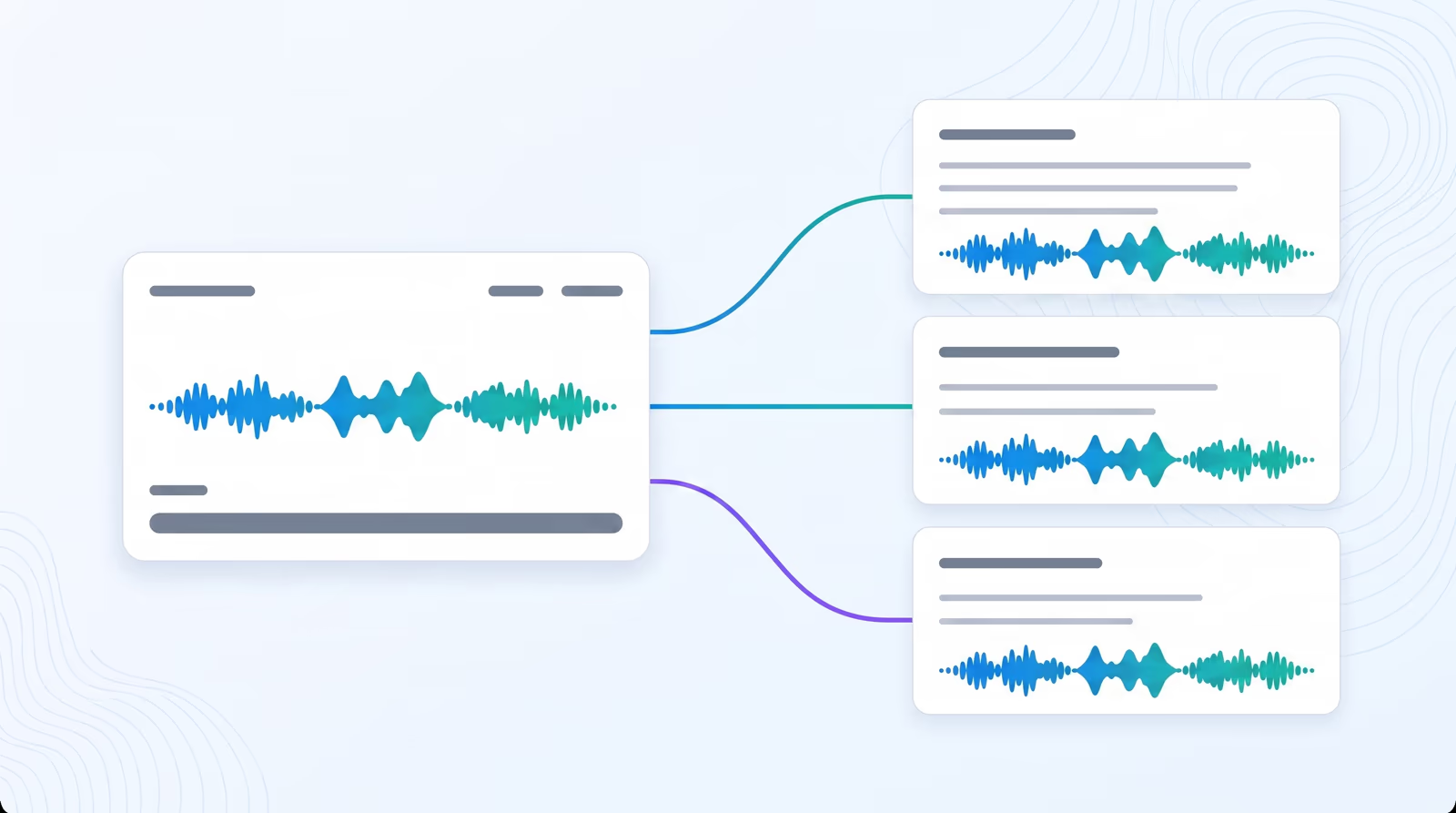
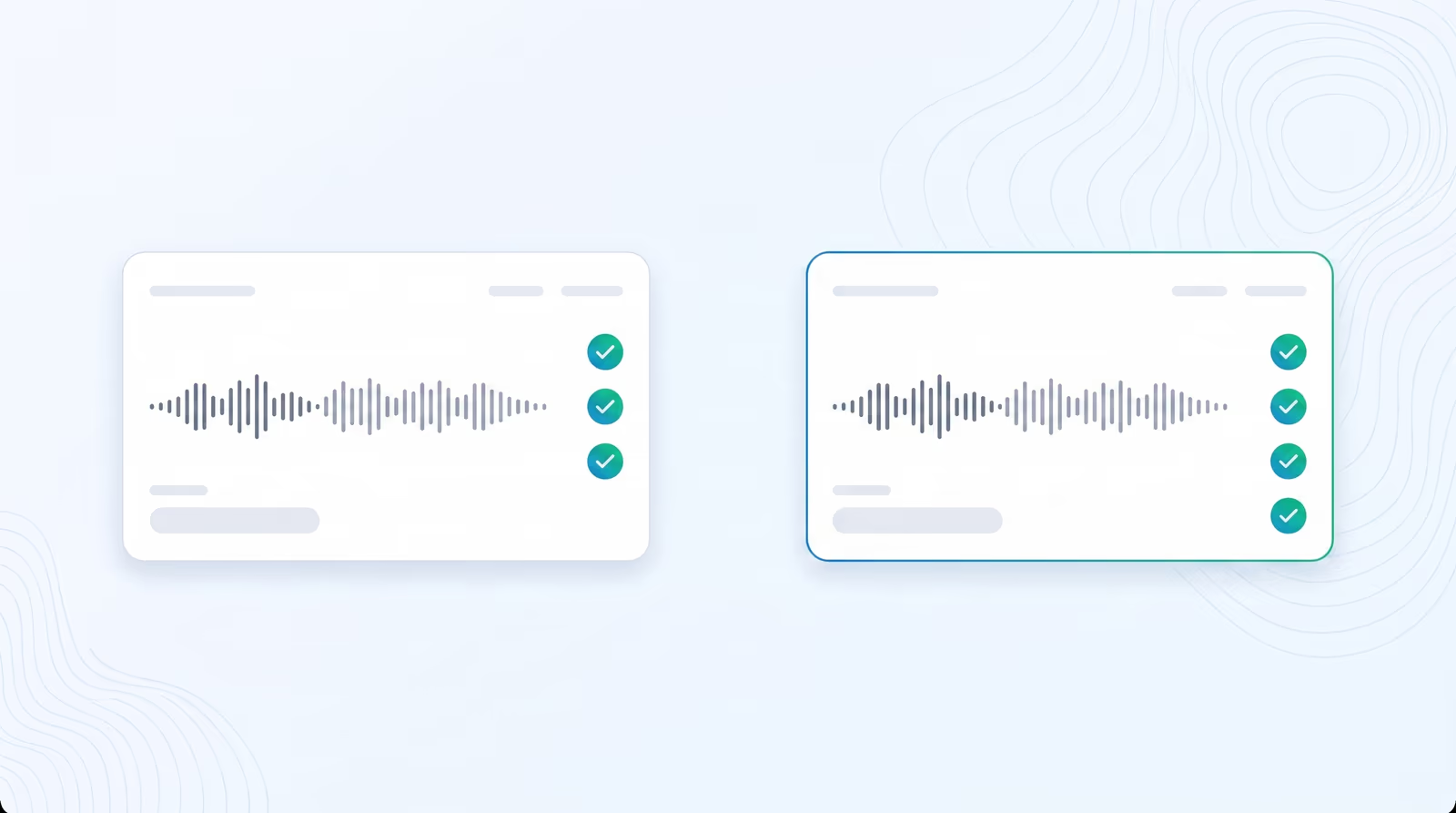
- → The Split View Advantage: Split View places your original, source-language transcripts directly next to your translated target captions. This side-by-side layout lets you check translation accuracy line-by-line, edit individual words, and adjust subtitle timing seamlessly in real-time.
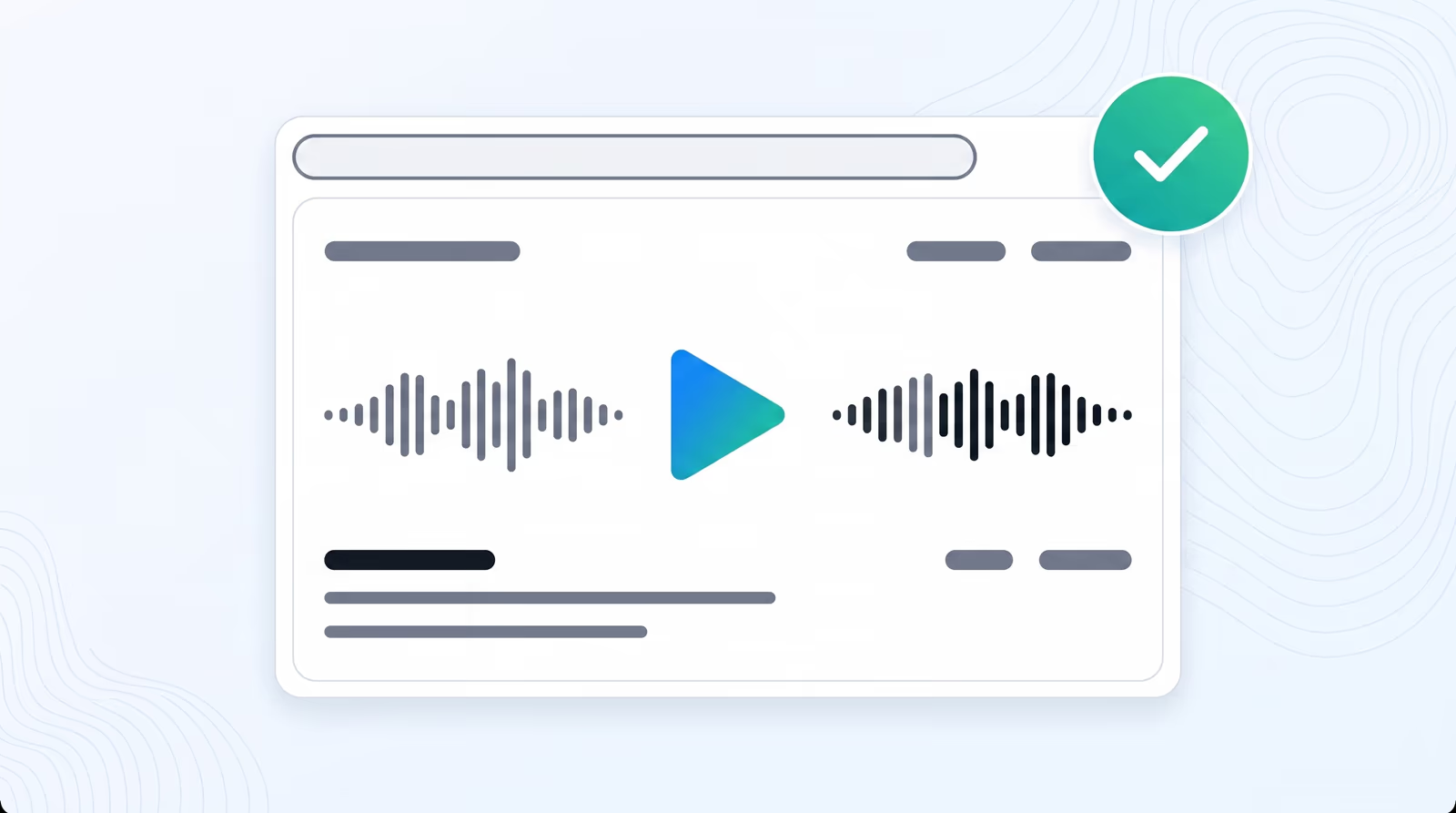
- → The Full View Focus: Full View displays the entire, continuous caption block for your selected language. If you want to review the full reading flow of a translated transcript without the visual distraction of the source language, simply toggle to Full View and use the dropdown menu to hop between active translation tracks.
- → Choose Your File: Navigate to your video Library in the Braiv workspace and click on the video you wish to edit.
- → Toggle Your View: On the Language and Translations editing screen, click the green toggle bar to swap instantly between Full View and Split View editing modes.
- → Edit and Save: Select any subtitle block to edit text, correct pronunciation, or adjust timestamps. Once completed, your changes are automatically synchronized across all matching voice dubbing and visual media outputs.
Key Features
Transcript translation editing
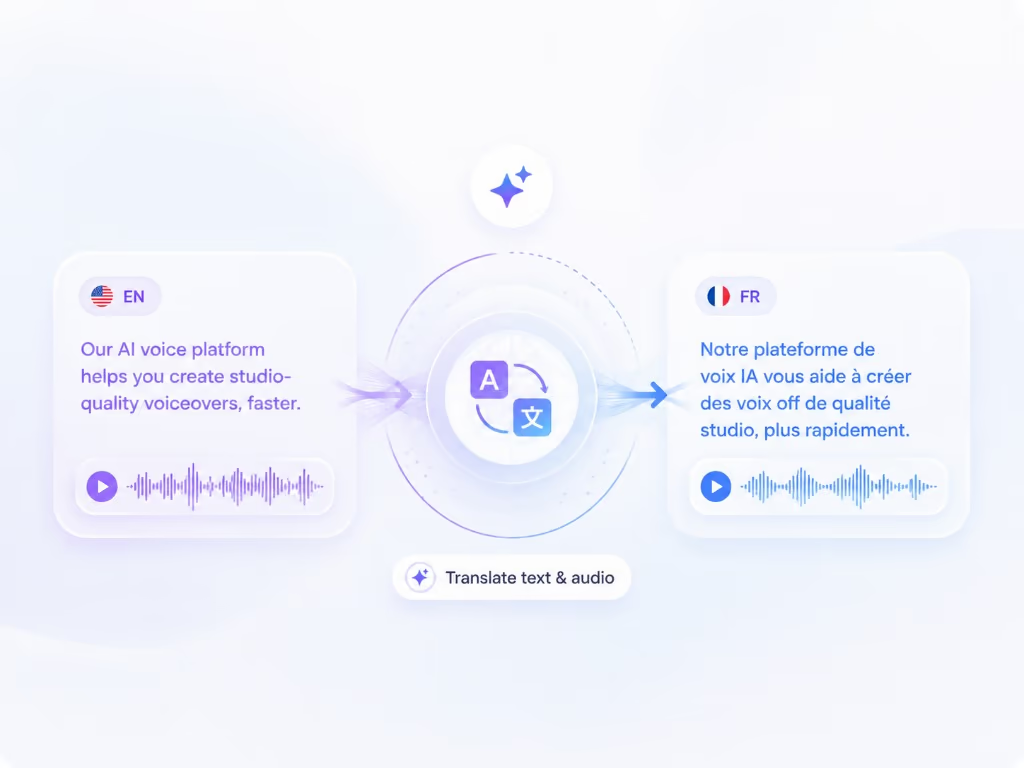
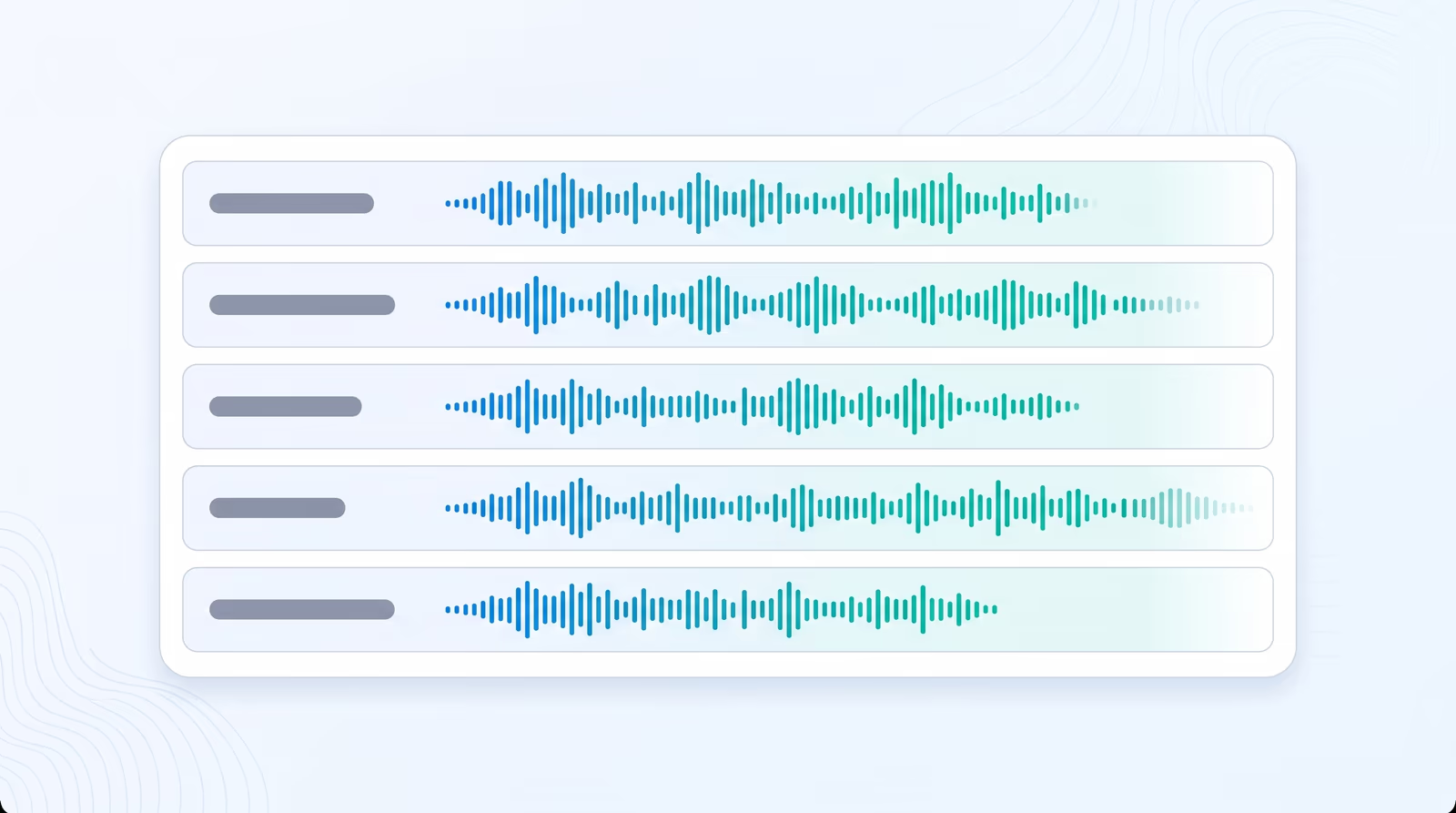
All transcripts & translations can be edited to generate the perfect video dubbing output.
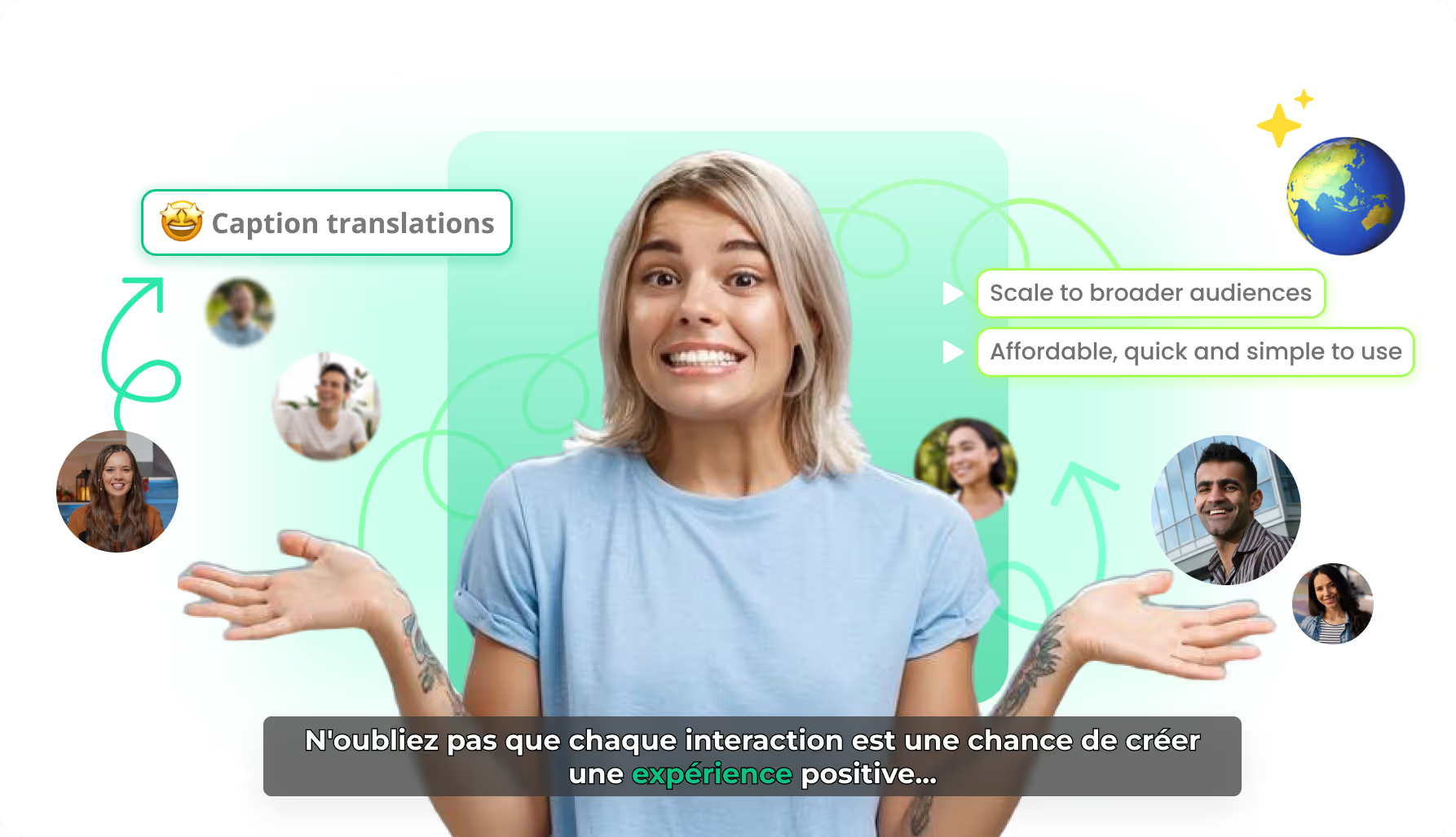
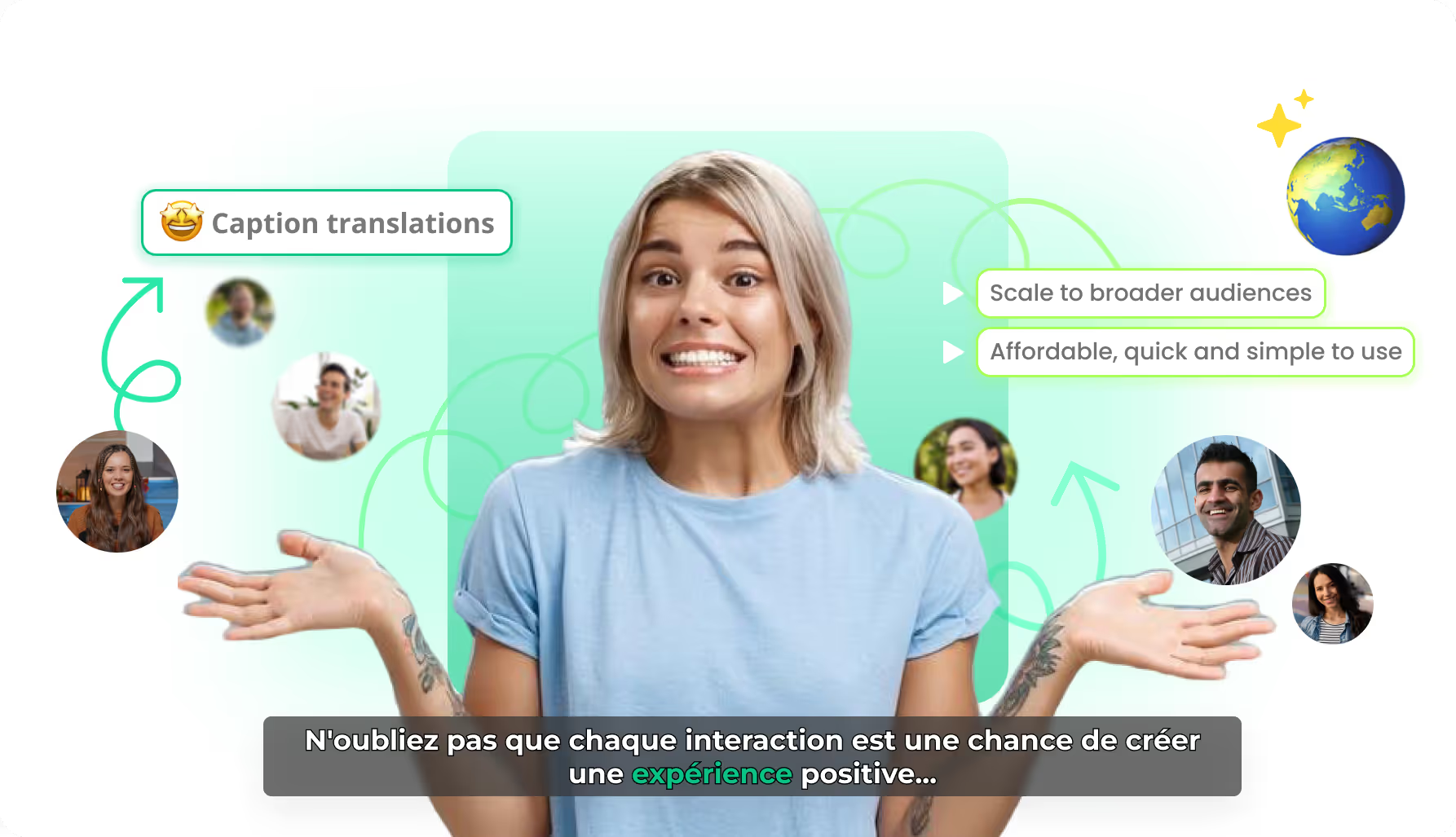
Integrated caption translations
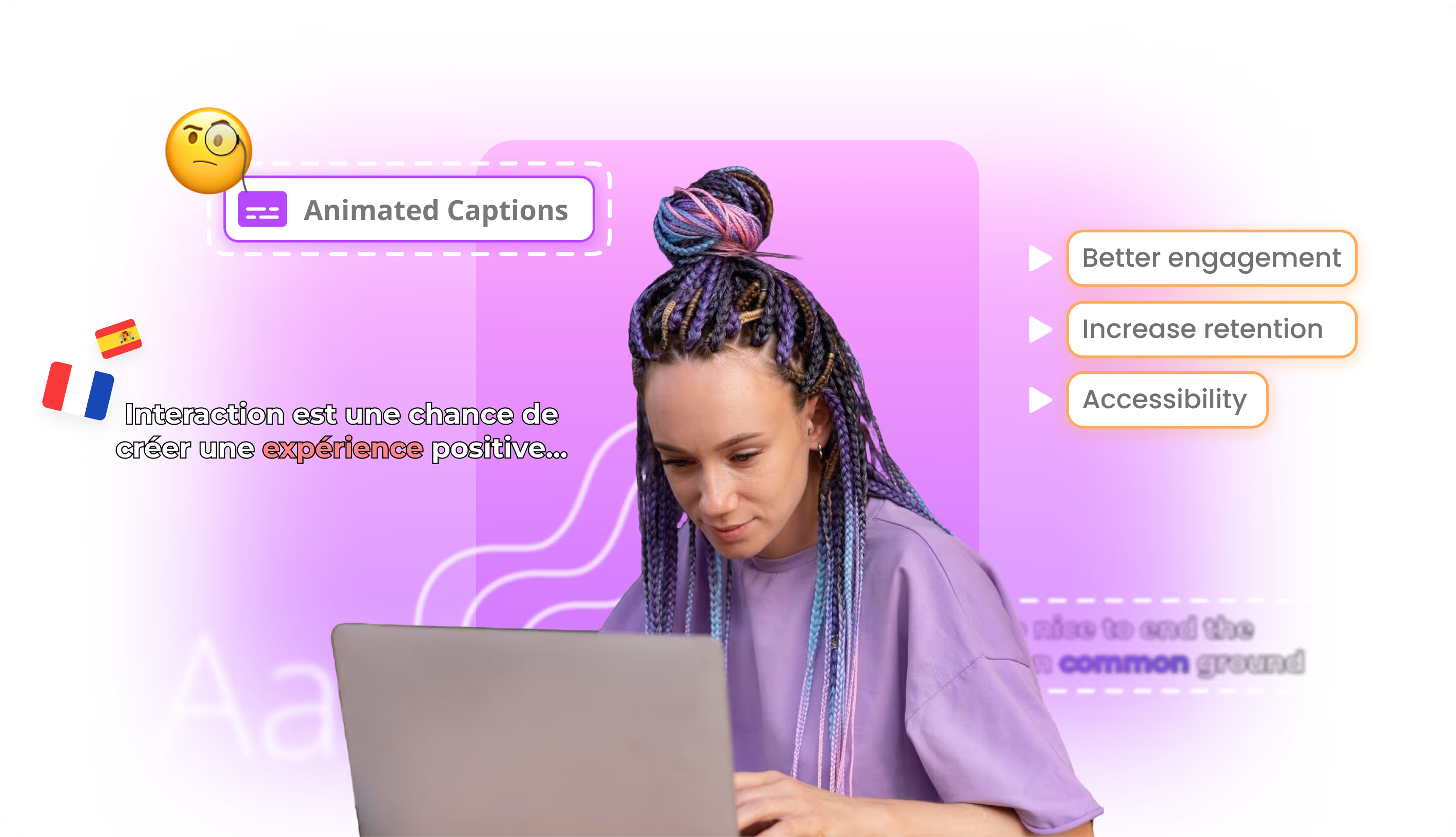
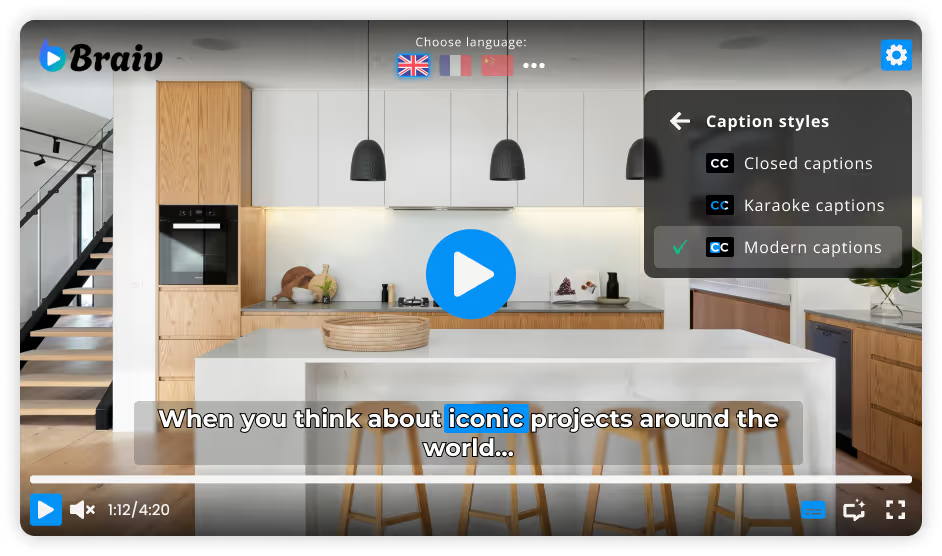
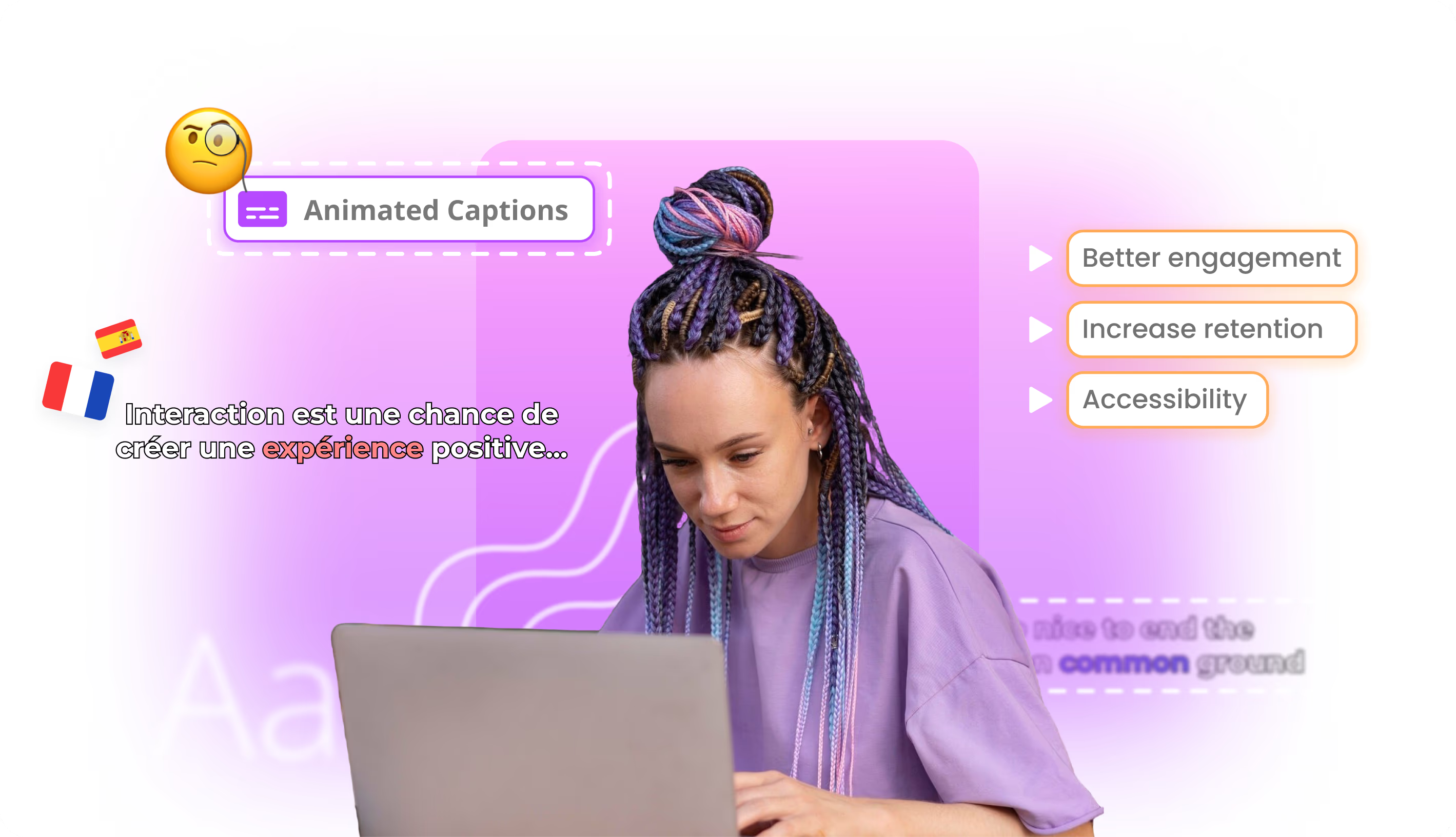
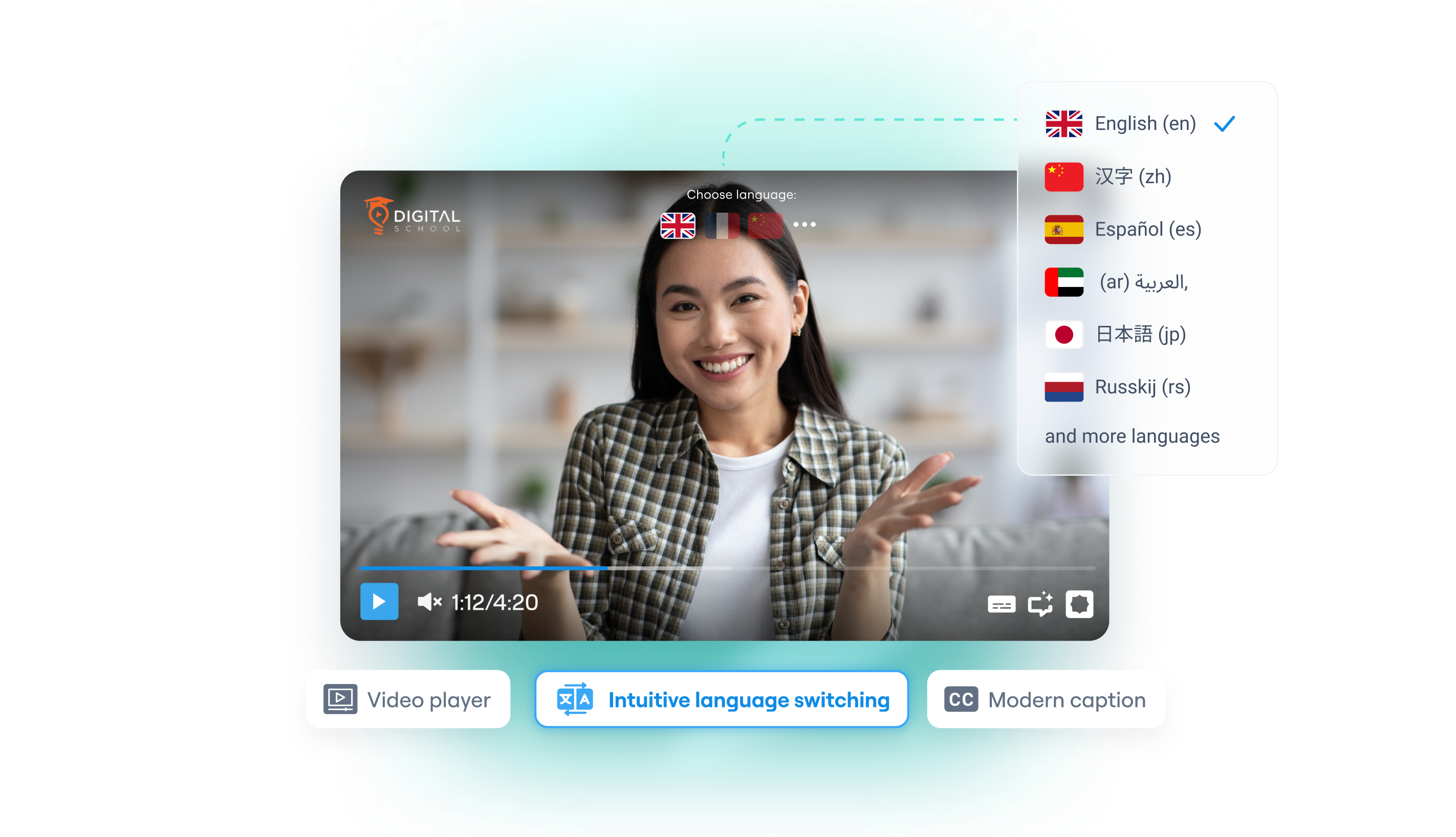
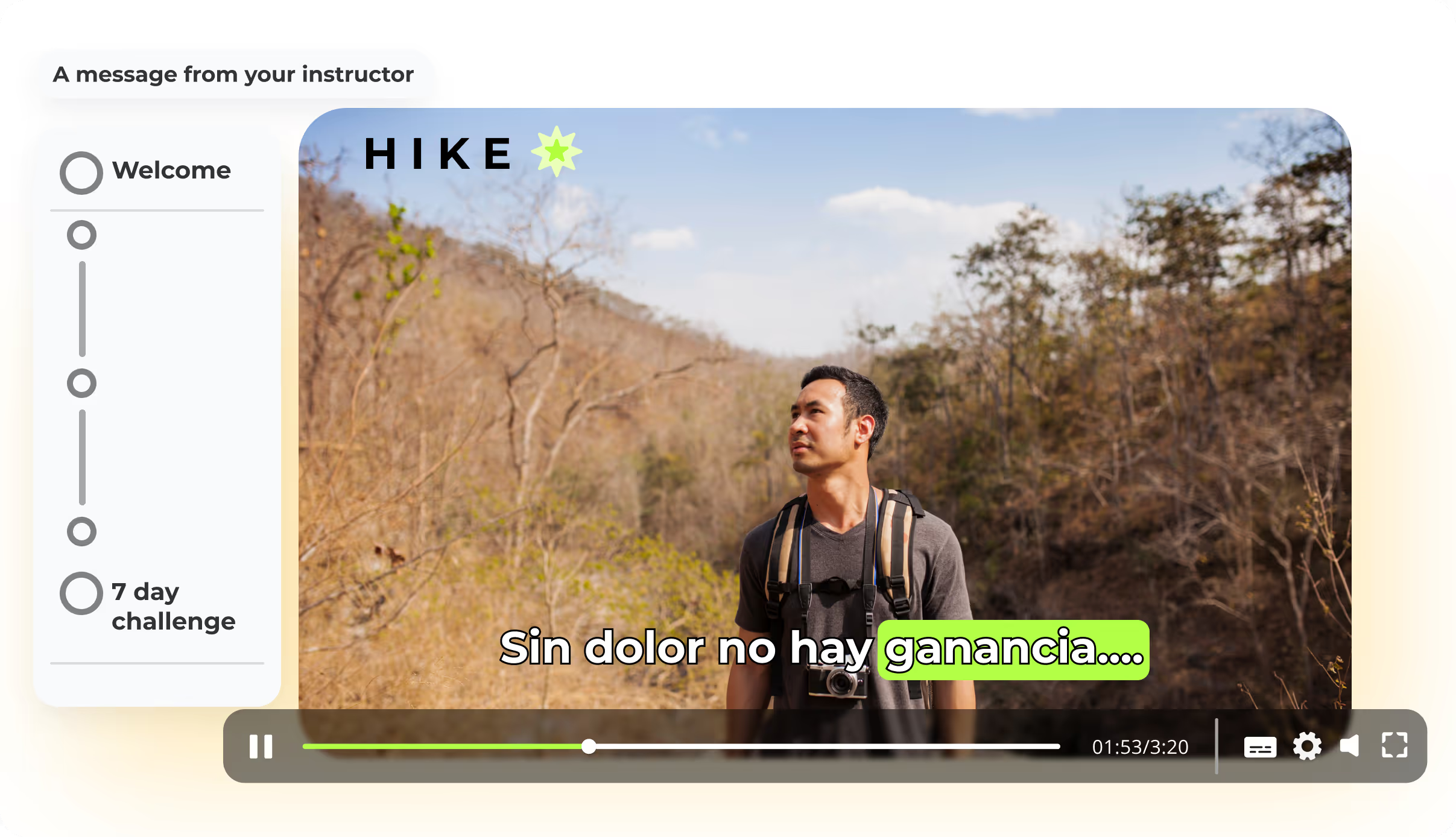
Experience the worlds most engaging video captions, in any language your viewers require.
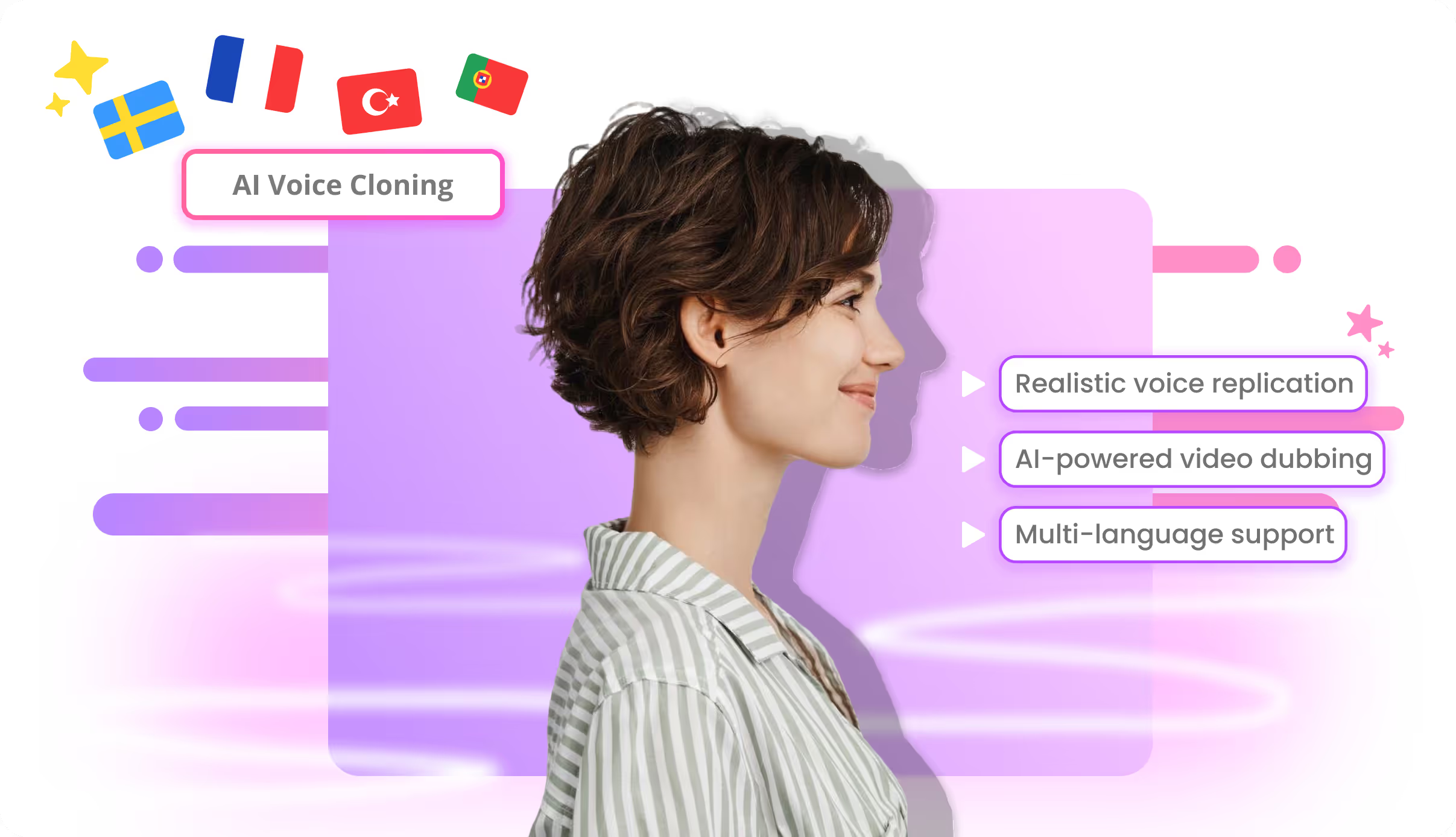
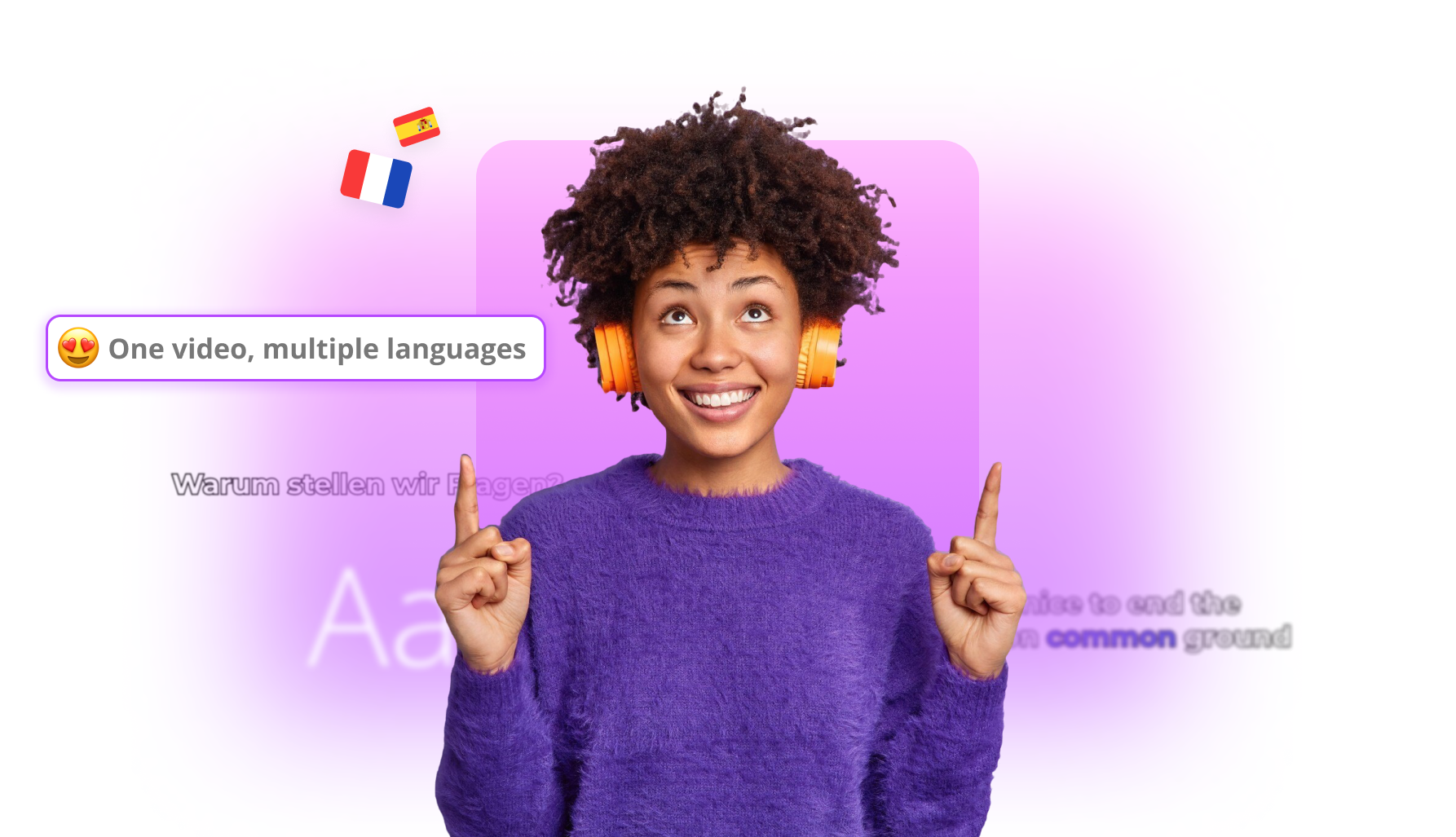
Multi-language support
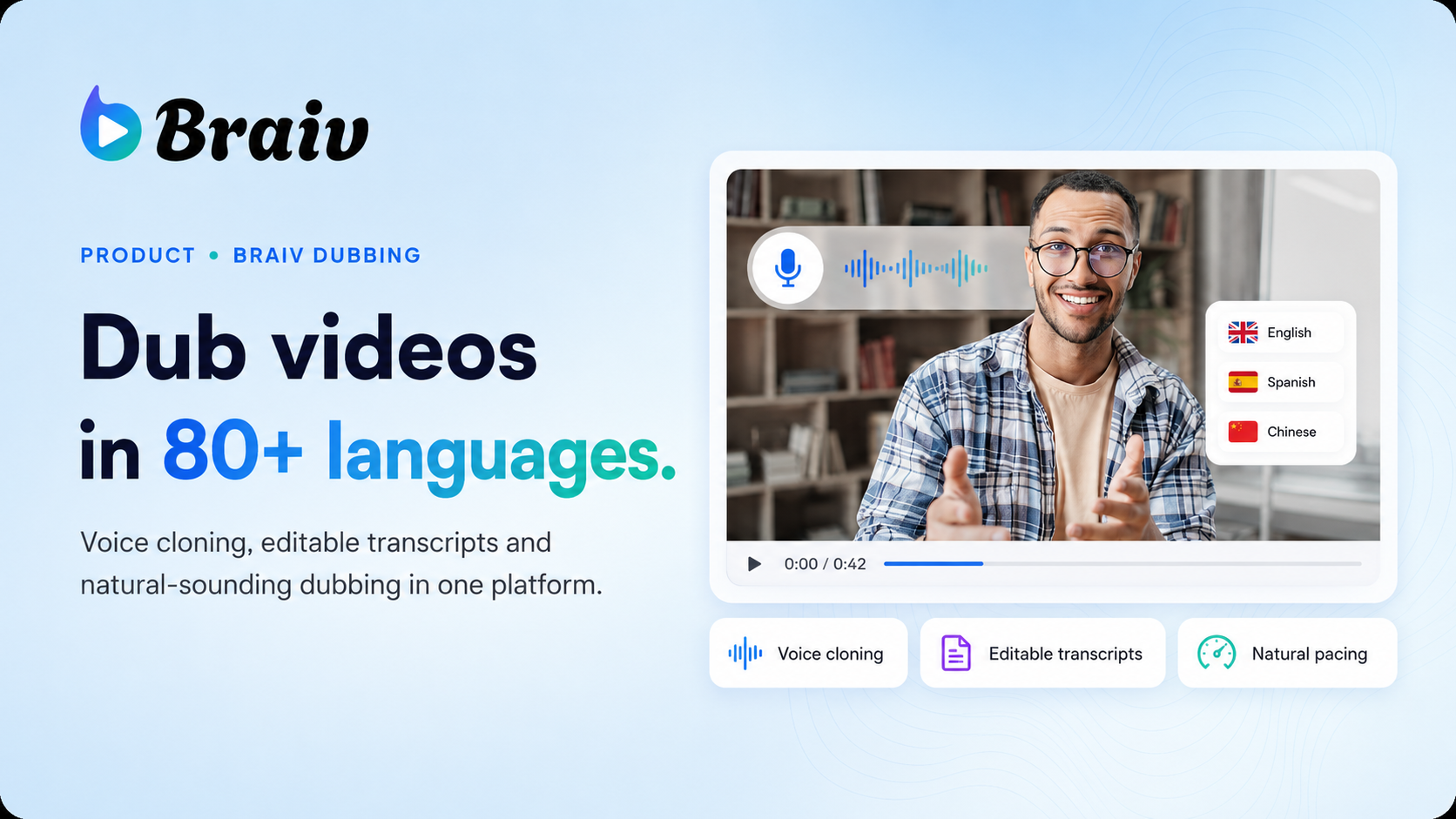
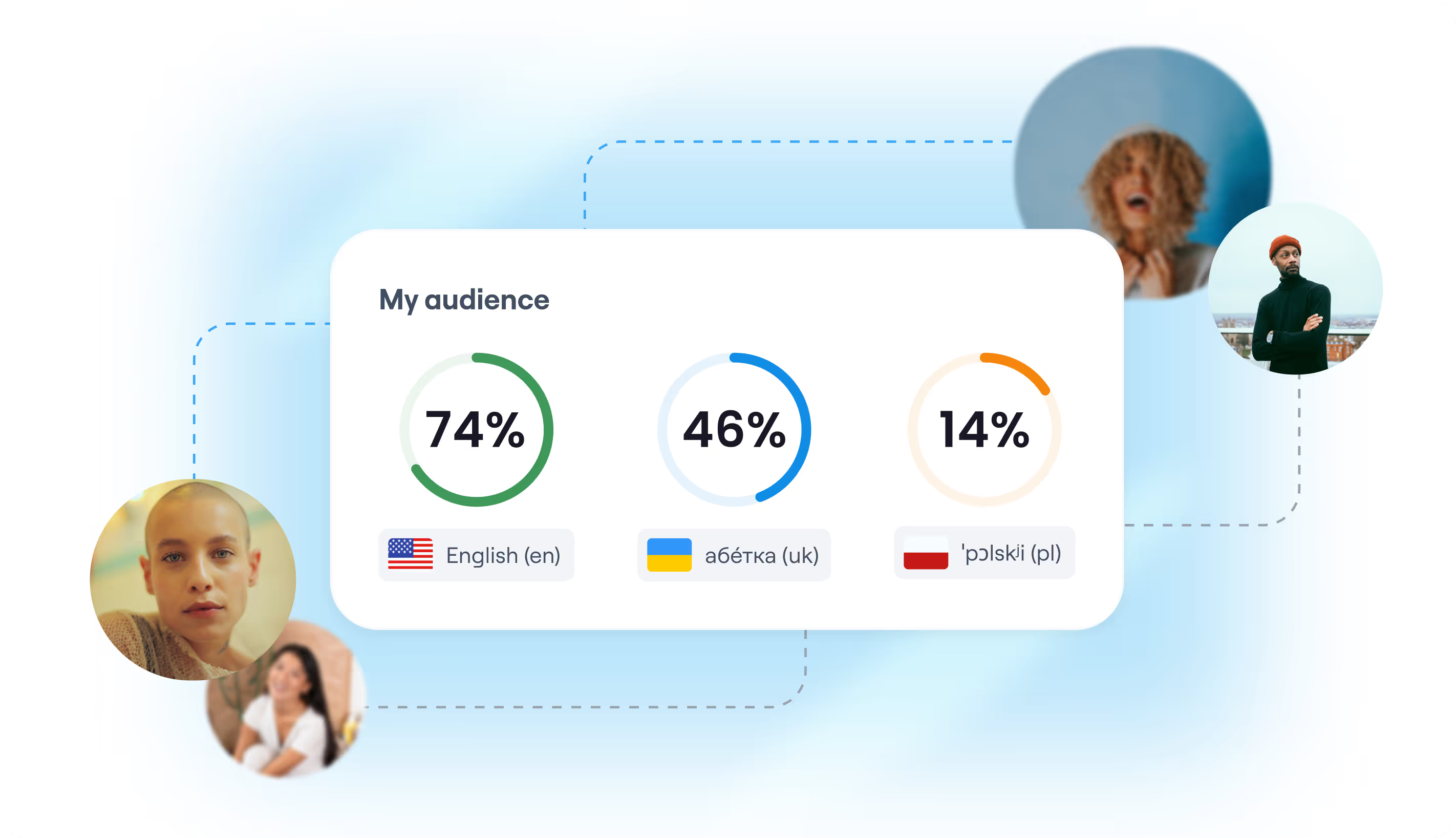
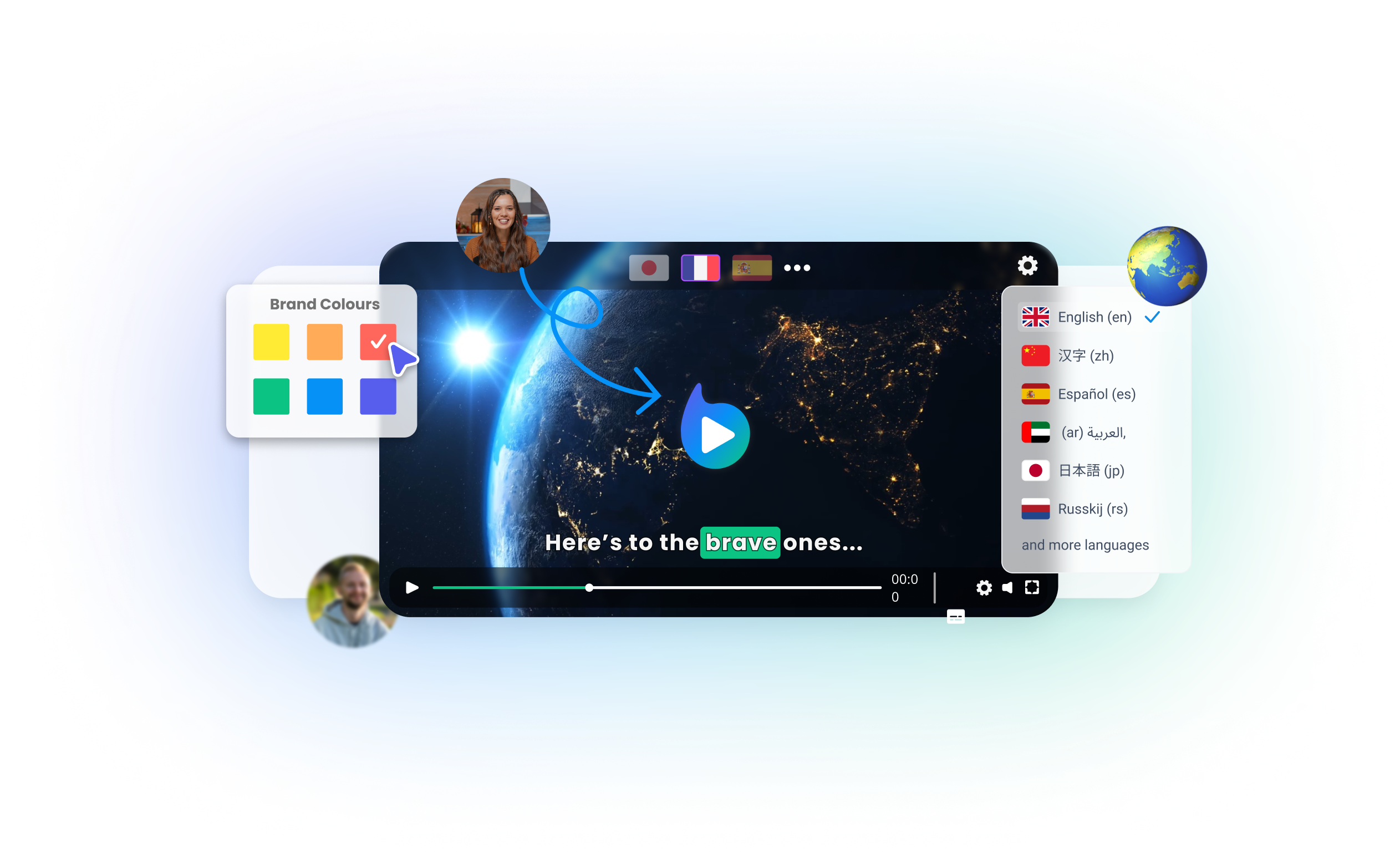
Support for 80+ languages for AI generated dubbing, including authentic locales & accents!
All Products
Explore more Braiv products
Braiv Speech
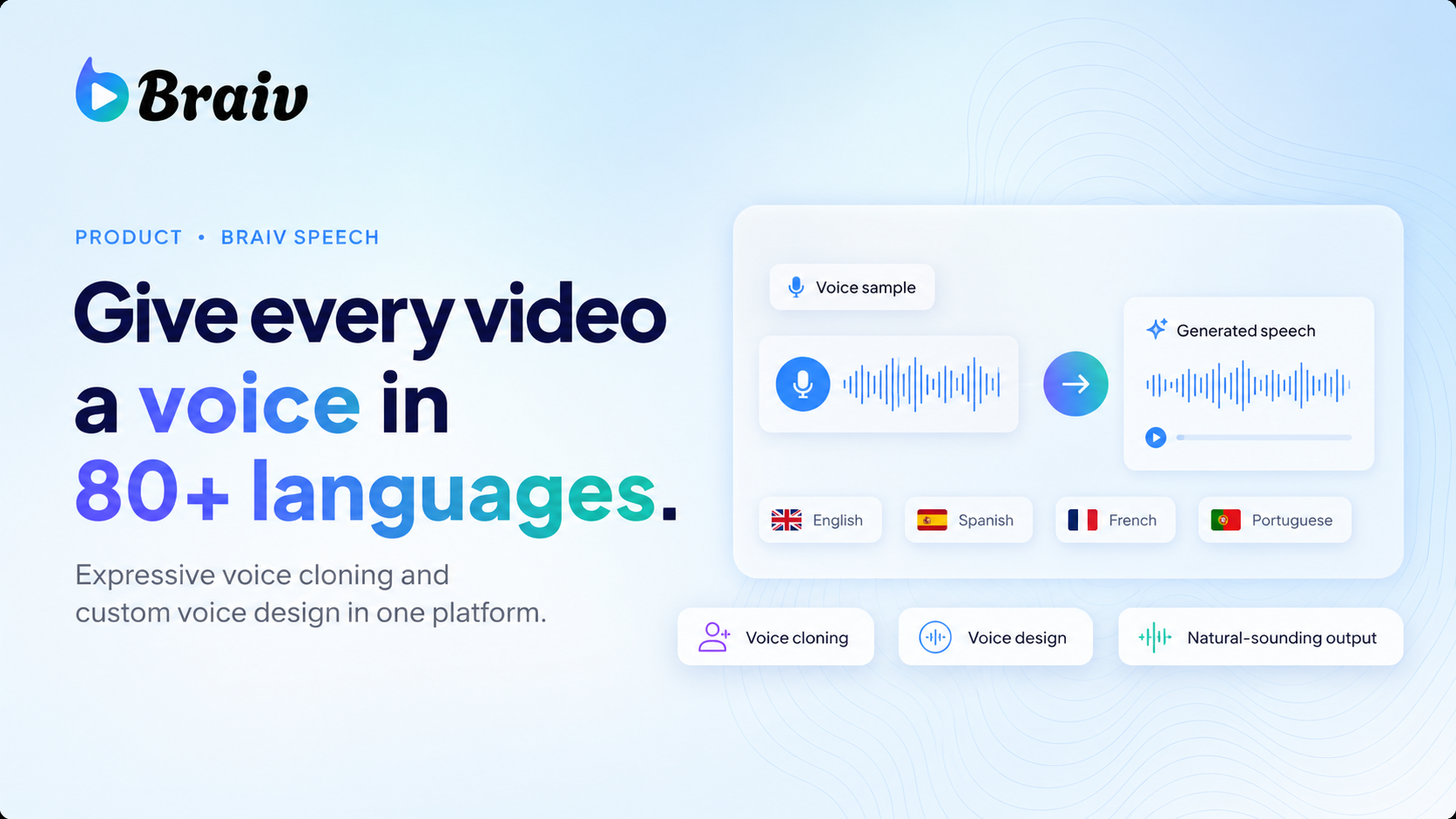
Braiv Speech is our in-house text-to-speech model with expressive voice cloning, custom voice design, and natural-sounding output in 80+ languages at launch (500+ on the roadmap).
Braiv Lipsync
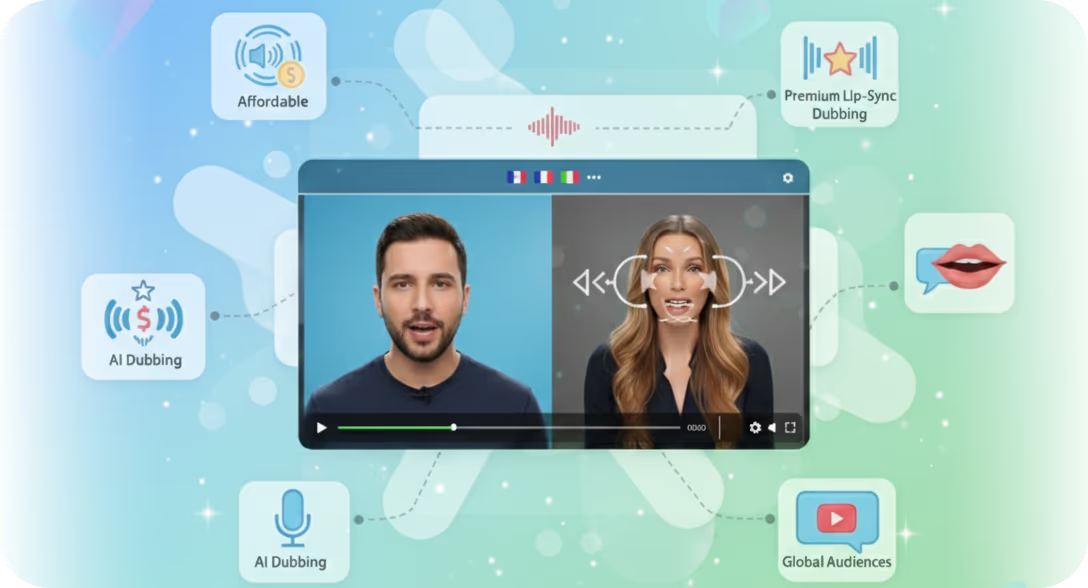
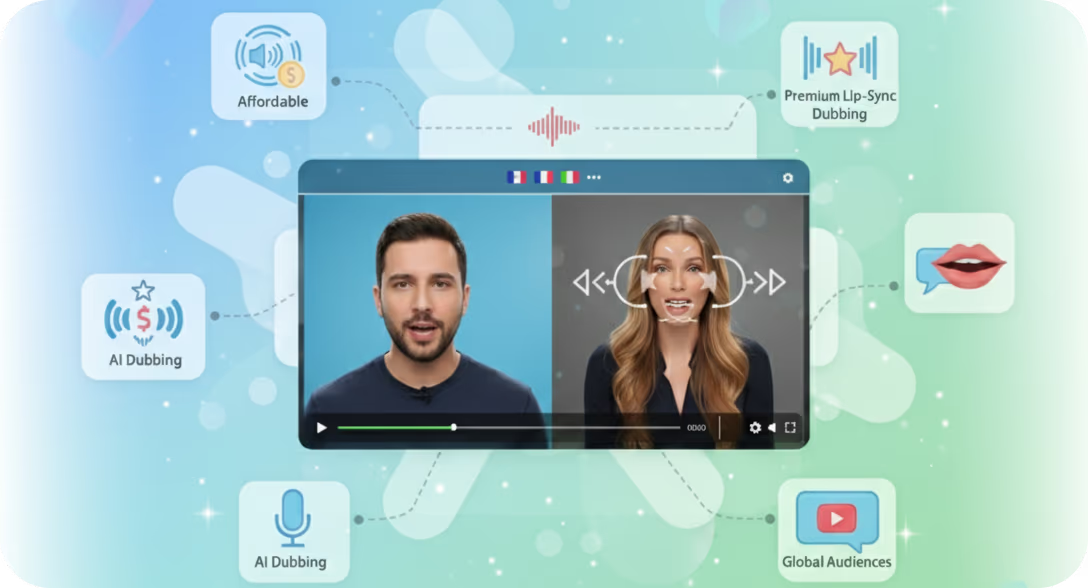
AI lipsync for dubbed videos that synchronizes mouth movements naturally, ideal for creators, marketers, and teams producing multilingual content.
Braiv Player
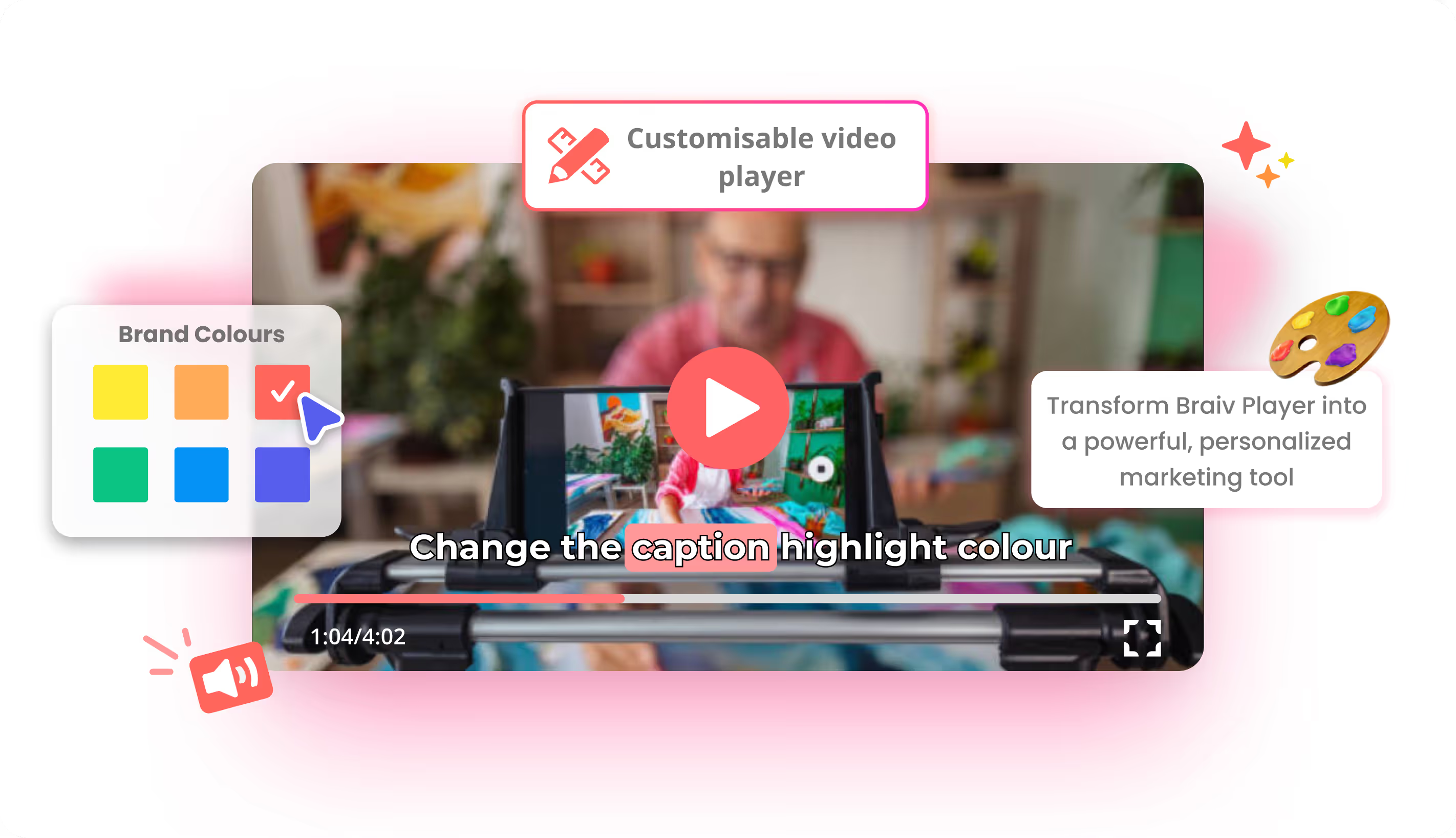
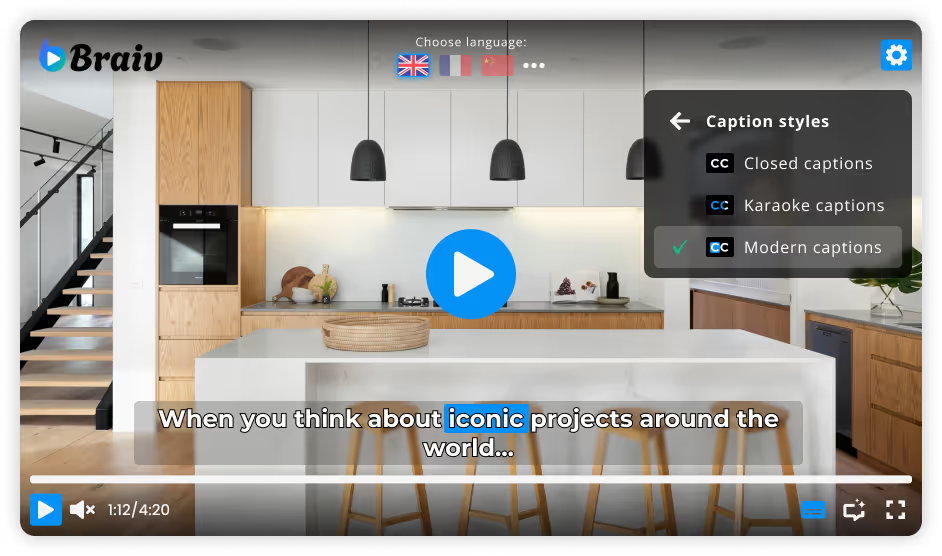
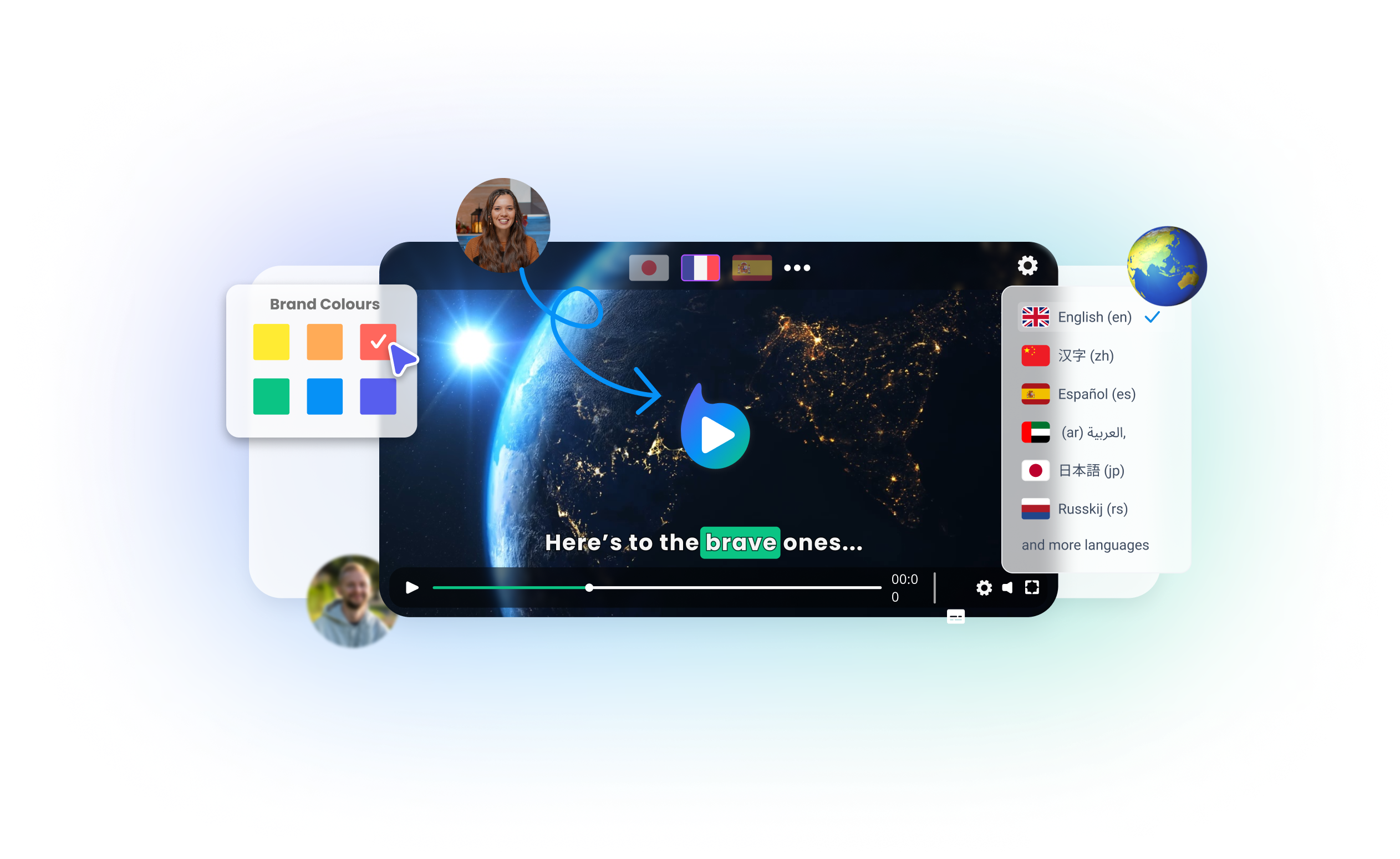
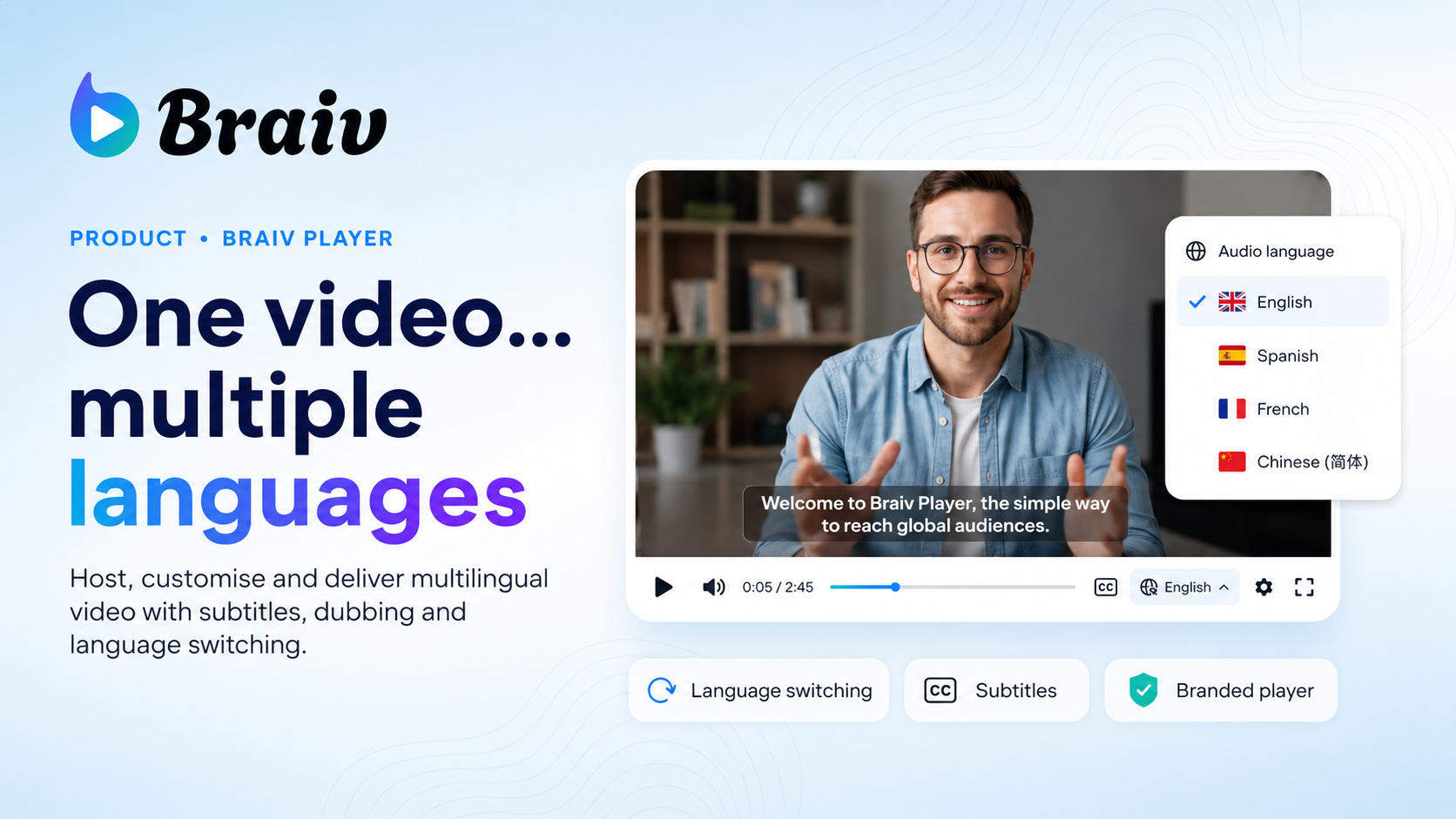
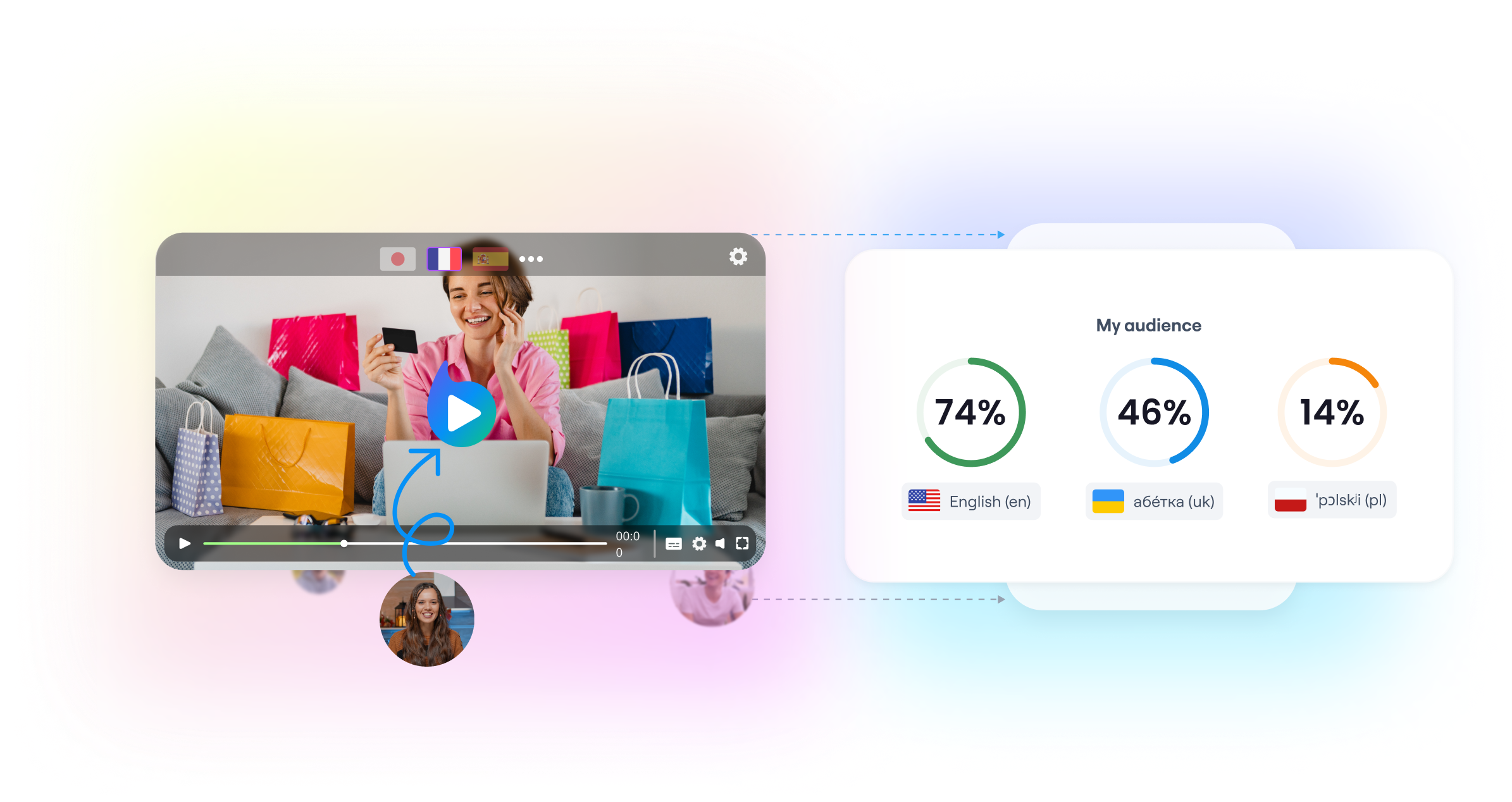
Multilingual video player for businesses delivering one video in multiple languages with subtitles, dubbing, and language switching.
Braiv Transcription
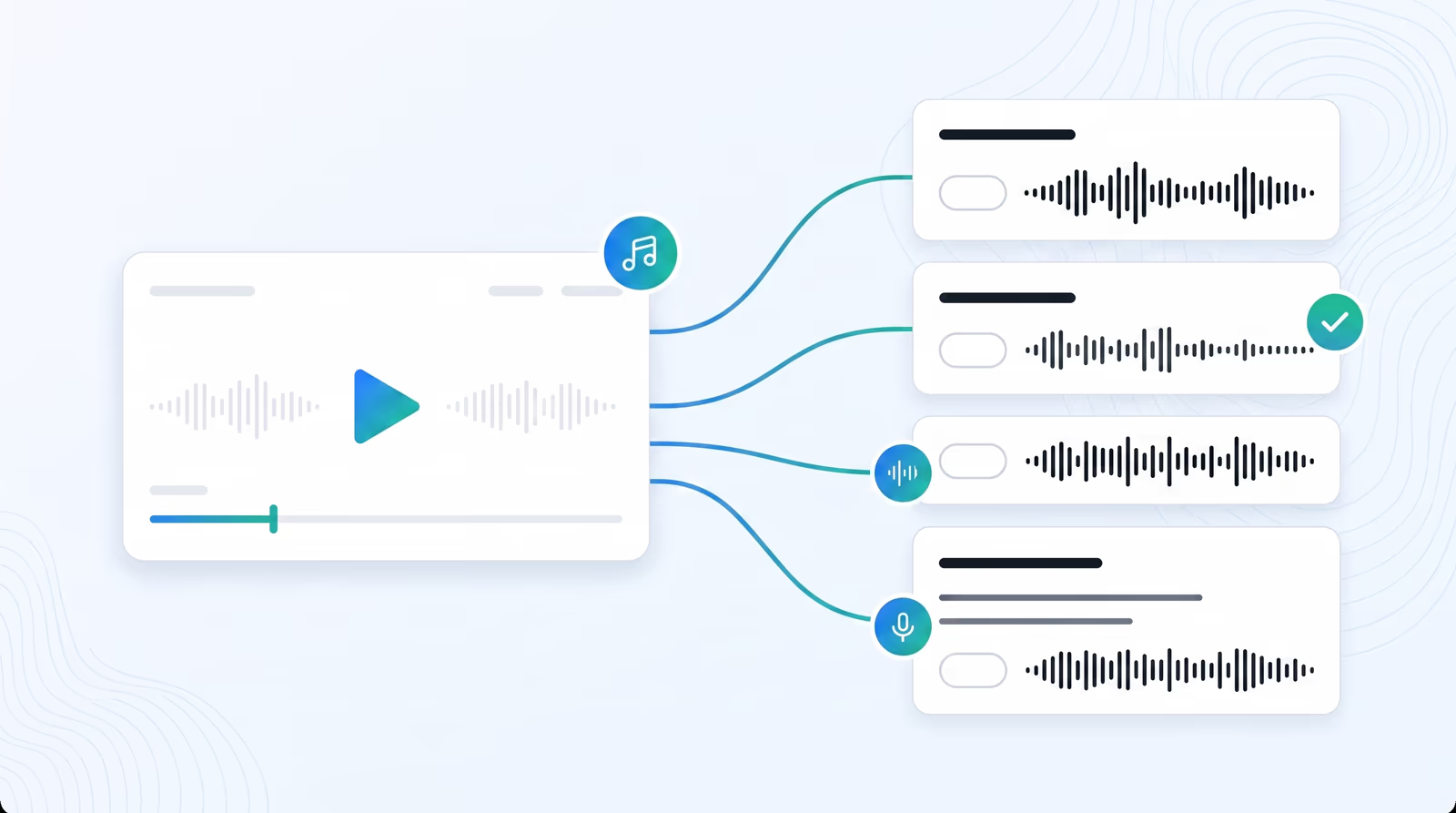
Braiv Transcription is our enterprise-grade speech-to-text platform with automated speaker detection, clickable timestamps, and instant contextual translation into over 80 languages.
Braiv Docs
AI document translation for teams who need to translate worksheets, brochures, and branded files faster without traditional agency costs.
Braiv Connect
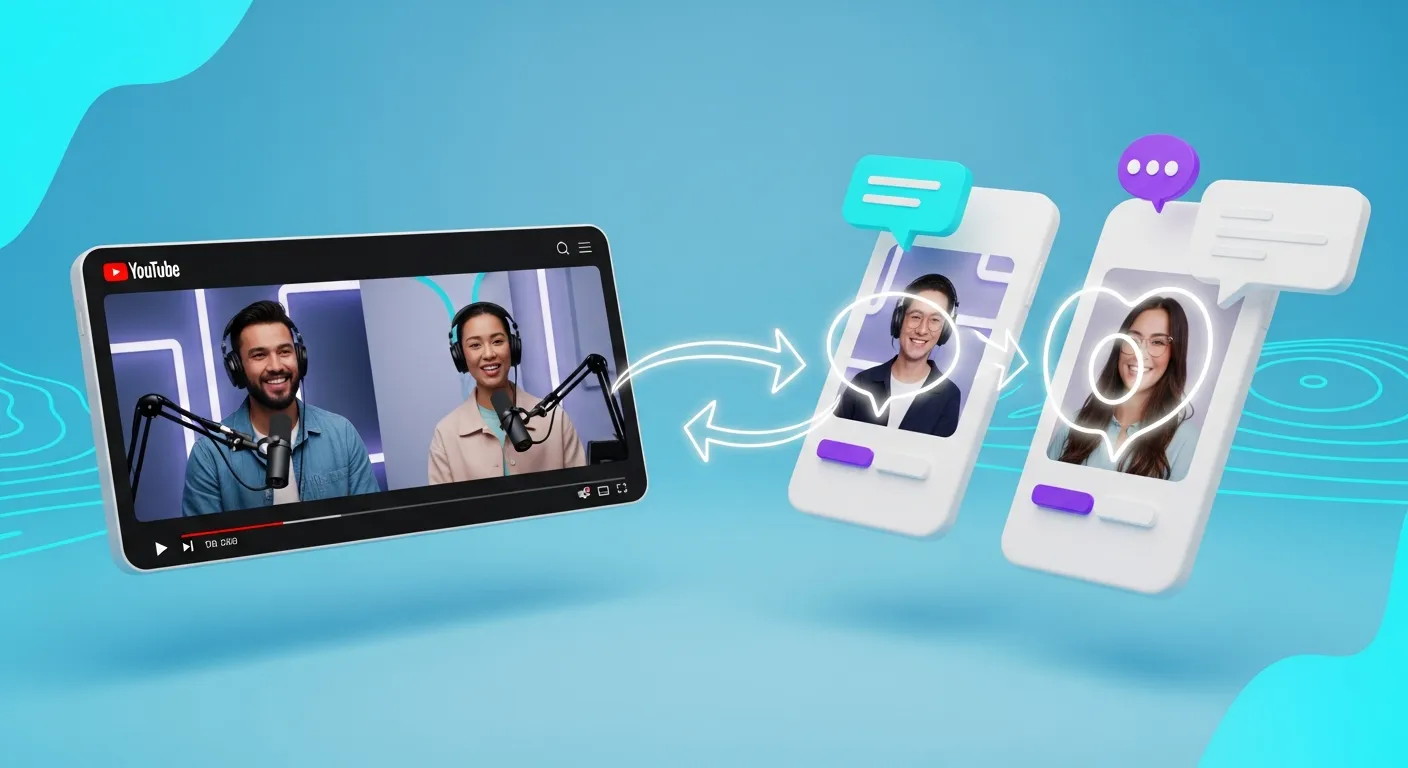
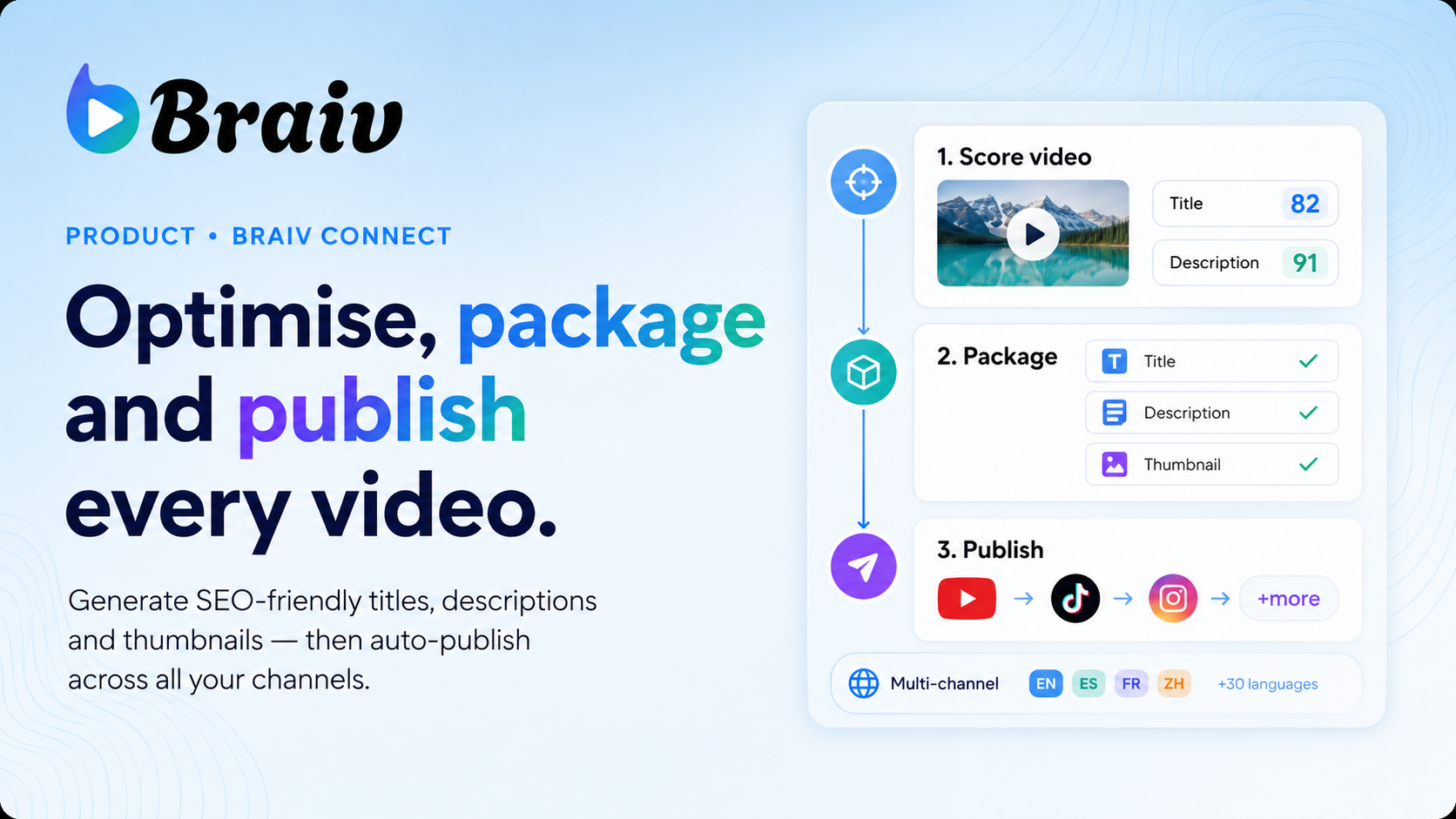
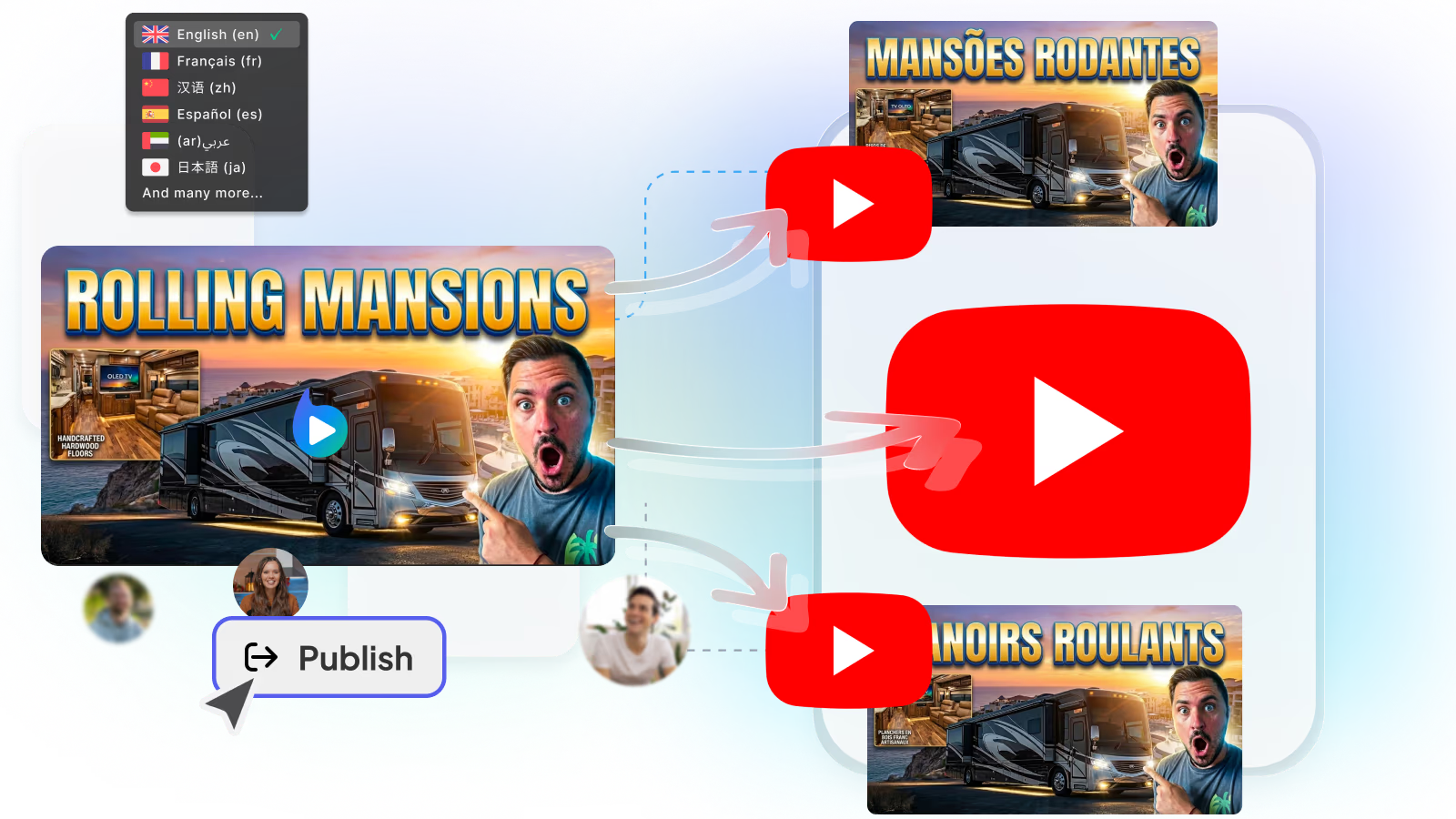
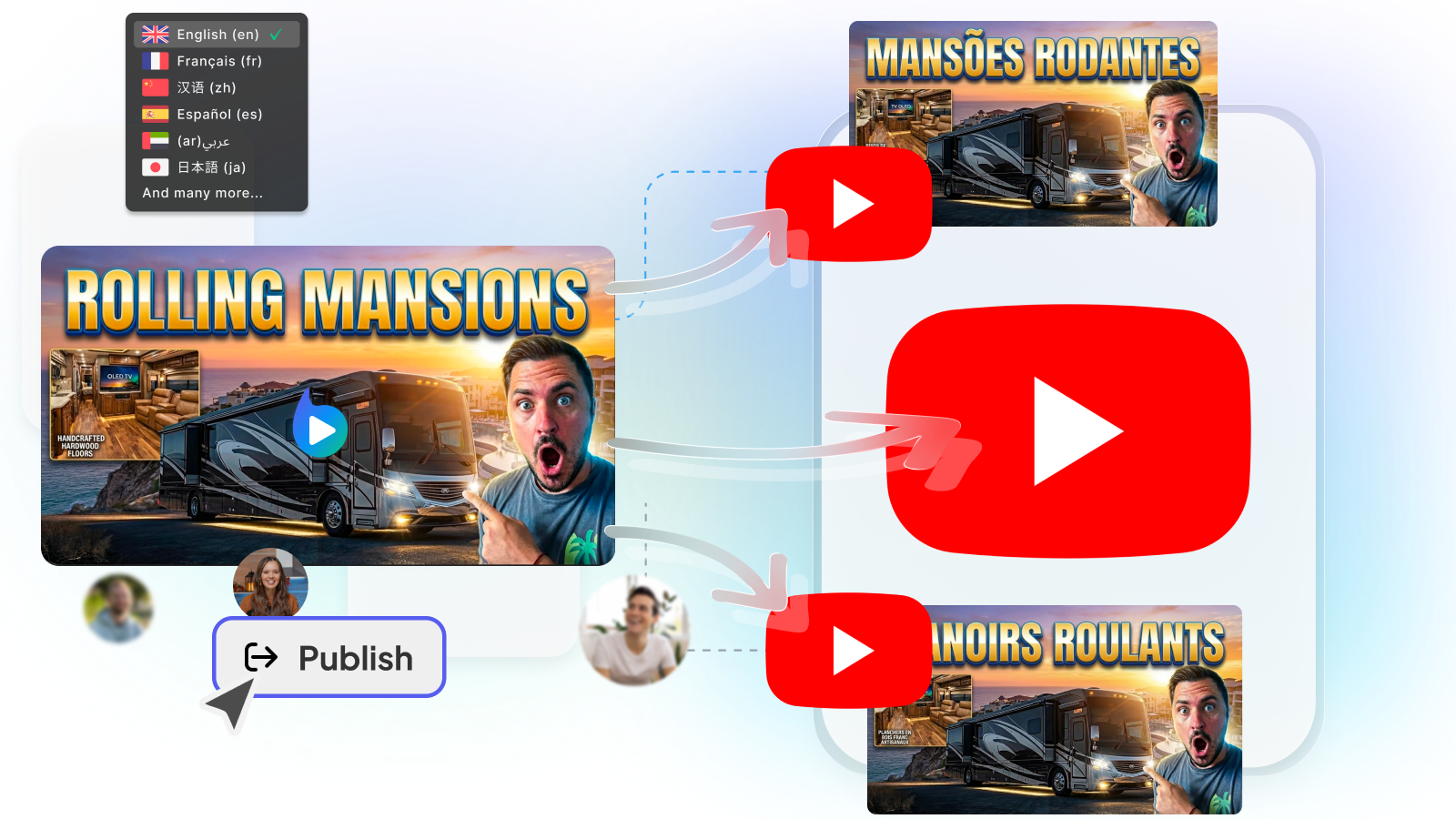
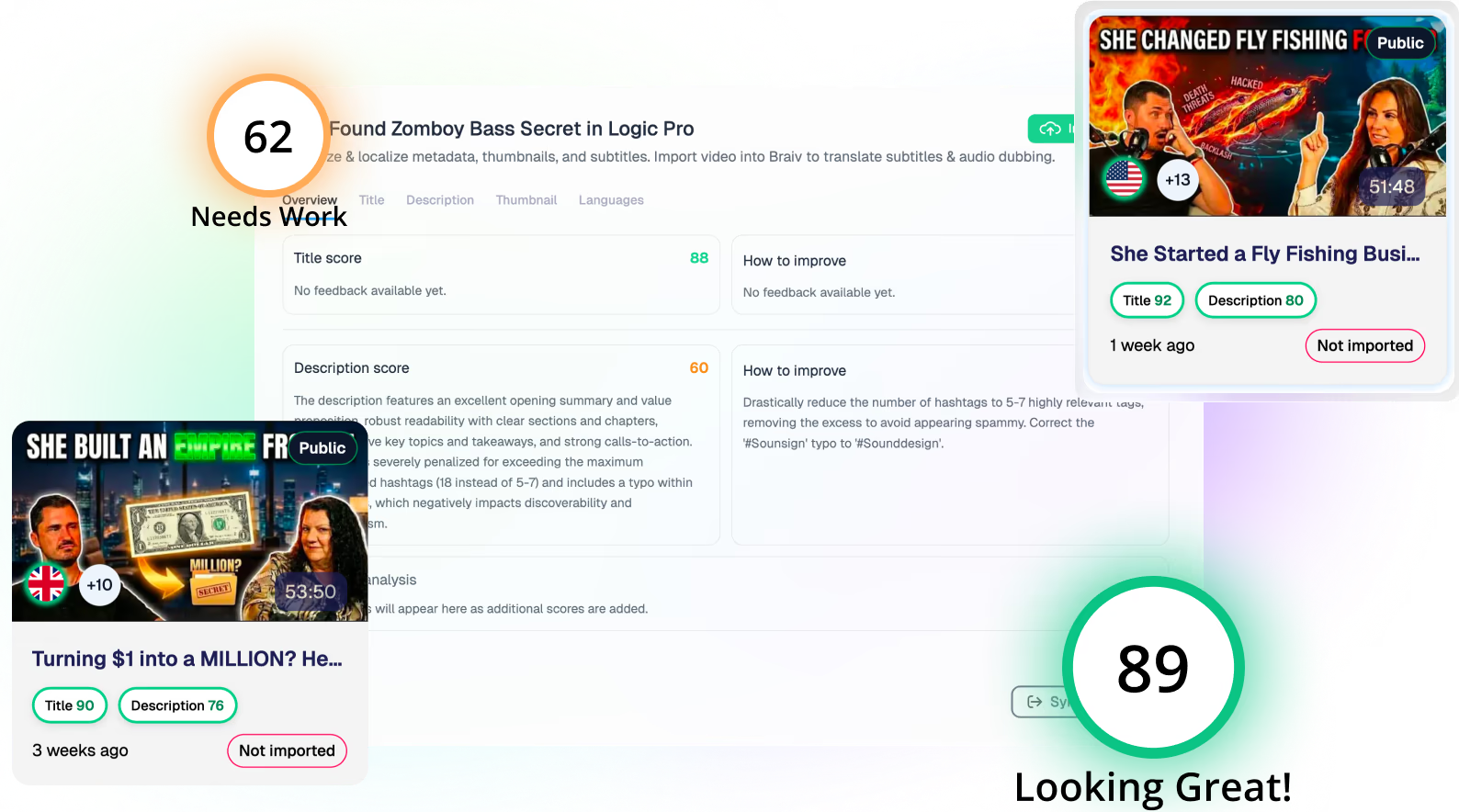
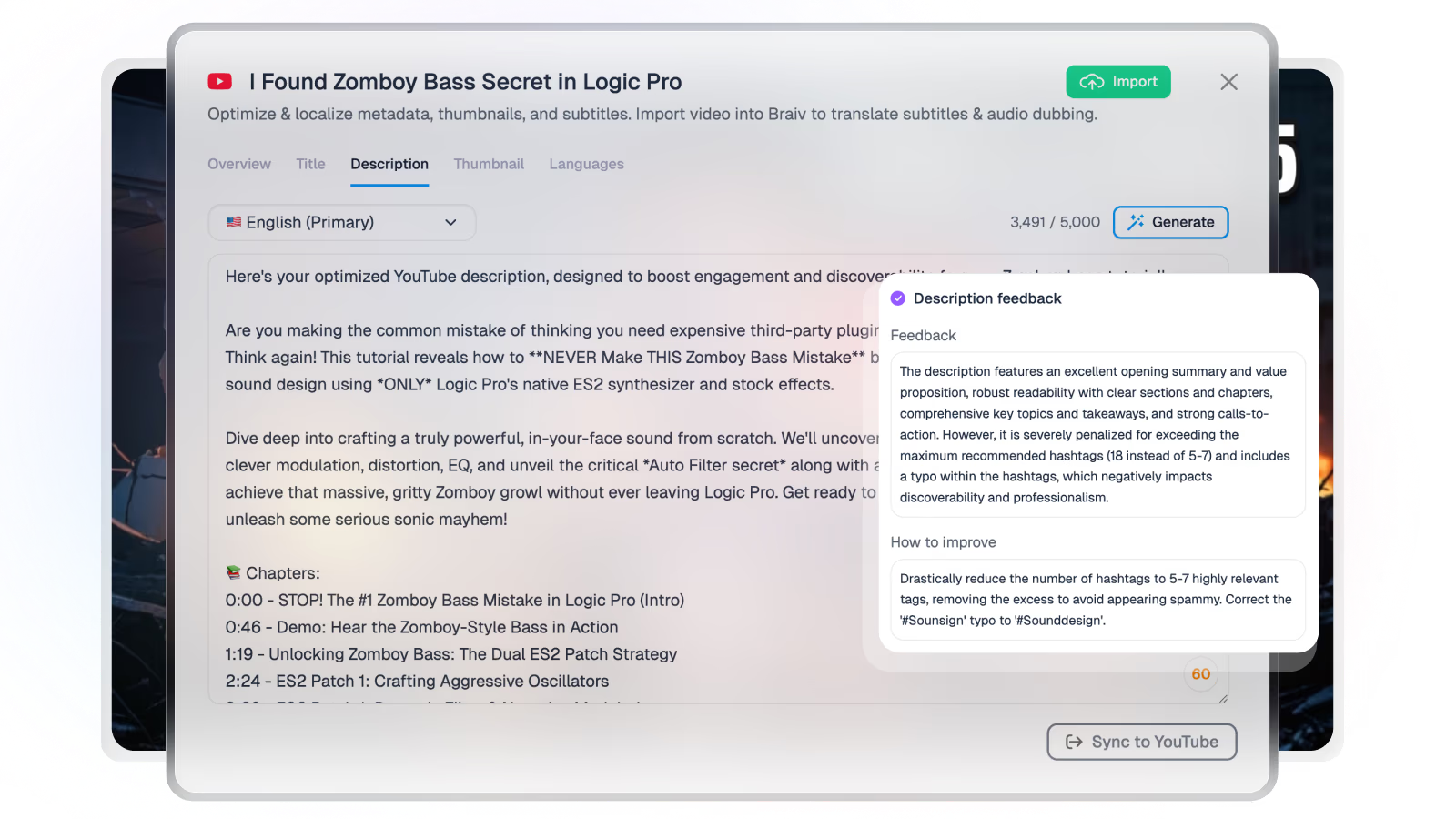
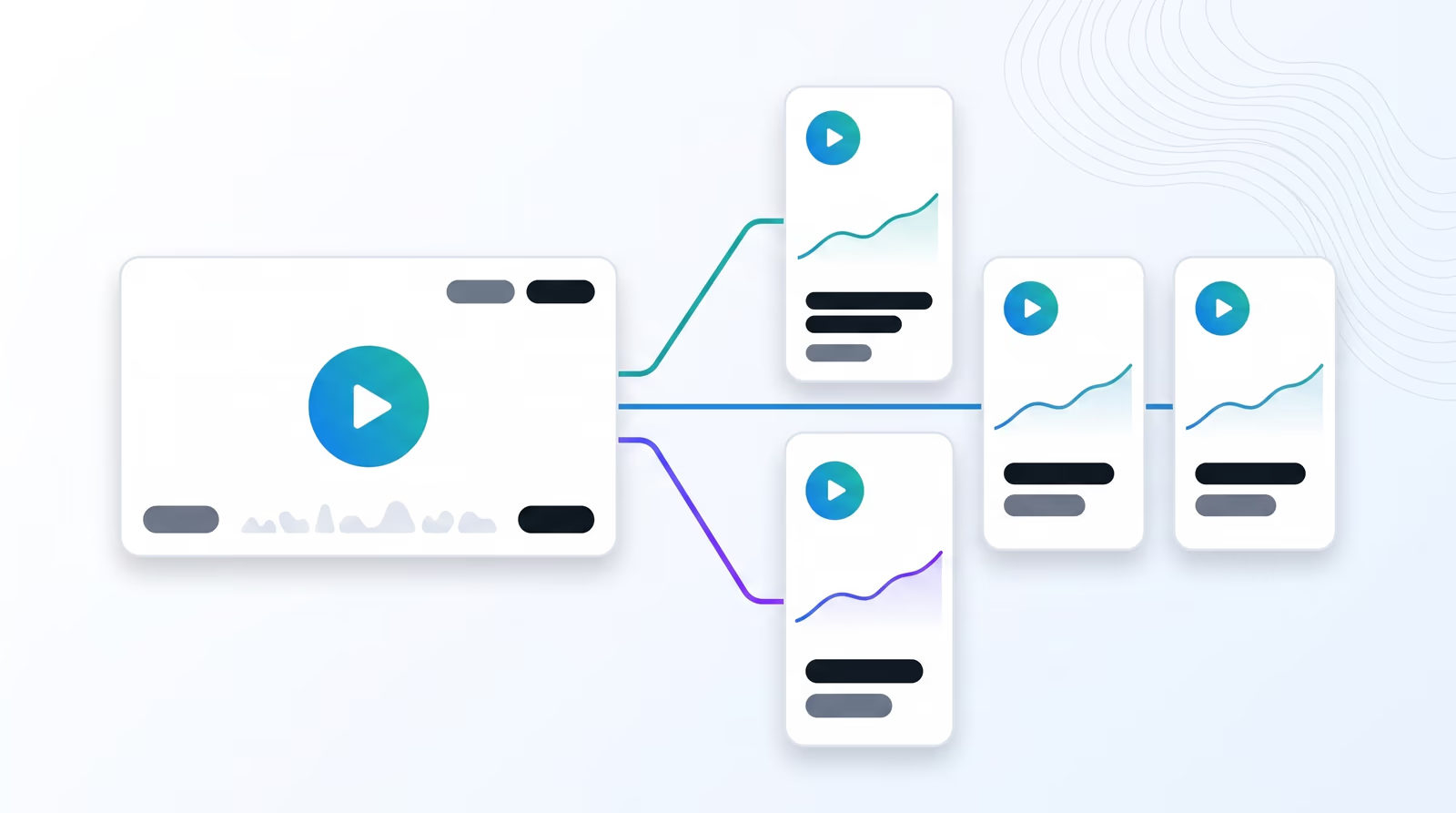
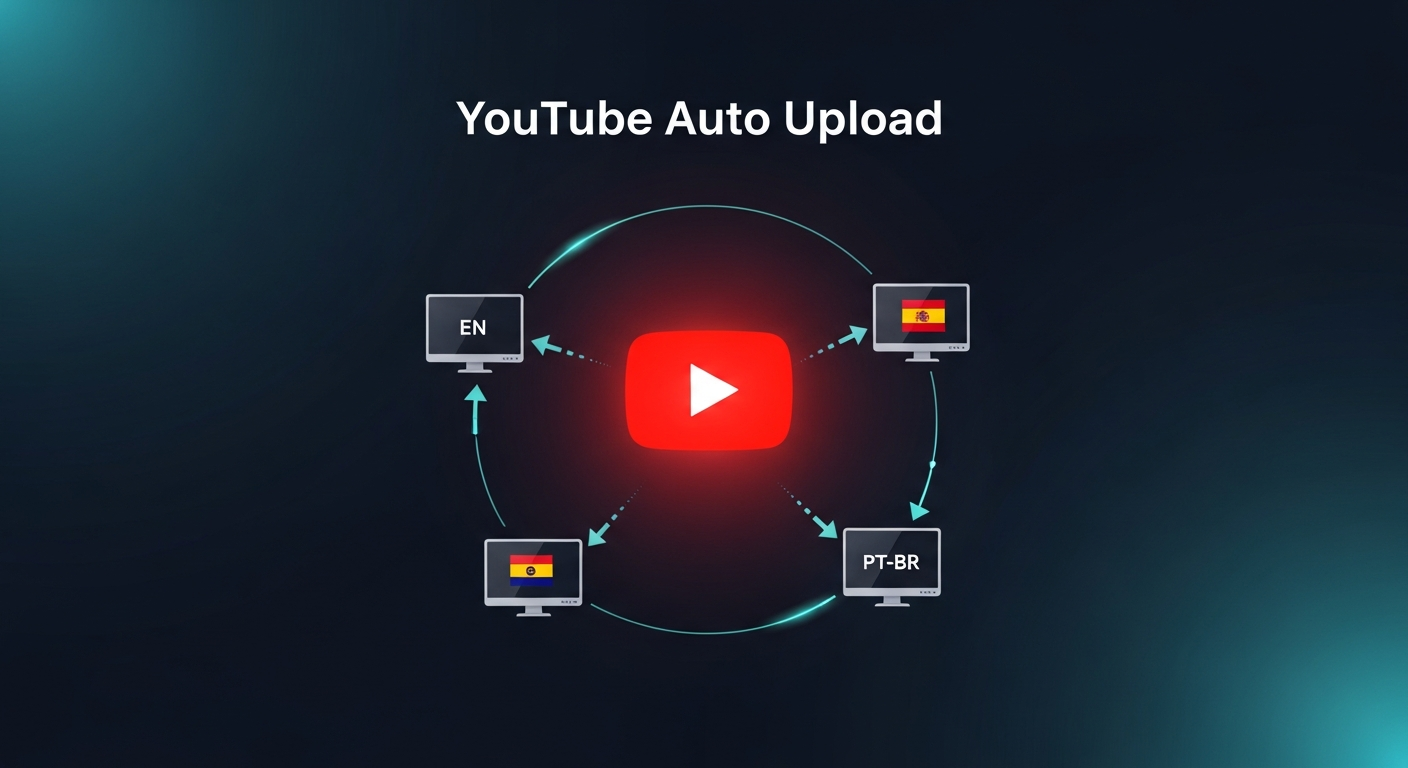
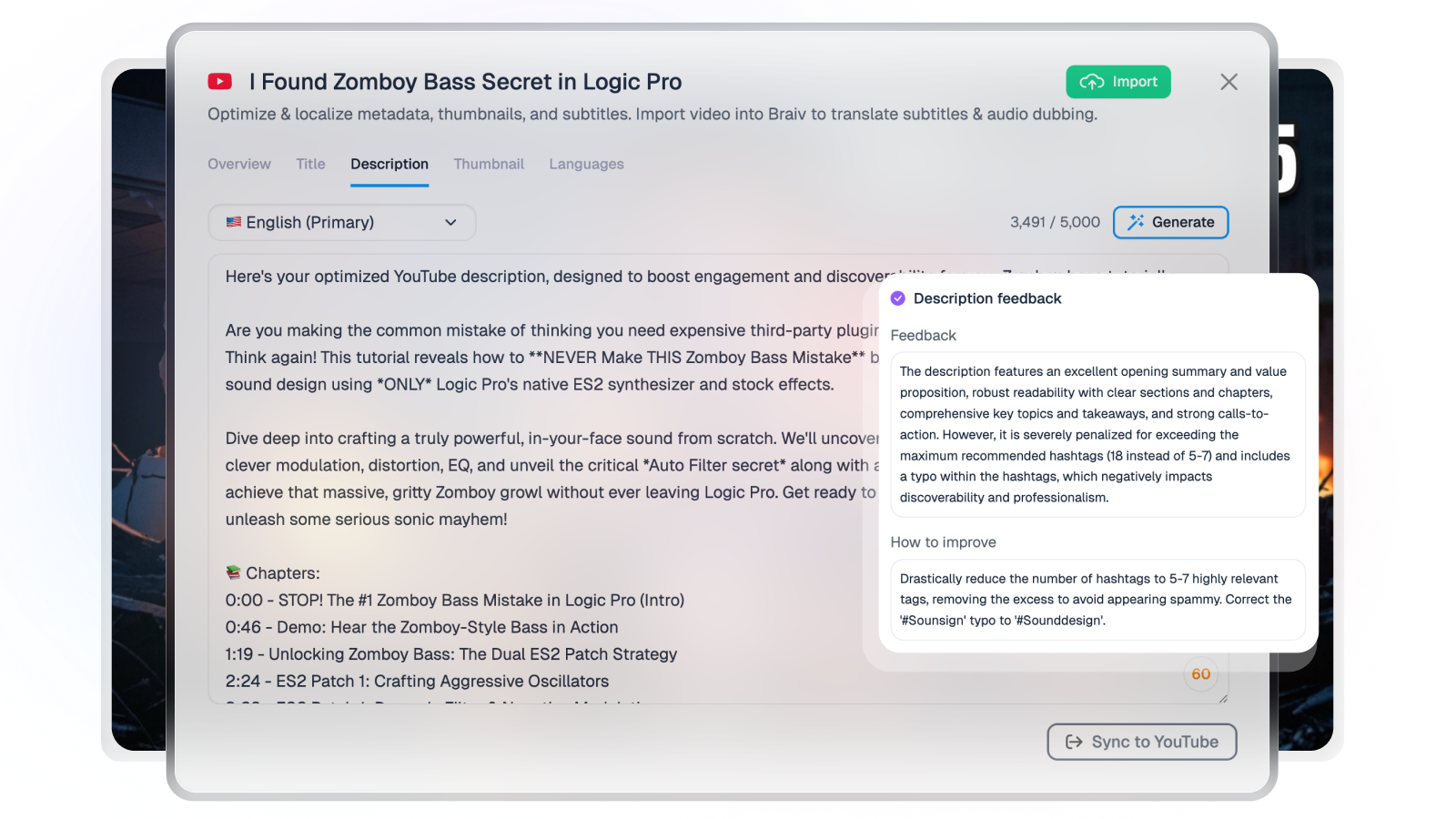
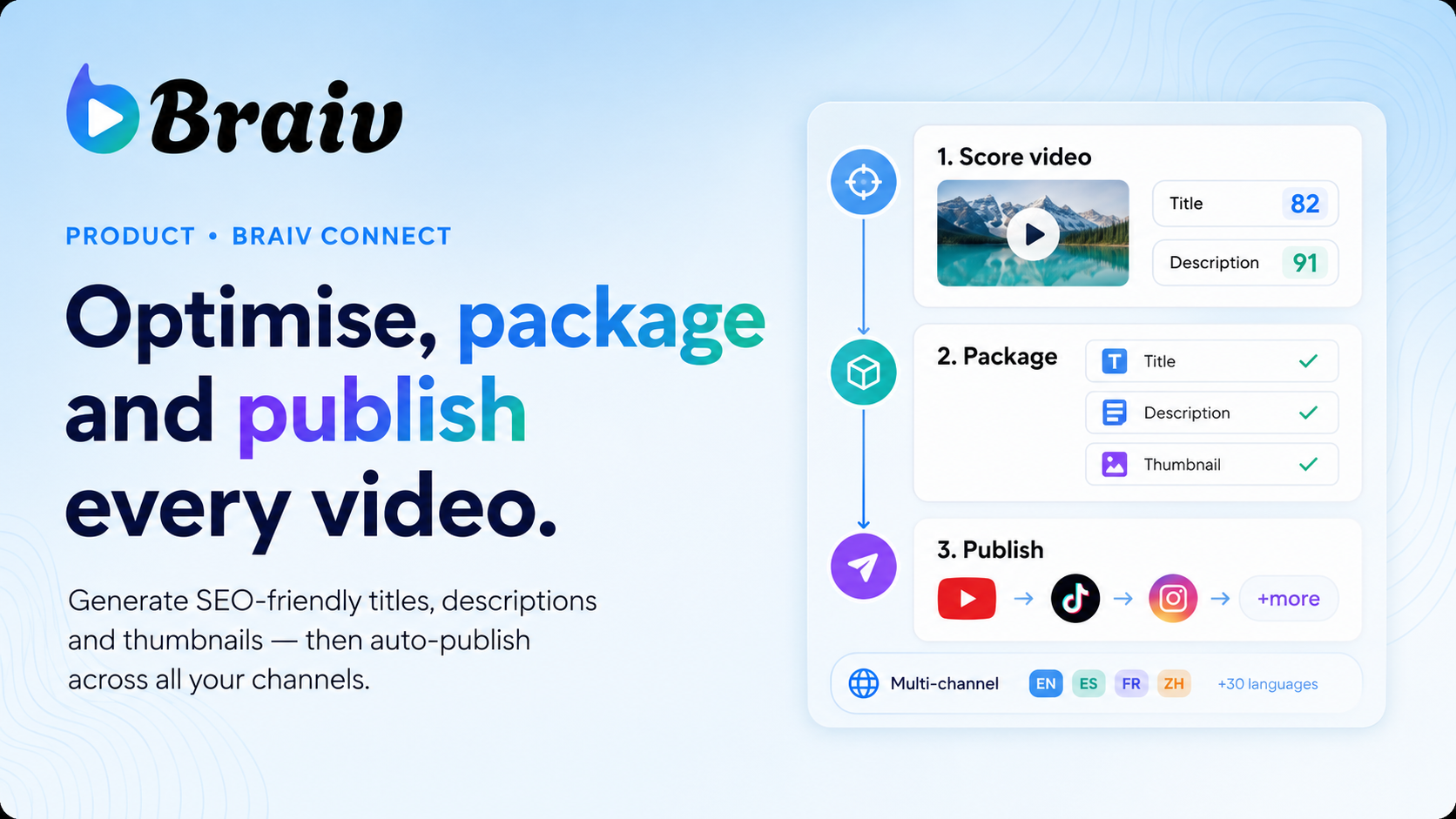
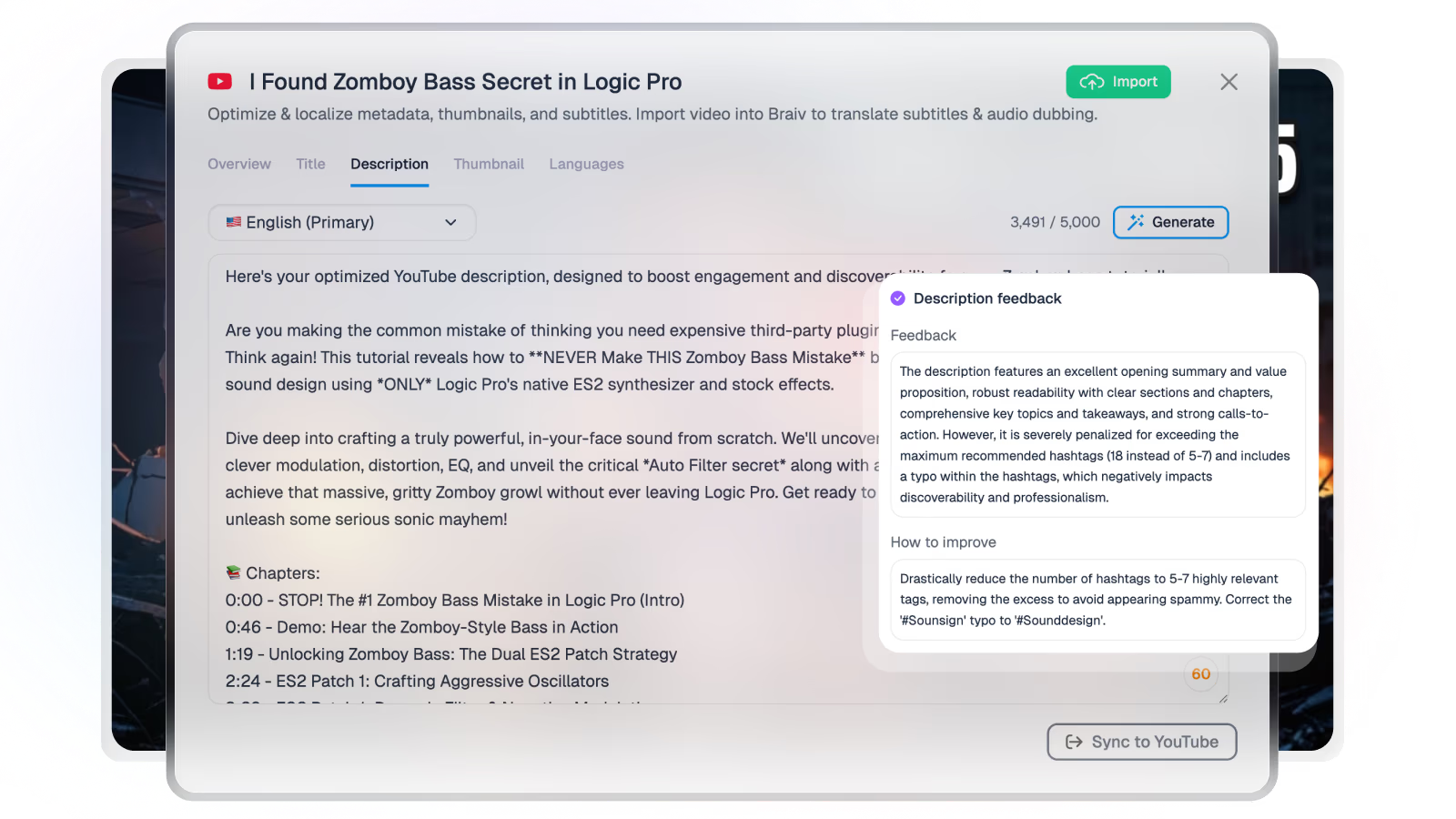
Distribute videos automatically while generating SEO-friendly titles and descriptions. Easily optimize your existing backlog.
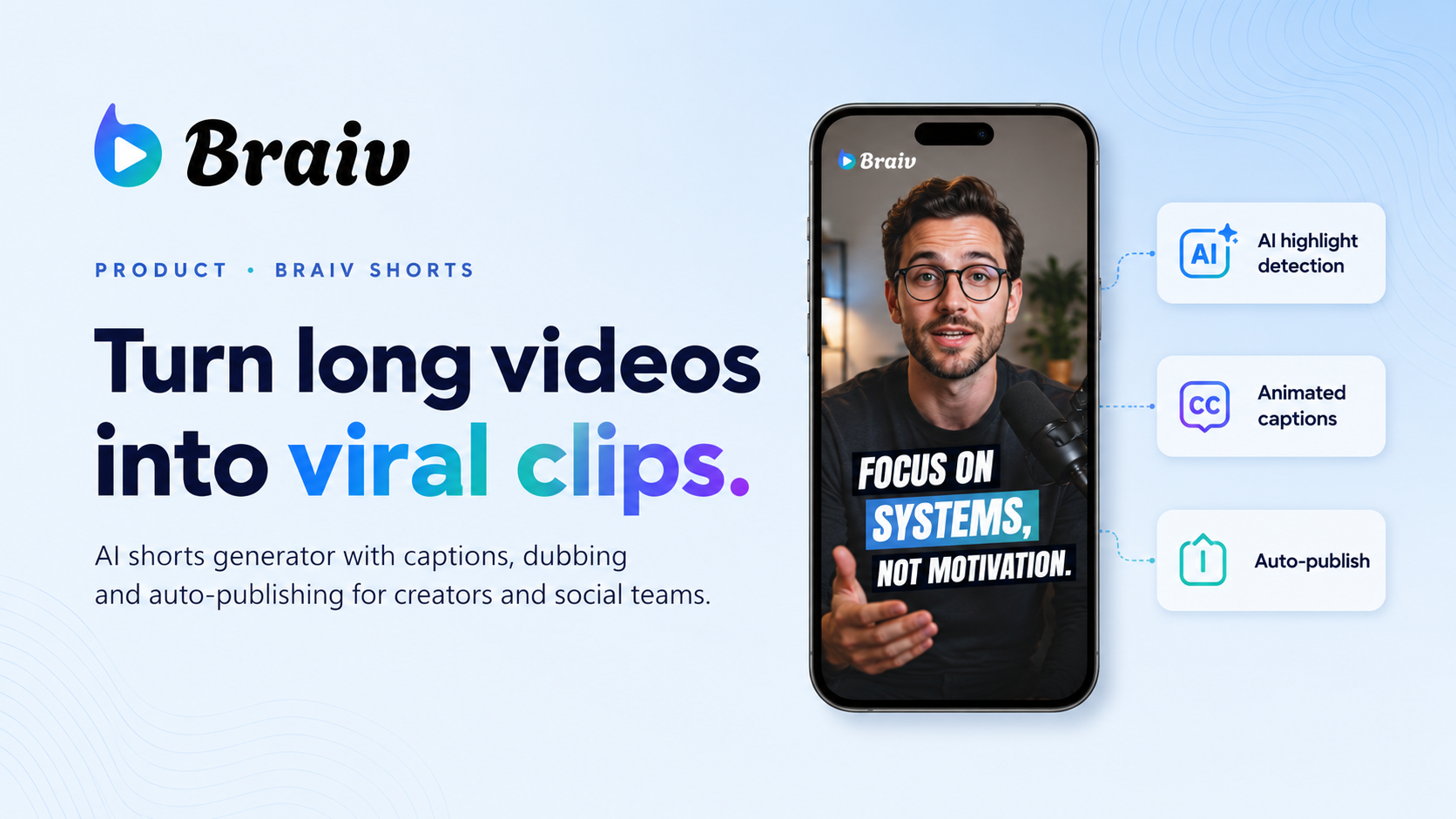
Braiv Shorts
AI shorts generator that turns long videos into viral clips with captions, dubbing, and soundtracks for creators and social teams.
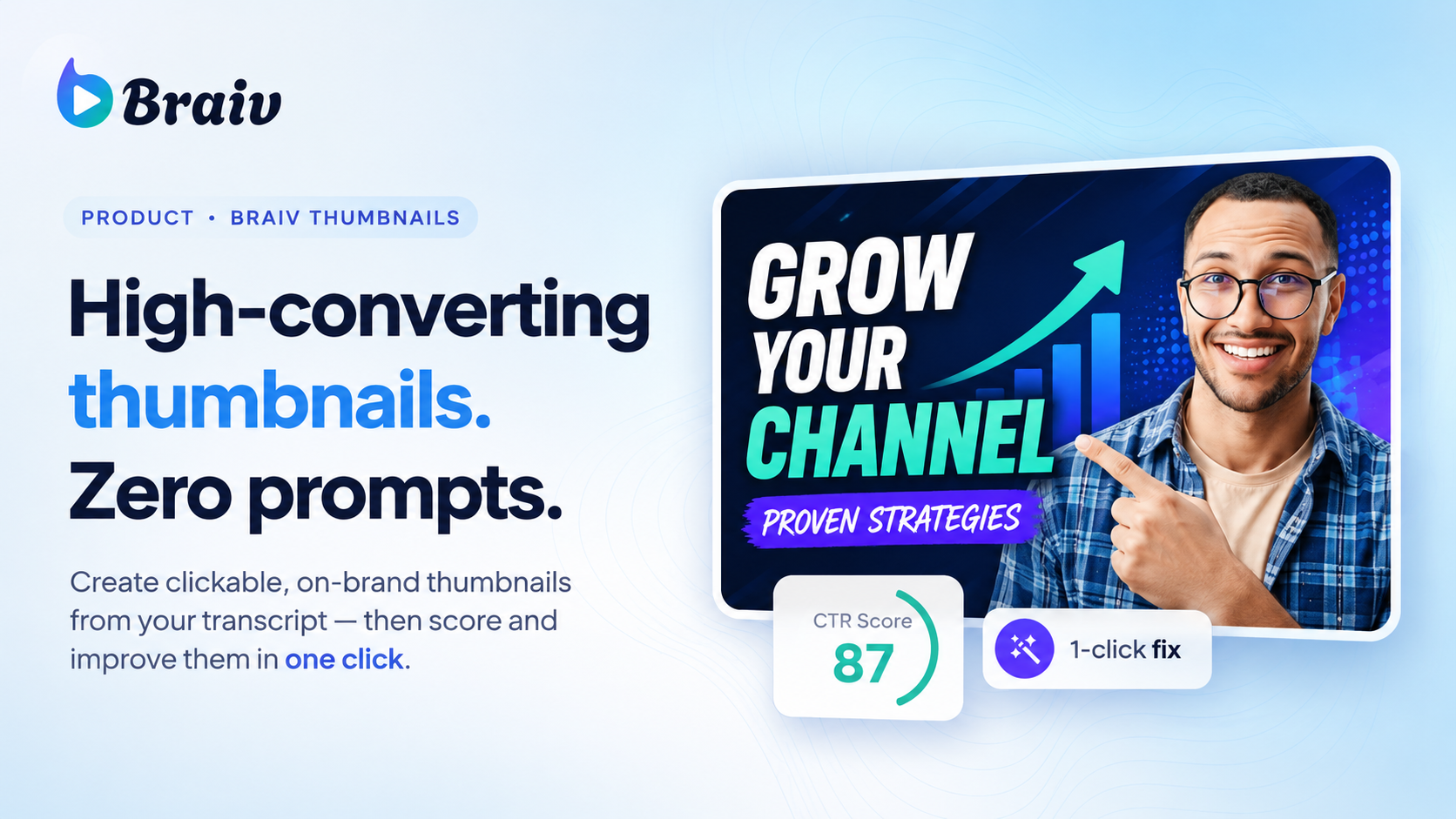
Braiv Thumbnails
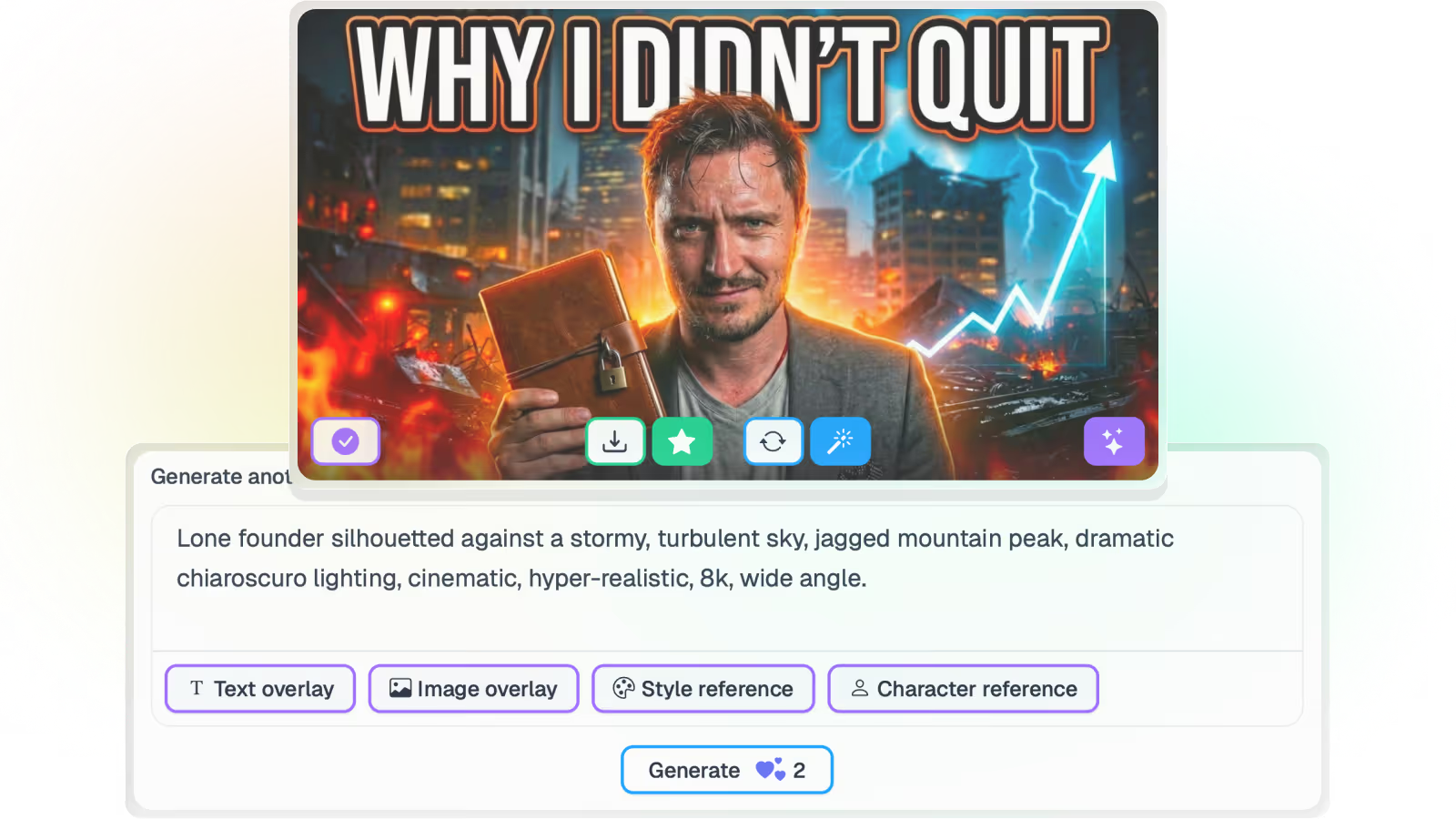
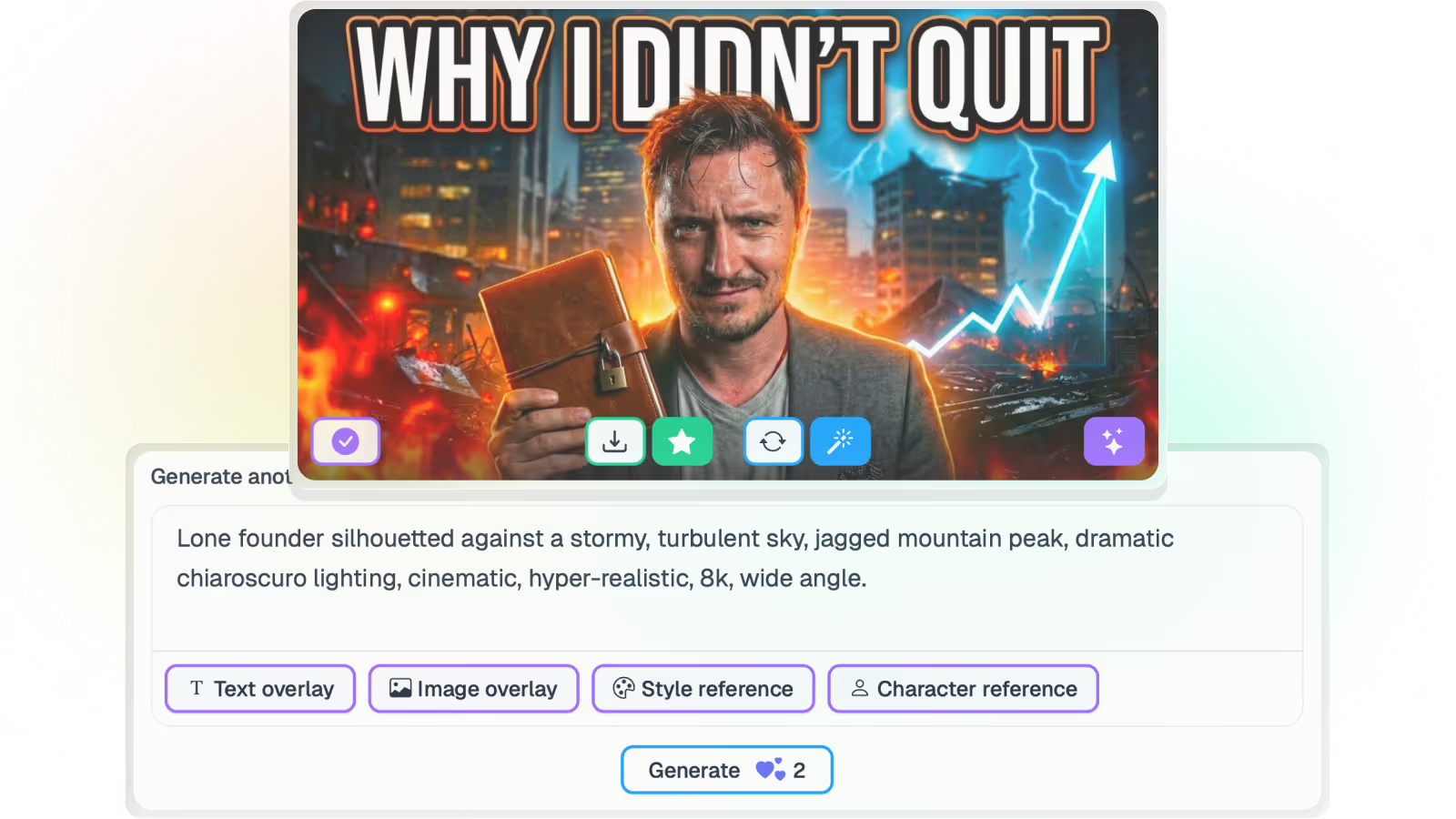
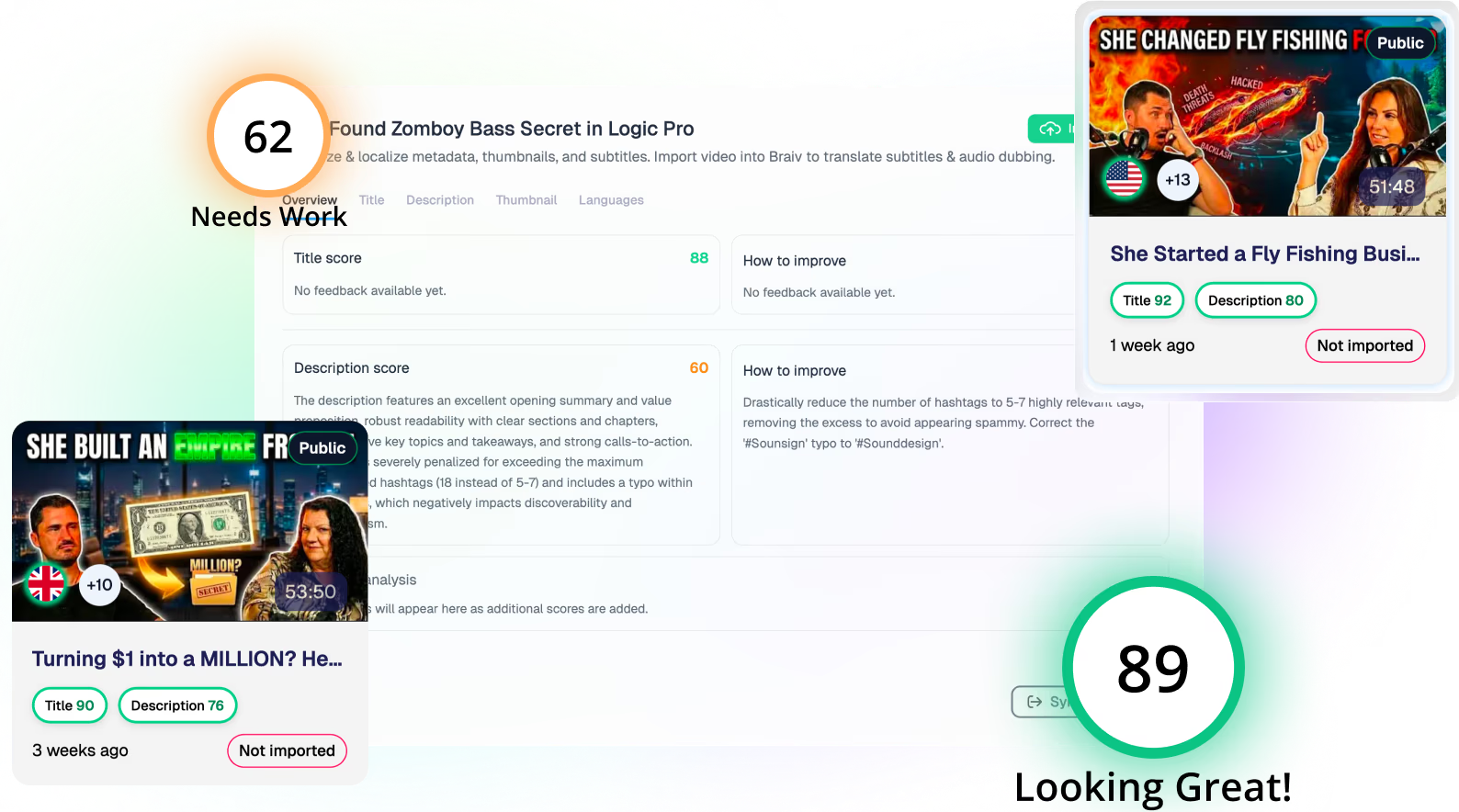
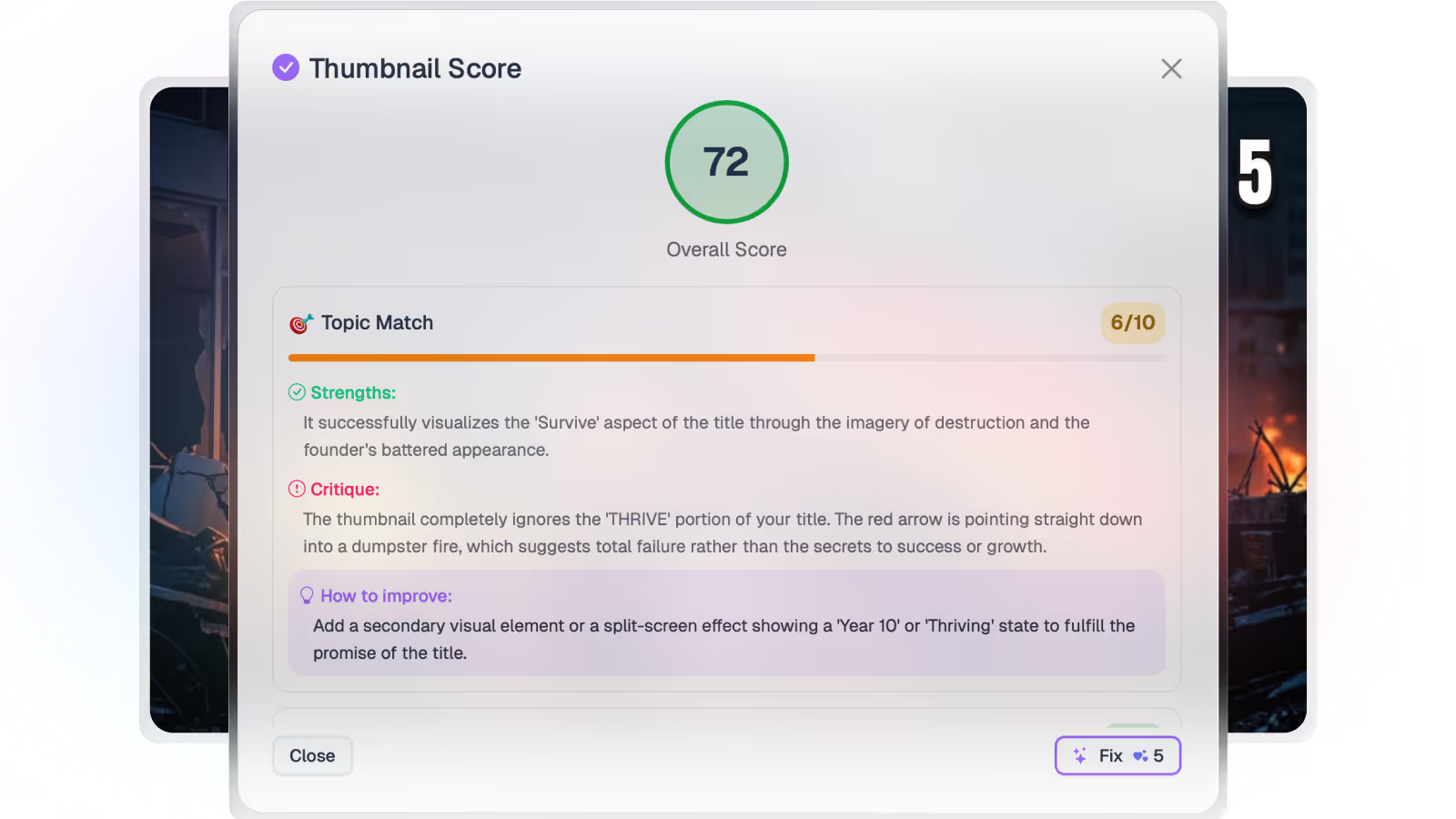
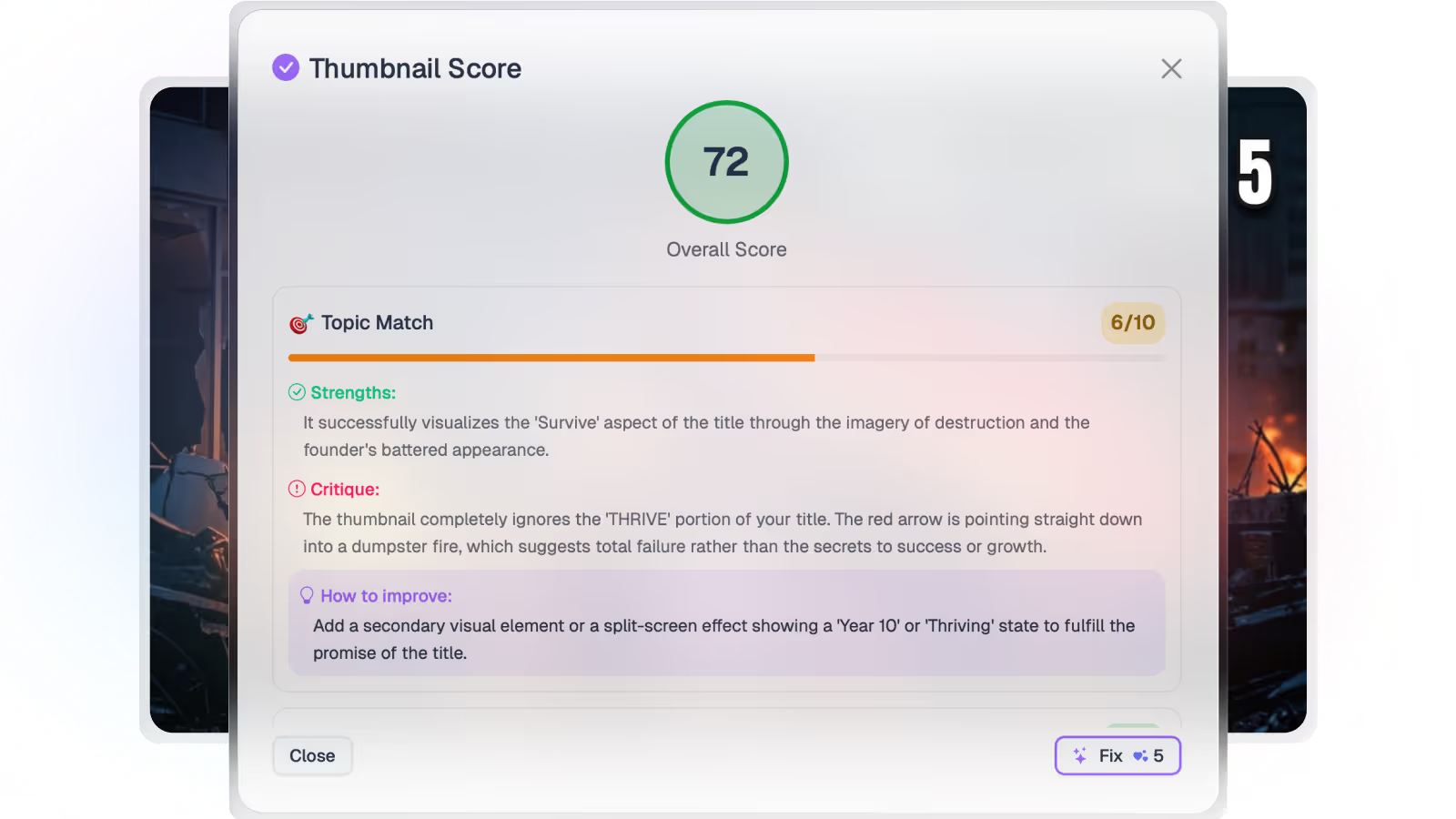
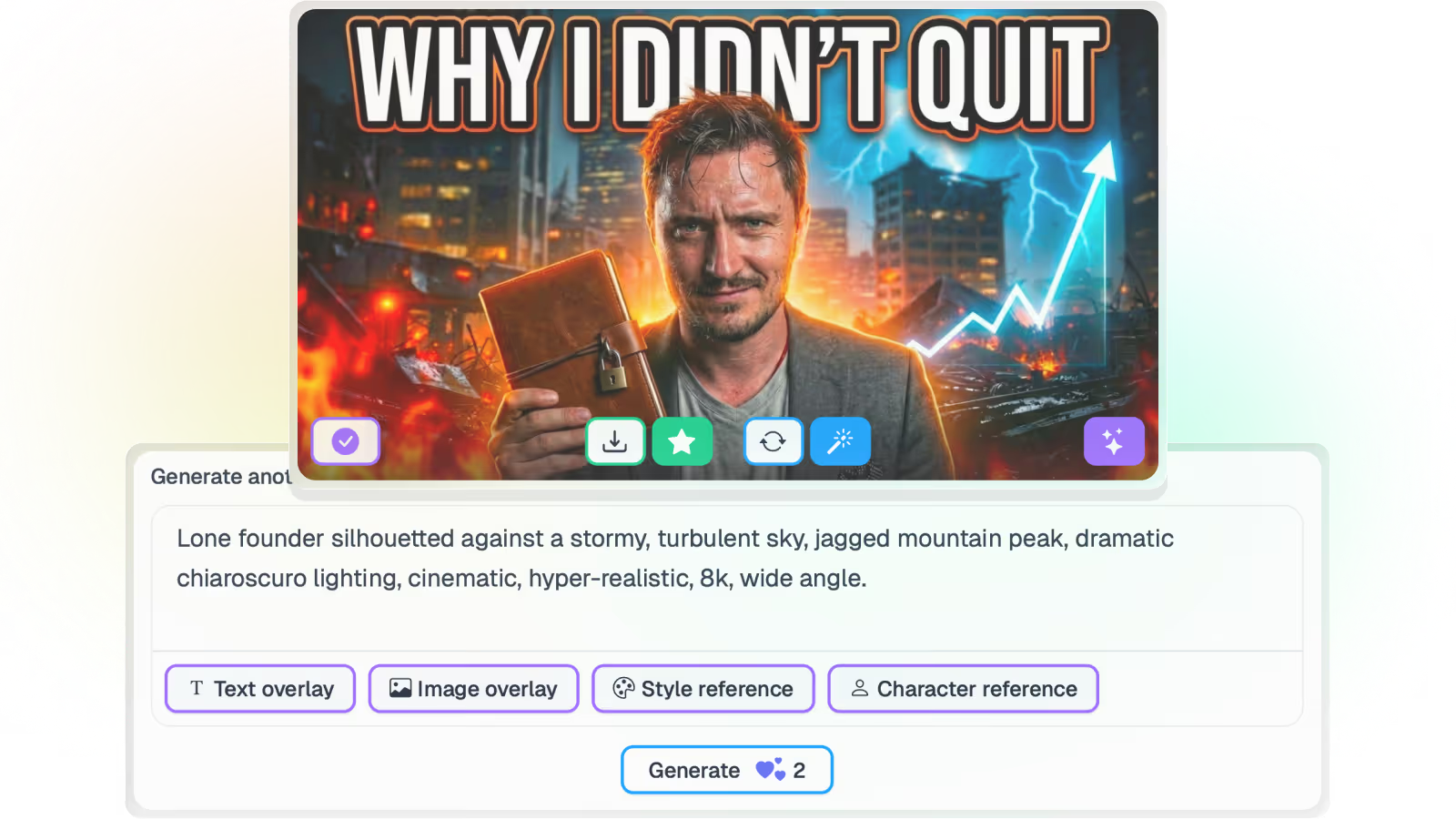
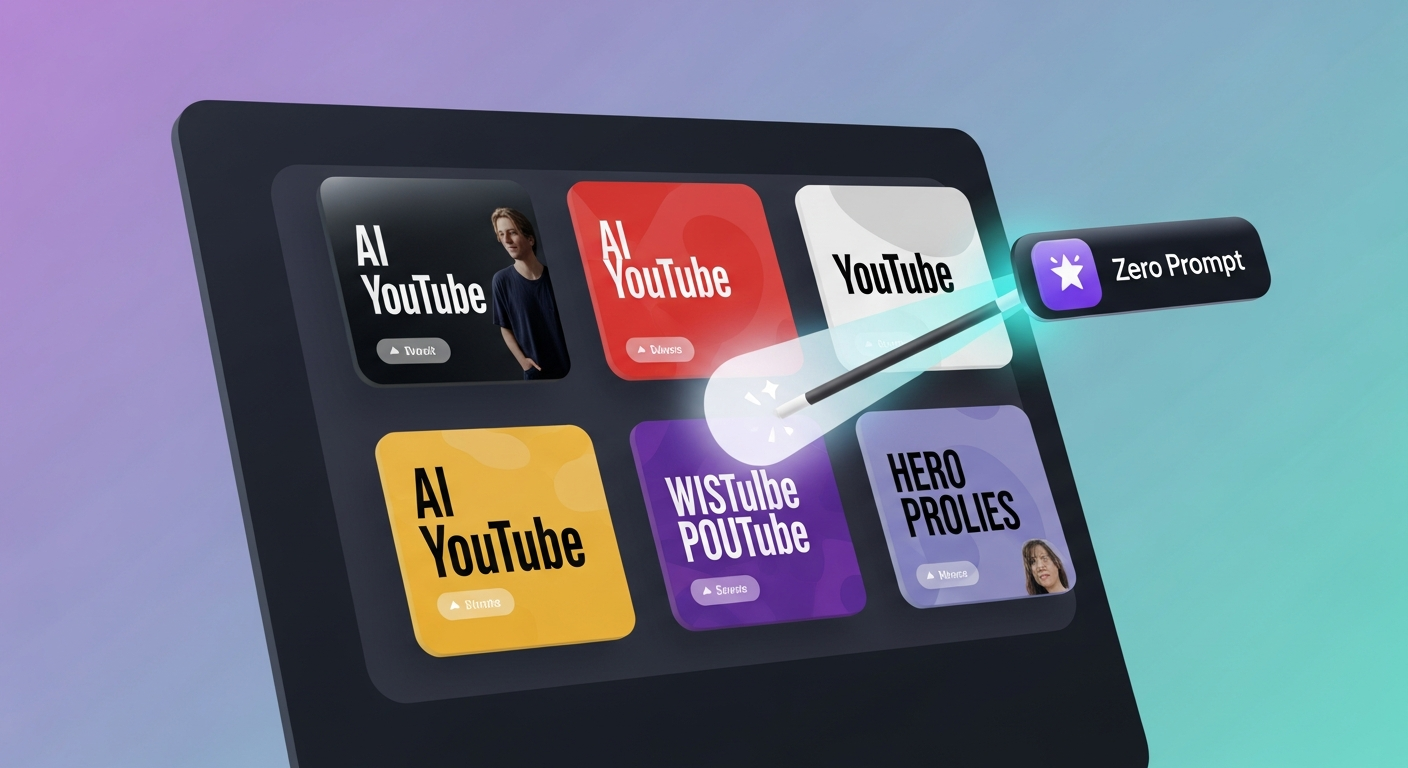
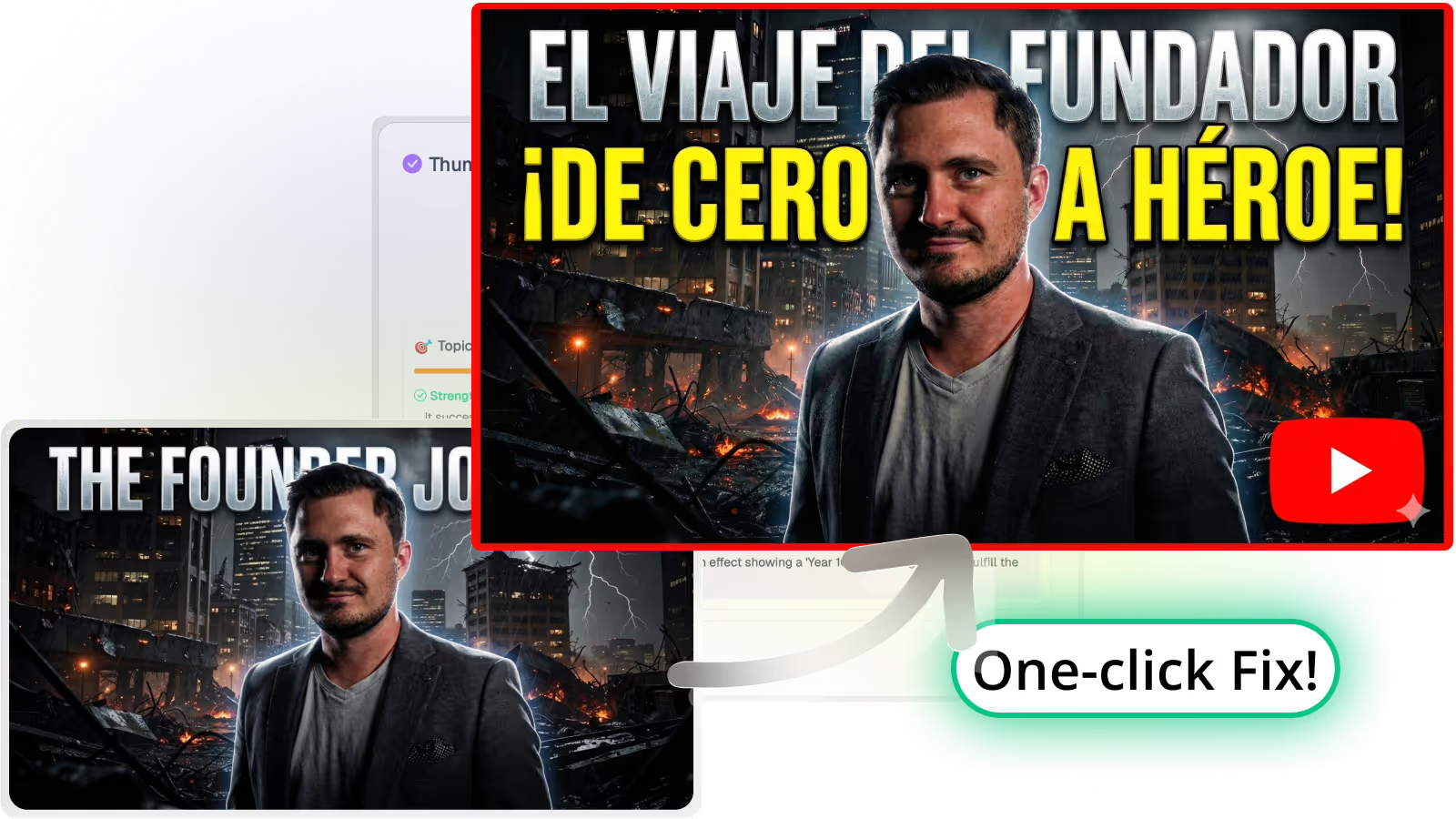
Creates clickable, on-brand YouTube thumbnails directly from your transcript. Instantly score and fix existing designs.
All Features
Features Built for Global Impact
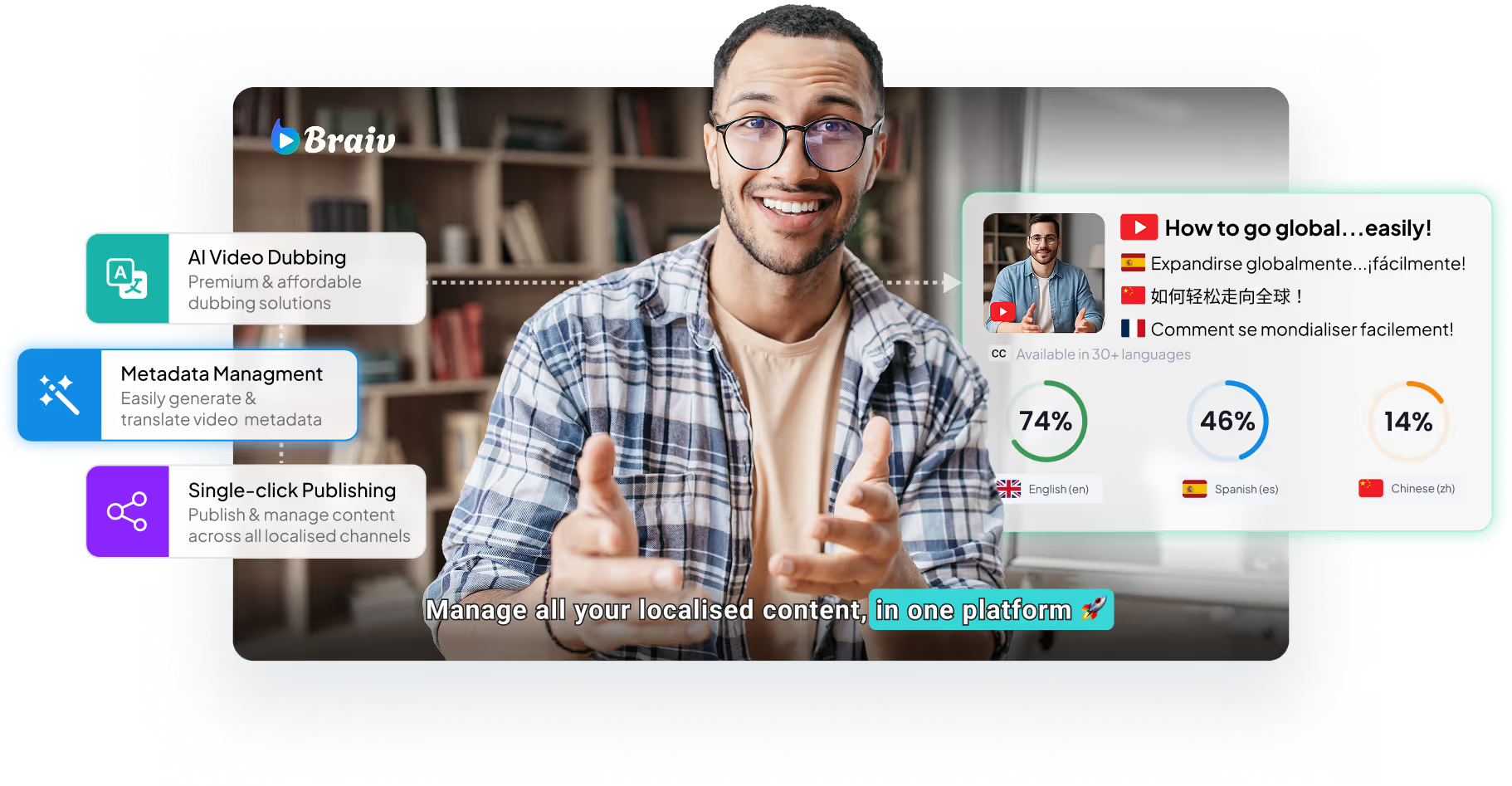
Discover how Braiv simplifies video localization and unlocks global accessibility to save you time, reduce costs, and expand your reach.
Ready to Take Your Content Global?
Join over 100,000 creators scaling their reach with Braiv.
Get 300 AI Credits when you sign up today.
Frequently asked questions
How do I switch between Full View and Split View in the editor?
On the Language and Translations screen under the Braiv studio, you will see a prominent green toggle bar. Simply click on it to switch between Full View (displaying a single language with a dropdown selection) and Split View (displaying original and translated captions side-by-side).
What is the advantage of Split View editing?
Split View allows you to see the original language captions directly alongside the translated captions. This makes it incredibly easy to compare, proofread, and edit translations for perfect nuance, accuracy, and timing before final audio or video generation.
Can I edit transcripts in Full View?
Yes! Full View displays the entire caption block for the active language. You can easily toggle between your uploaded languages using the dropdown selection, making quick edits to any specific language track individually.
How many languages are supported for bilingual subtitles?
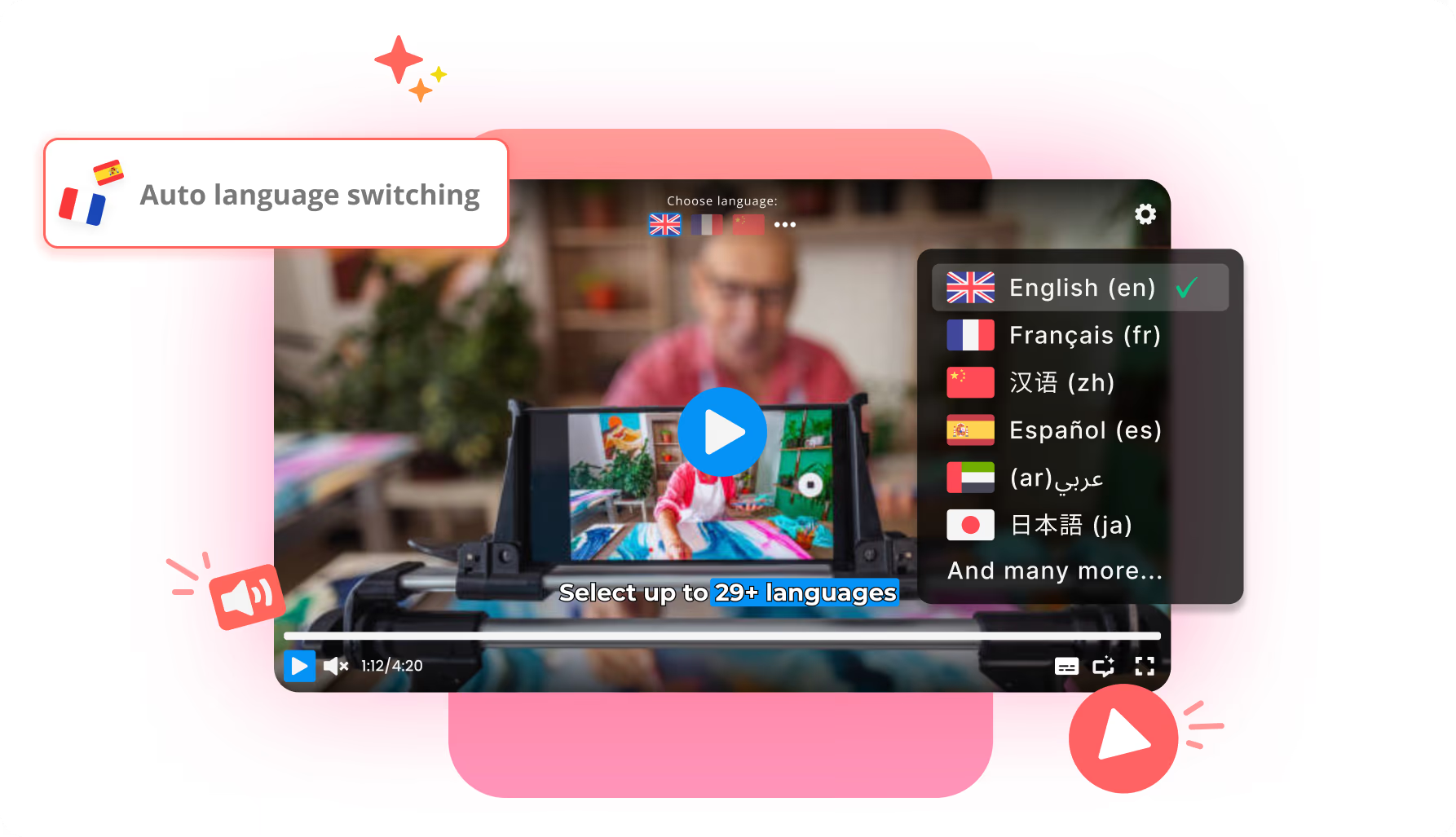
Braiv supports automated transcription and translation for over 80 launch languages, including Spanish, Portuguese, Chinese, Russian, Vietnamese, French, German, Arabic, and Hindi.
Can I download my bilingual subtitles after editing?
Absolutely! Once your edits are complete, you can download your perfectly synchronized captions as standard SRT or VTT files, or export your video with burned-in bilingual subtitles directly.